The orders list
See every order, find one by number, email or customer, filter by status and tag, and fulfil, archive or tag many orders at once.
An order is created when a buyer checks out on your store, or when you complete a draft order. In the sidebar, press Orders to see them all, newest first.
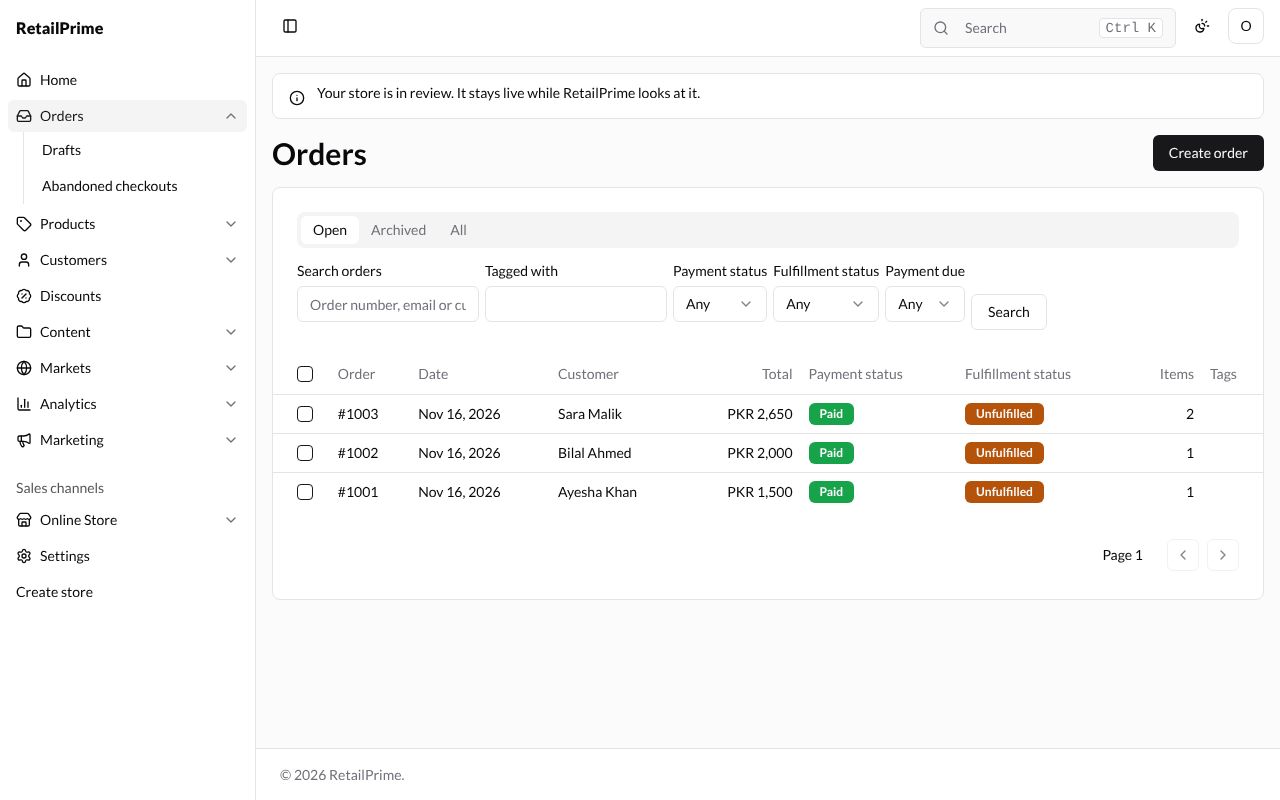
When there are none yet, the list says No orders and Orders appear here when buyers check out or you complete a draft order.
What the list shows
| Column | What it means |
|---|---|
| Order | The order’s number, from #1001 up. Press it to open the order |
| Date | When it was placed |
| Customer | The customer’s name, or the email when there is no customer |
| Total | What the order came to |
| Payment status | Payment pending, Partially paid, Paid, Partially refunded, Refunded or Voided. An order past its due date also shows Overdue |
| Fulfillment status | Unfulfilled, Partially fulfilled or Fulfilled: whether the items were sent |
| Items | How many items are in it |
| Tags | The order’s tags |
Create order at the top right starts a draft order. The list shows 50 orders a page; the arrows next to Page 1 go to the next and previous pages.
Views
The tabs above the list show only some orders:
- Open: every order that is not archived (this is where it starts);
- Archived: only the orders you archived (see Archive orders below);
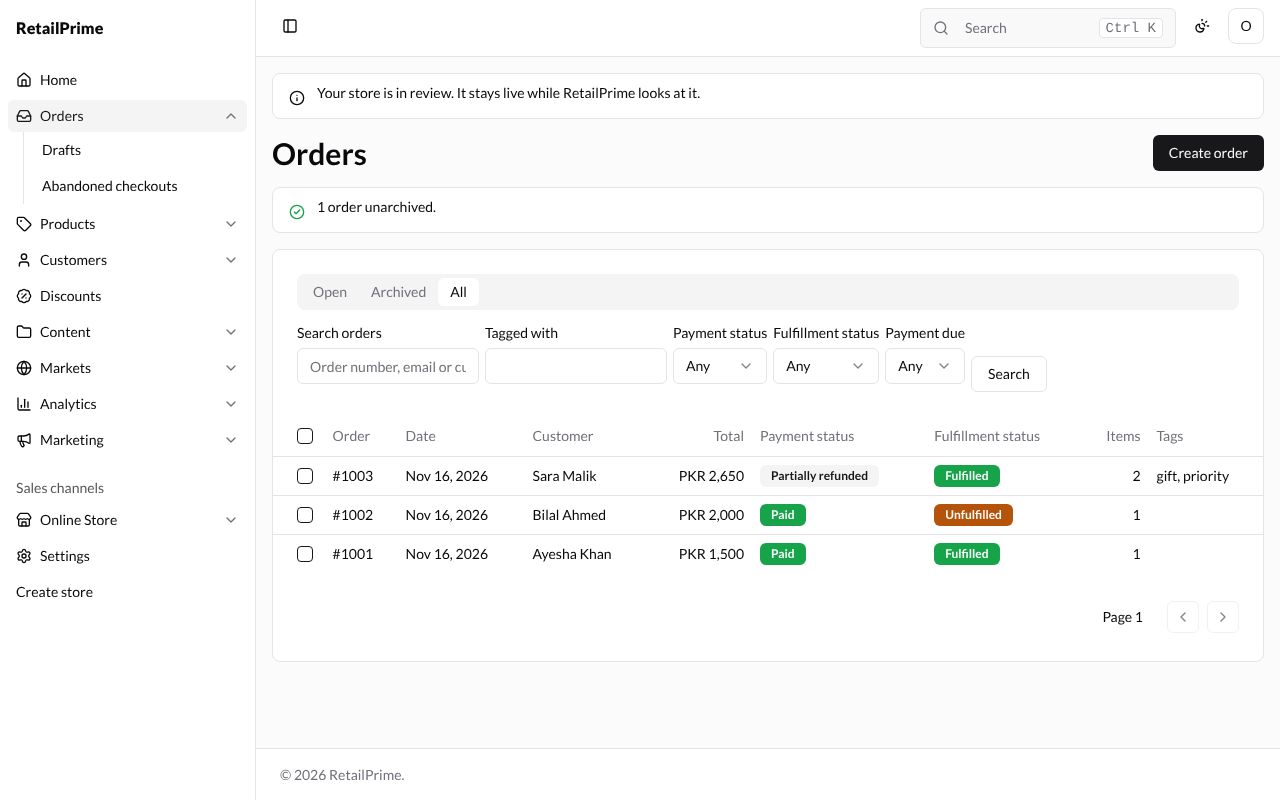
- All: every order.
Search and filters
| Box | What it does |
|---|---|
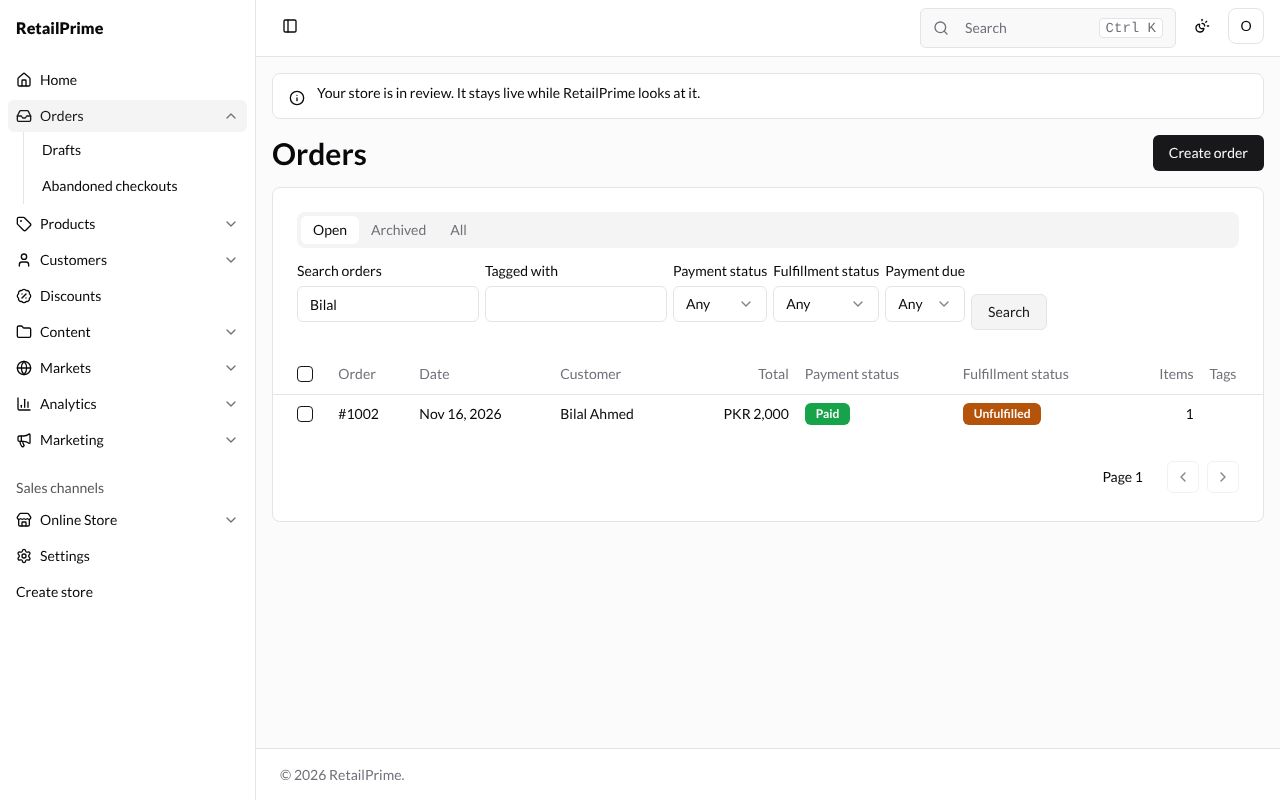
| Search orders | Type an order number, an email or a customer’s name, then press Search or Enter |
| Tagged with | Type a tag, then press Search, to see only orders with that tag |
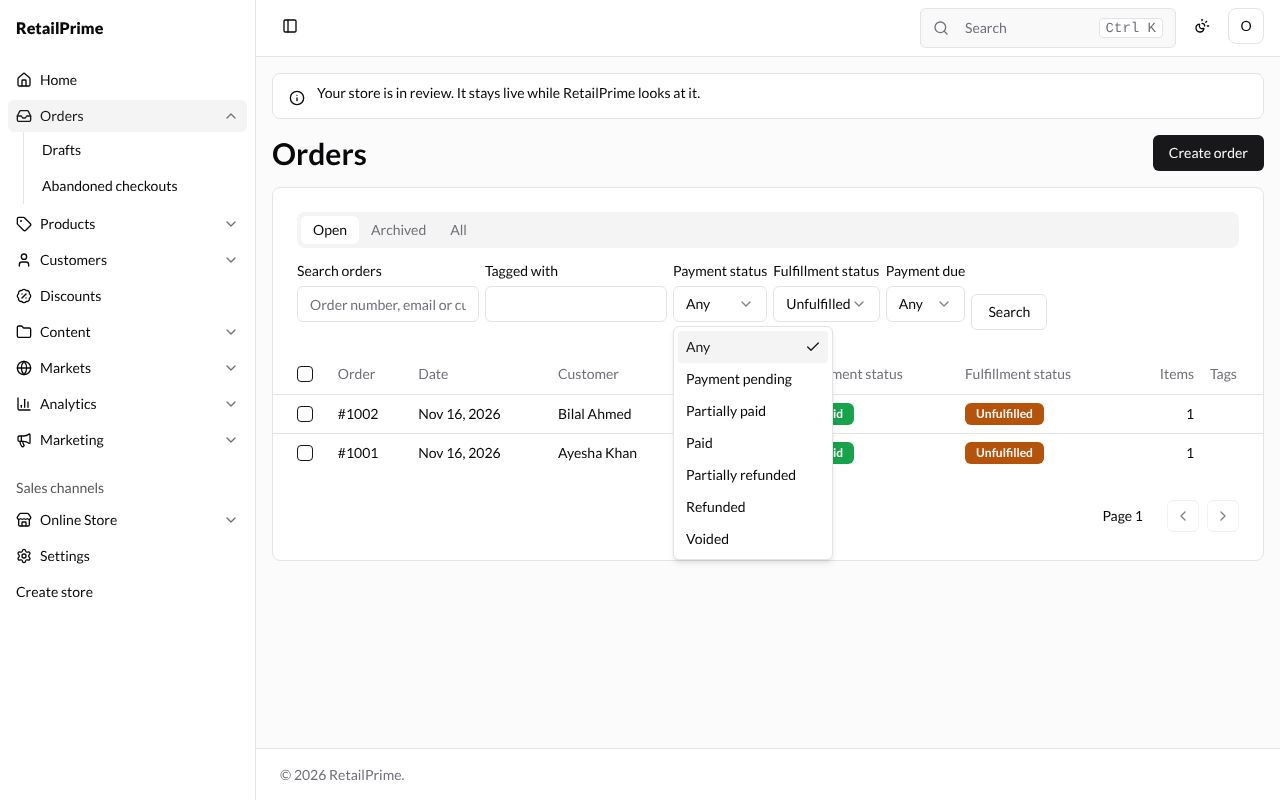
| Payment status | Choose a payment status. The list changes straight away |
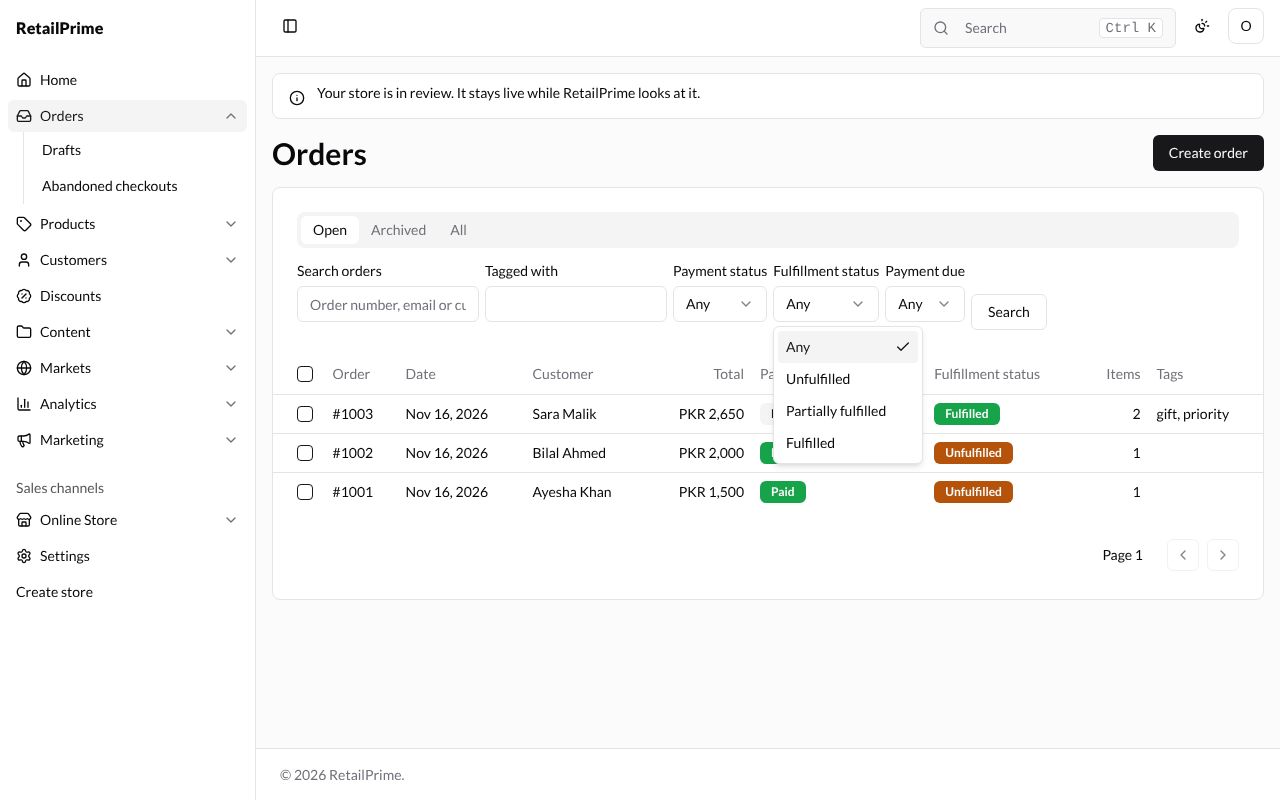
| Fulfillment status | Choose Unfulfilled, Partially fulfilled or Fulfilled. The list changes straight away |
| Payment due | Choose Overdue to see only orders whose payment is late (see Payments and refunds) |
Here, searching for Bilal shows only his order:
The Fulfillment status list:
And the Payment status list, here with Unfulfilled chosen in Fulfillment status:
Choose Any in a filter, and empty the boxes and press Search, to see every order again.
Change many orders at once
- Tick the box at the start of each order you want. The box in the heading row ticks every order on the page.
- A bar appears above the list, saying how many you chose, such as 2 orders selected, with the buttons Mark as fulfilled, Archive, Unarchive, Add tags and Remove tags.
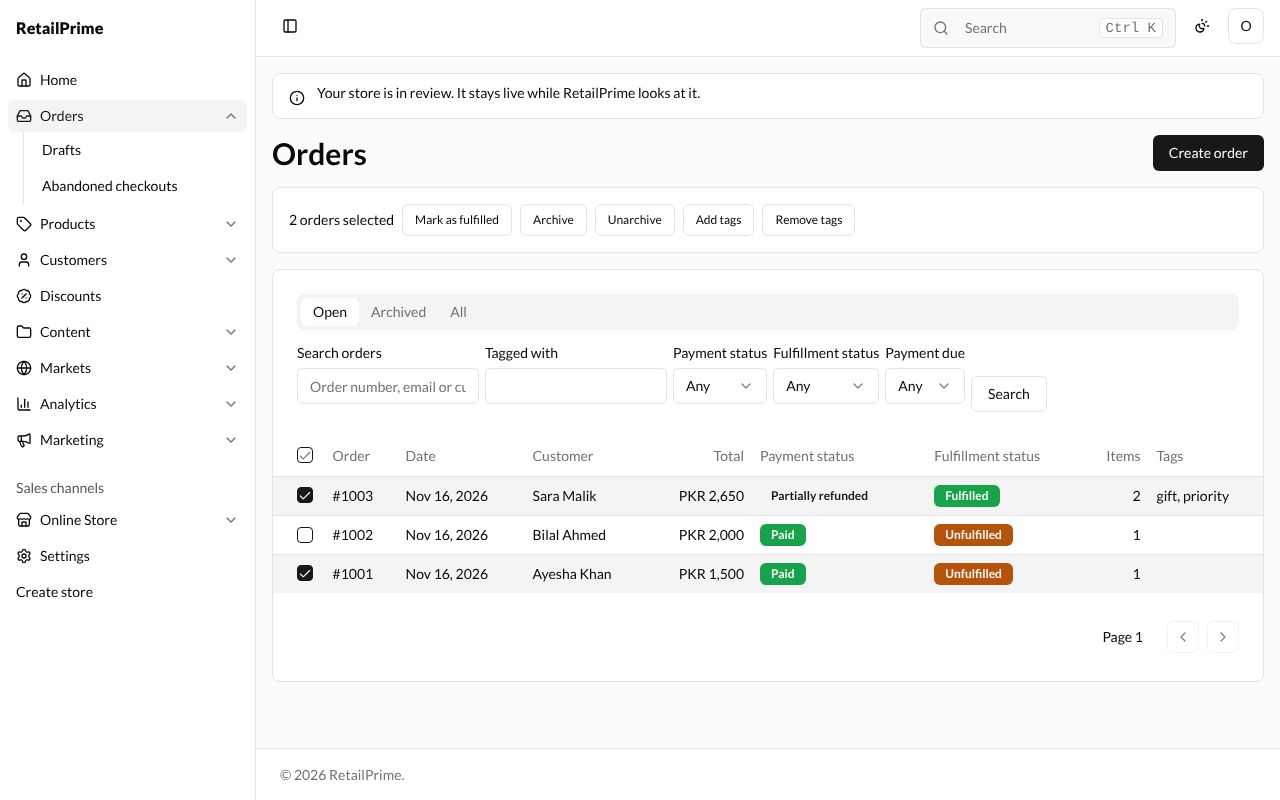
Each button opens a box. After you confirm, the box shows what was done, and Done closes it.
Mark as fulfilled
- Press Mark as fulfilled.
- The box asks, for example, Mark 2 orders as fulfilled? It says every unfulfilled item is fulfilled from its location, without tracking, and that cancelled and fulfilled orders are skipped.
- Tick Send shipping confirmation to email each buyer that their items are on the way.
- Press Mark as fulfilled.
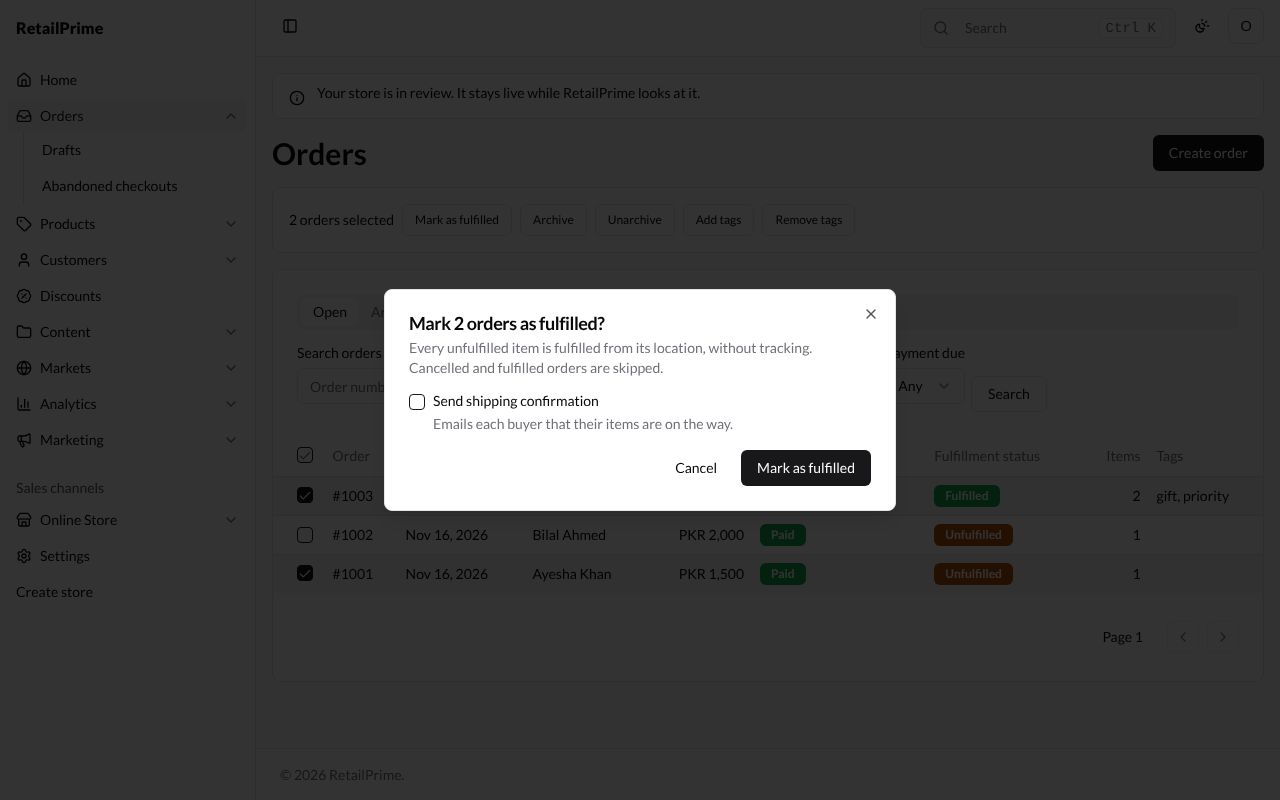
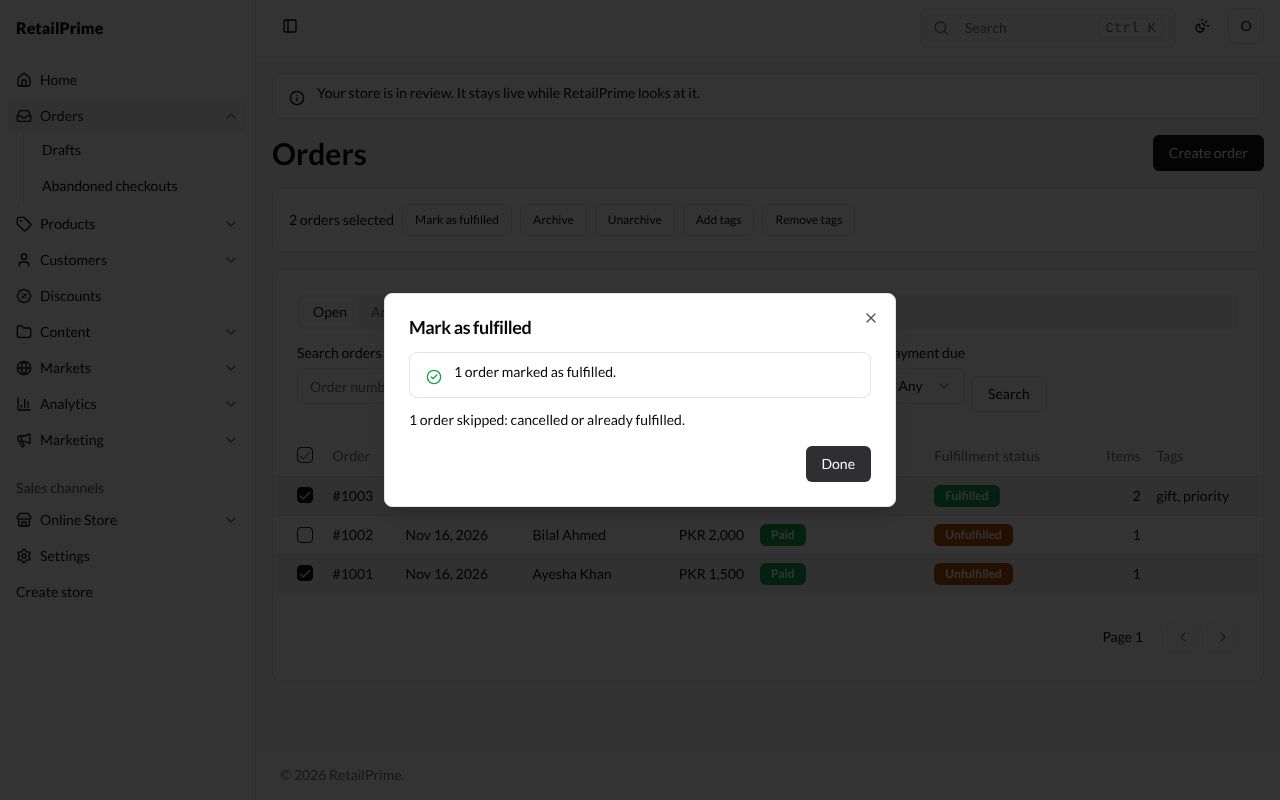
The box says what happened. Here #1003 was already fulfilled, so: 1 order marked as fulfilled. and 1 order skipped: cancelled or already fulfilled. When an order could not be fulfilled for another reason, it is listed with the problem. Press Done.
To fulfil an order with tracking, do it from the order’s page: see Fulfil and deliver.
Add or remove tags
- Press Add tags.
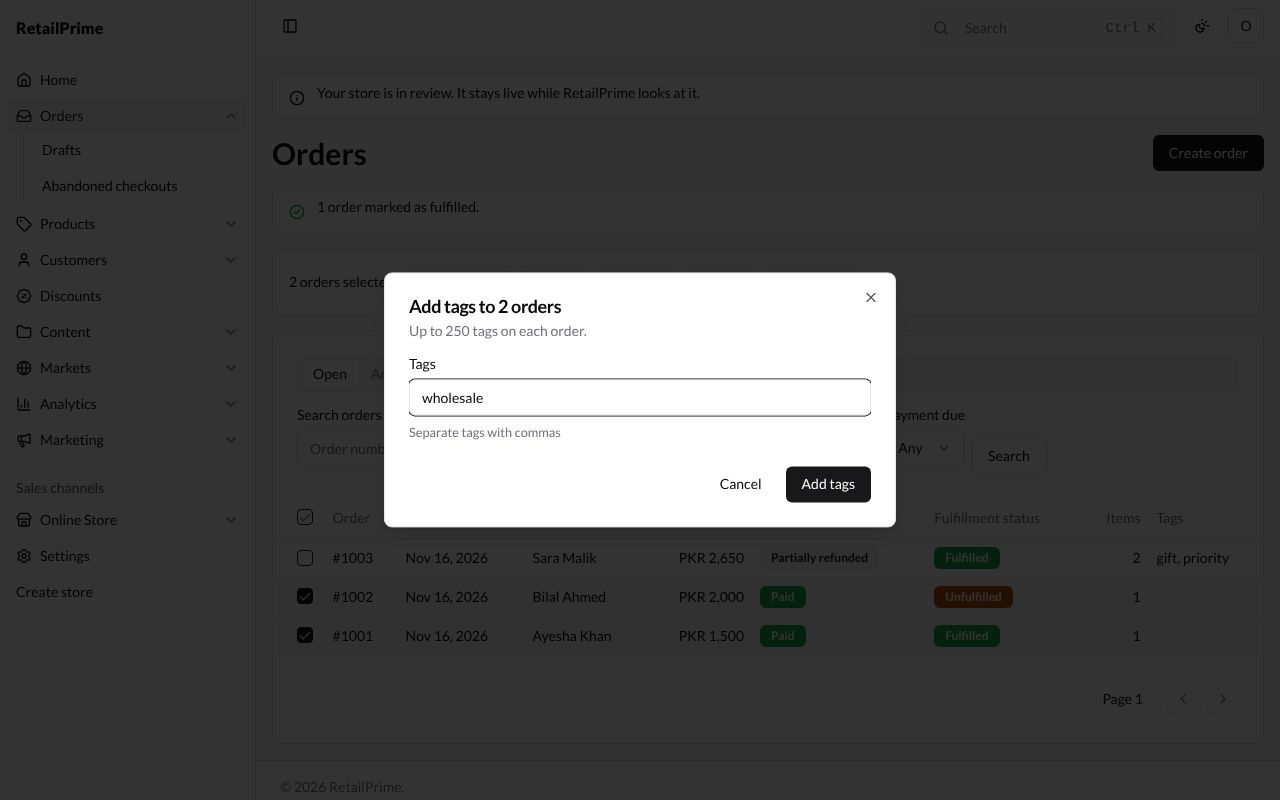
- The box, such as Add tags to 2 orders, says each order can have up to 250 tags. Type the tags in Tags, separated by commas, such as
wholesale. - Press Add tags, then Done. The list says Tags added to 2 orders.
Now type wholesale in Tagged with and press Search to see only those orders:
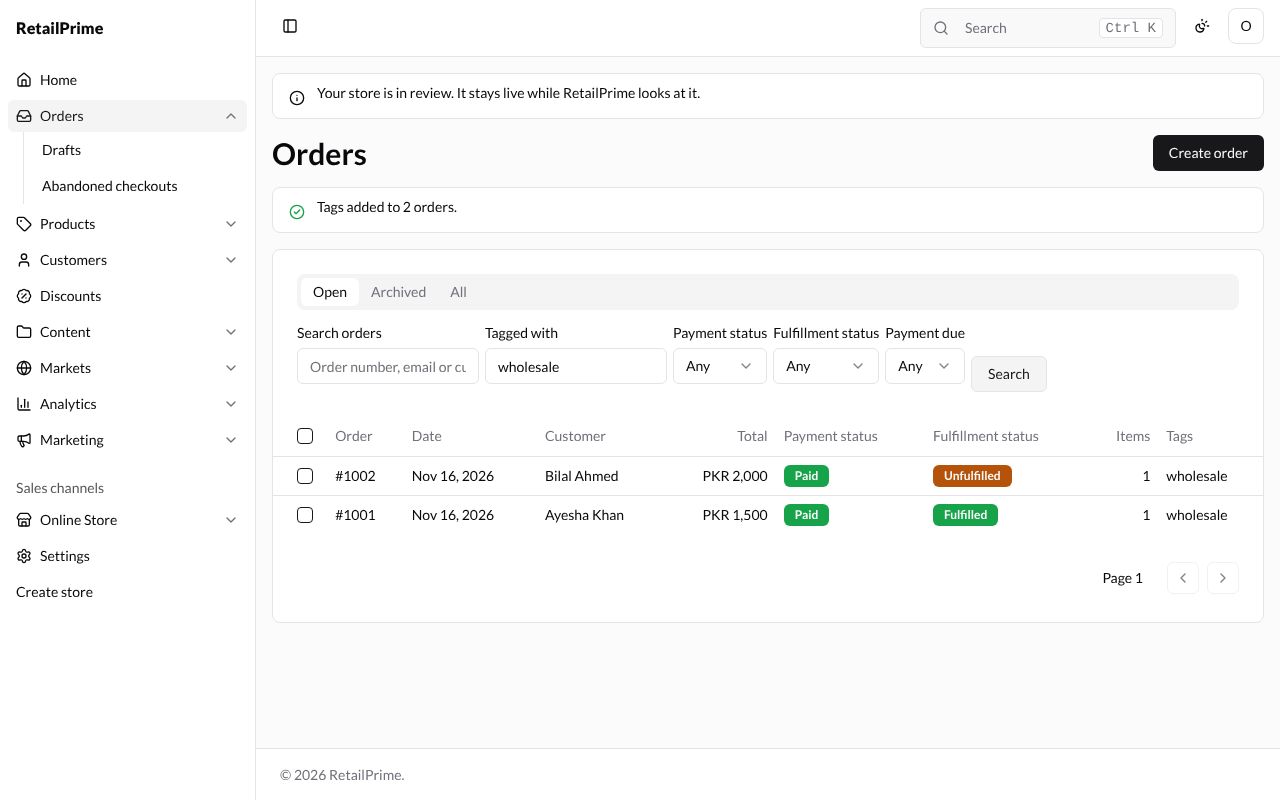
Remove tags works the same way: each tag you type is taken off the orders that have it.
Archive and unarchive orders
Archive tidies the Open view: an archived order moves to the Archived view. Nothing else about it changes.
- Tick the orders and press Archive.
- The box, such as Archive 1 order?, says archived orders move out of the Open view.
- Press Archive, then Done.
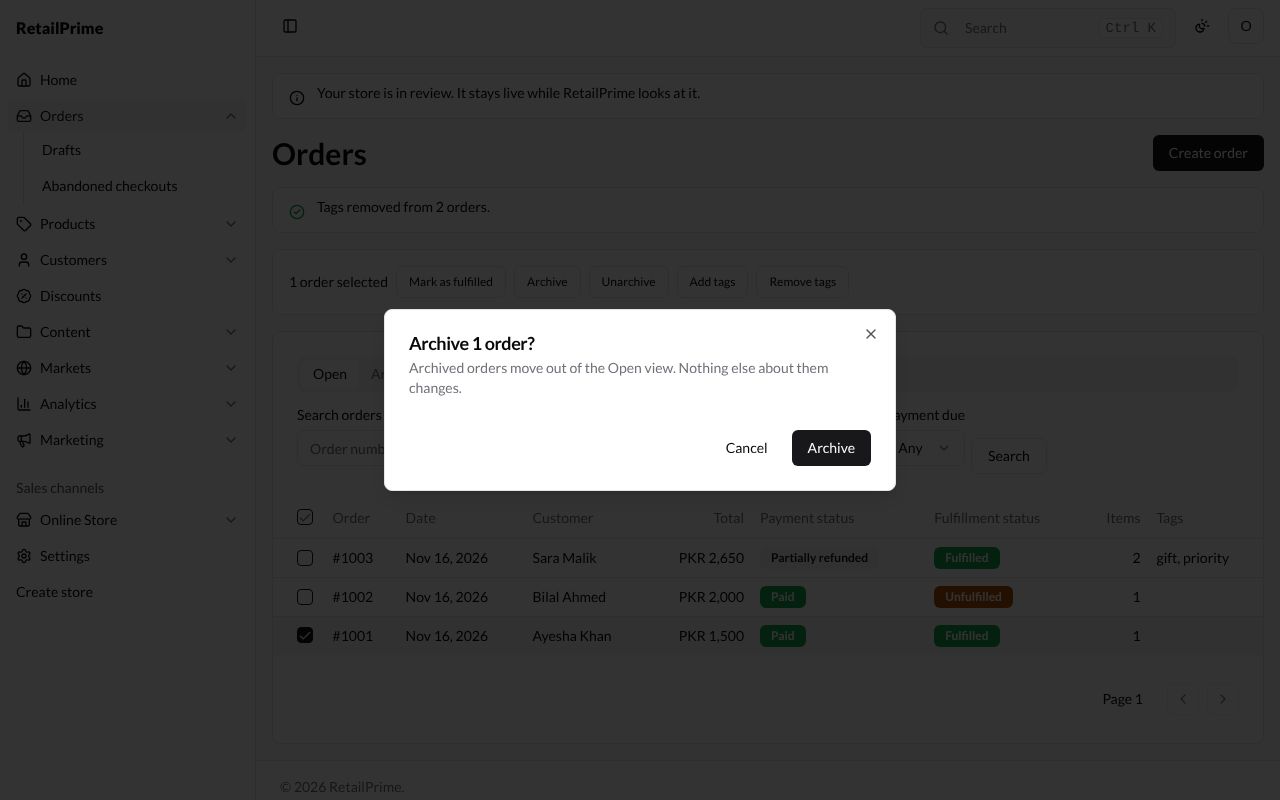
The order leaves the Open view. Press Archived to see it. When there are none, this view says No archived orders.
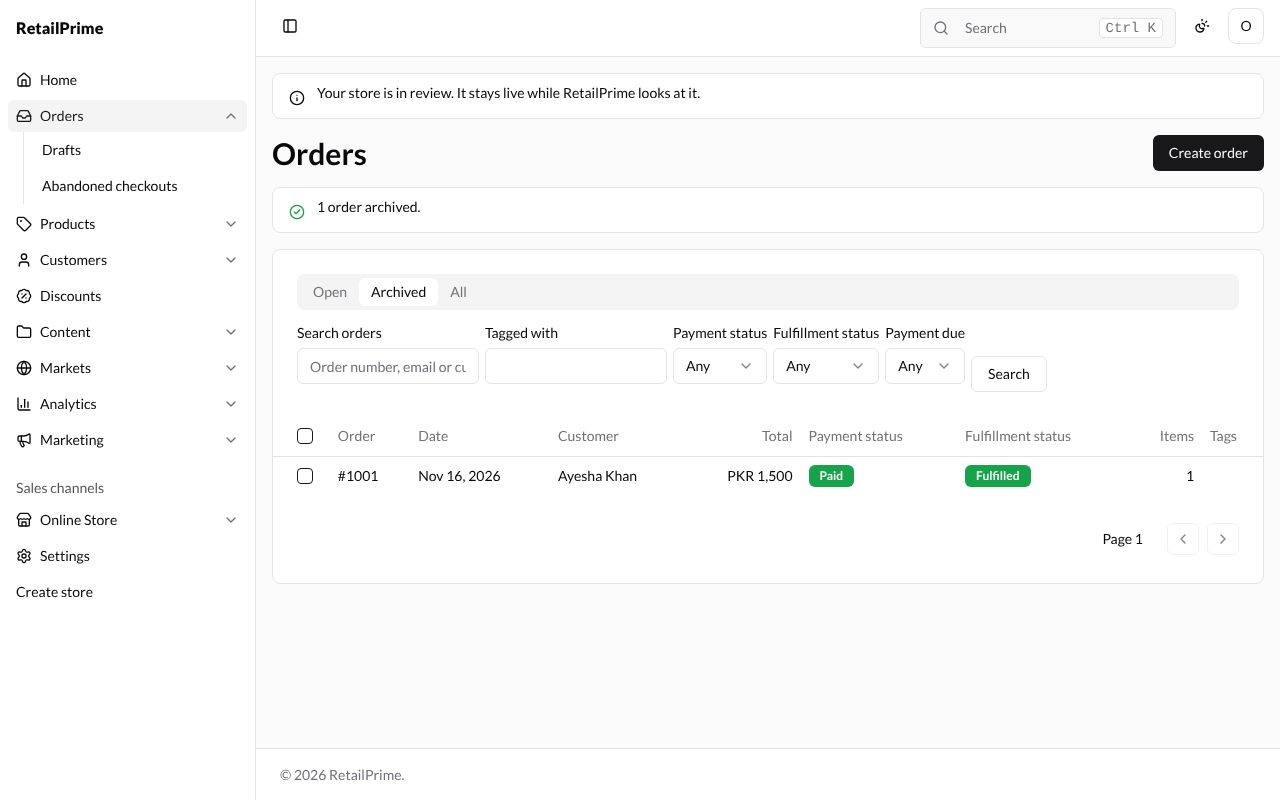
To bring orders back, tick them in the Archived view, press Unarchive, then Unarchive in the box and Done. They return to the Open view. The All view shows every order, archived or not:
You can also archive one order from its own page: see An order’s page.
What’s next
An order’s page: everything about one order.