Fulfil and deliver
Mark an order's items as sent with their tracking, change the tracking later, and record when they were delivered.
Fulfilling an order means sending its items. You record it in RetailPrime so you, and the buyer, know the parcel is on its way.
Fulfil items
- Open the order. The card Unfulfilled · Shop location lists the items still to send from that location.
- Press Fulfill items on that card.
- The Fulfill items box opens. It says which location the items go From.
| Box | What to type | Example |
|---|---|---|
| Quantity of … (of 2) | How many of each item you are sending now. It starts at everything left. Send fewer to fulfil part of the order | 2 |
| Tracking company | The courier | TCS |
| Tracking number | The parcel’s tracking number | 771234 |
| Tracking URL | The courier’s page where the parcel can be followed | https://tracking.example.com/771234 |
| Notify customer | Ticked: the buyer gets an email that their items are on the way | Leave it ticked |
The tracking boxes can stay empty.
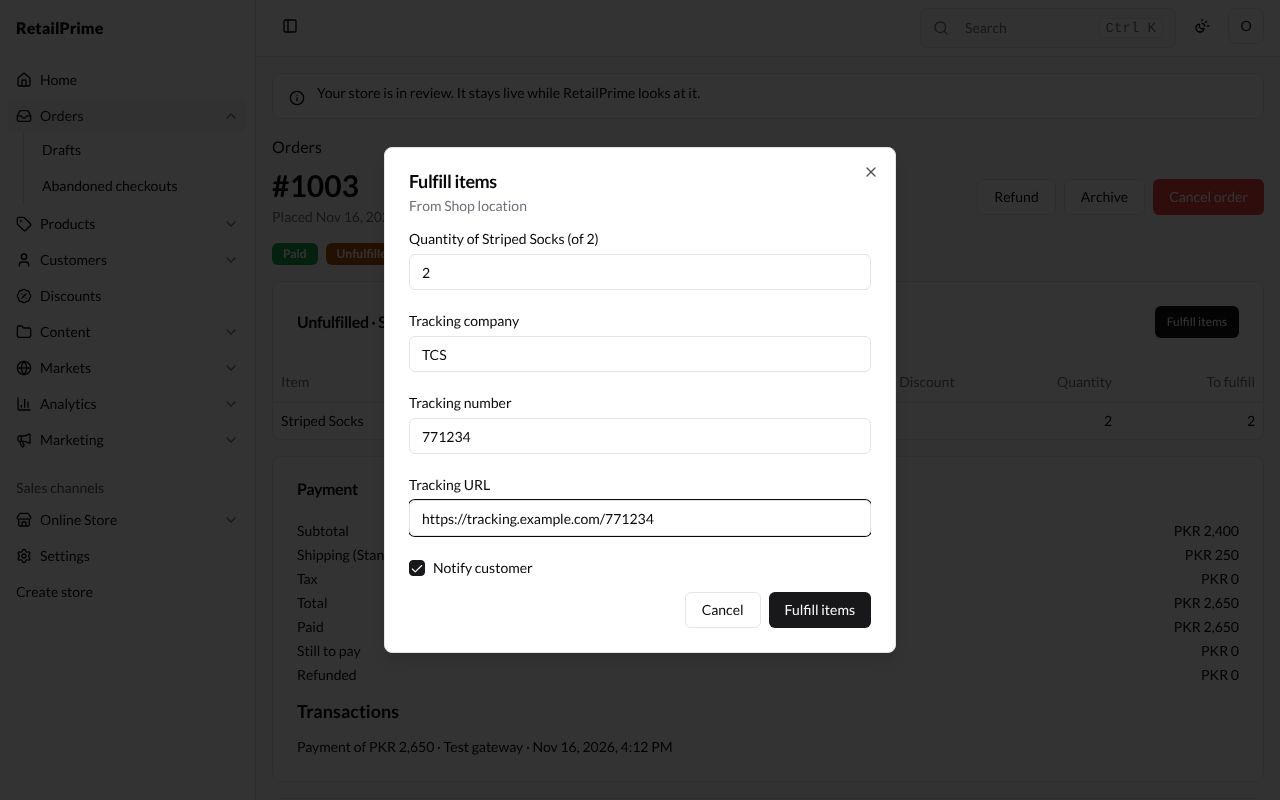
- Press Fulfill items.
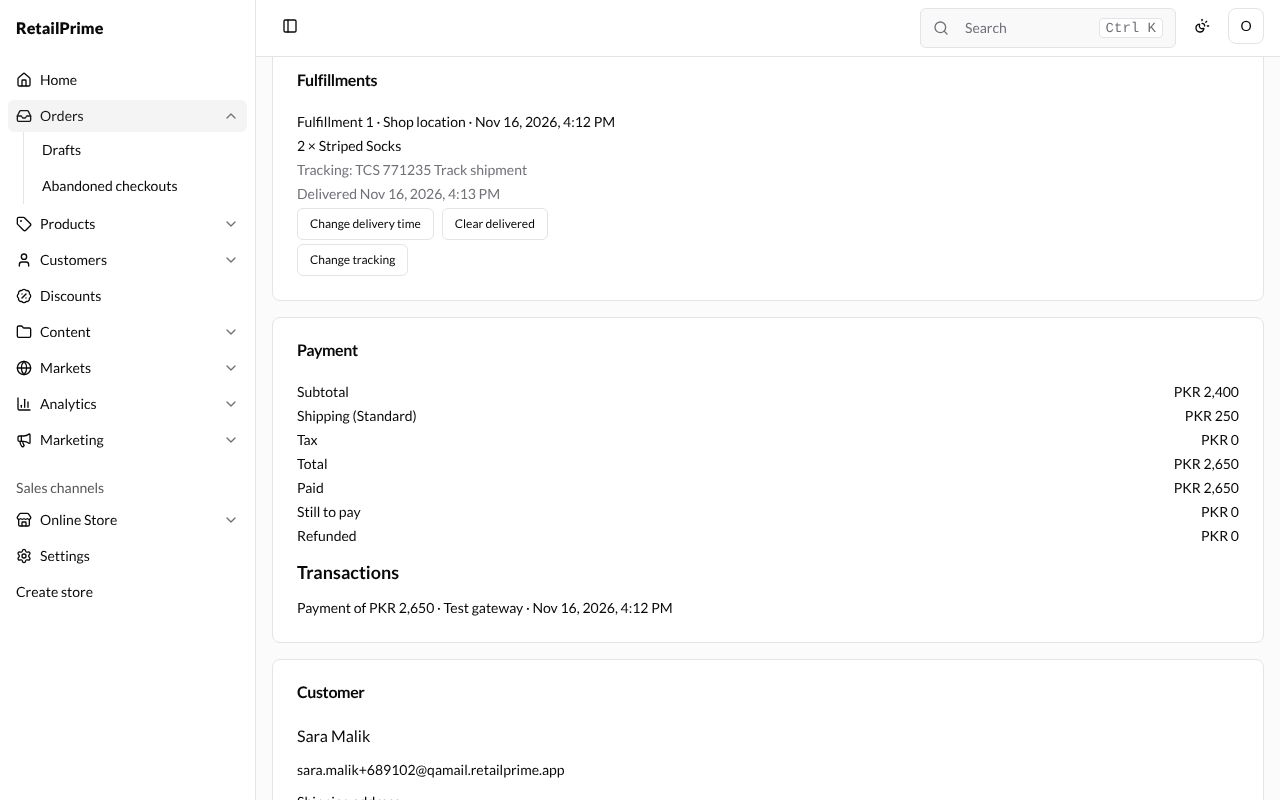
The order is now Fulfilled (or Partially fulfilled when items are left). The card is titled Fulfilled or removed, and a new Fulfillments card shows the shipment: its number, location and time, the items in it, and its tracking with a Track shipment link that opens the tracking URL.
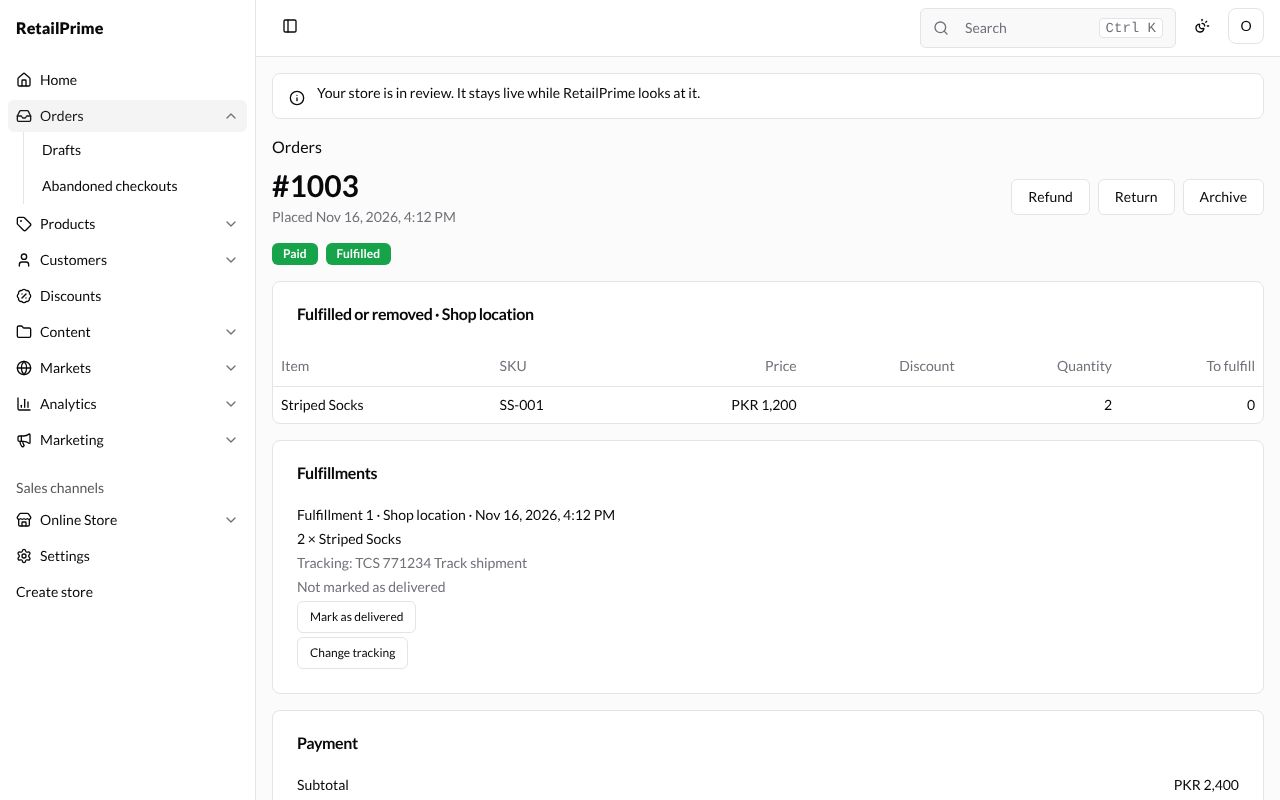
Add or change tracking
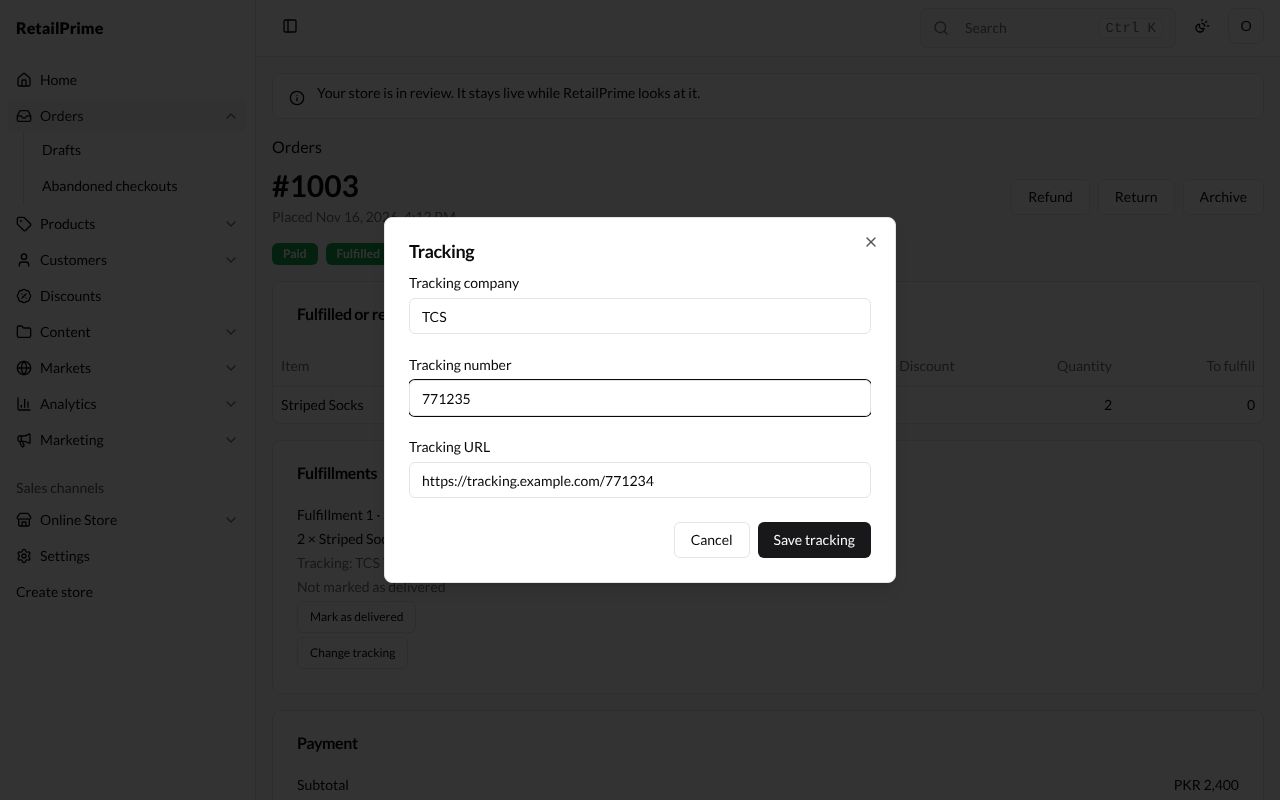
Press Change tracking under the shipment (it says Add tracking when there is none). The Tracking box has the same Tracking company, Tracking number and Tracking URL. Change them, here the number to 771235, and press Save tracking.
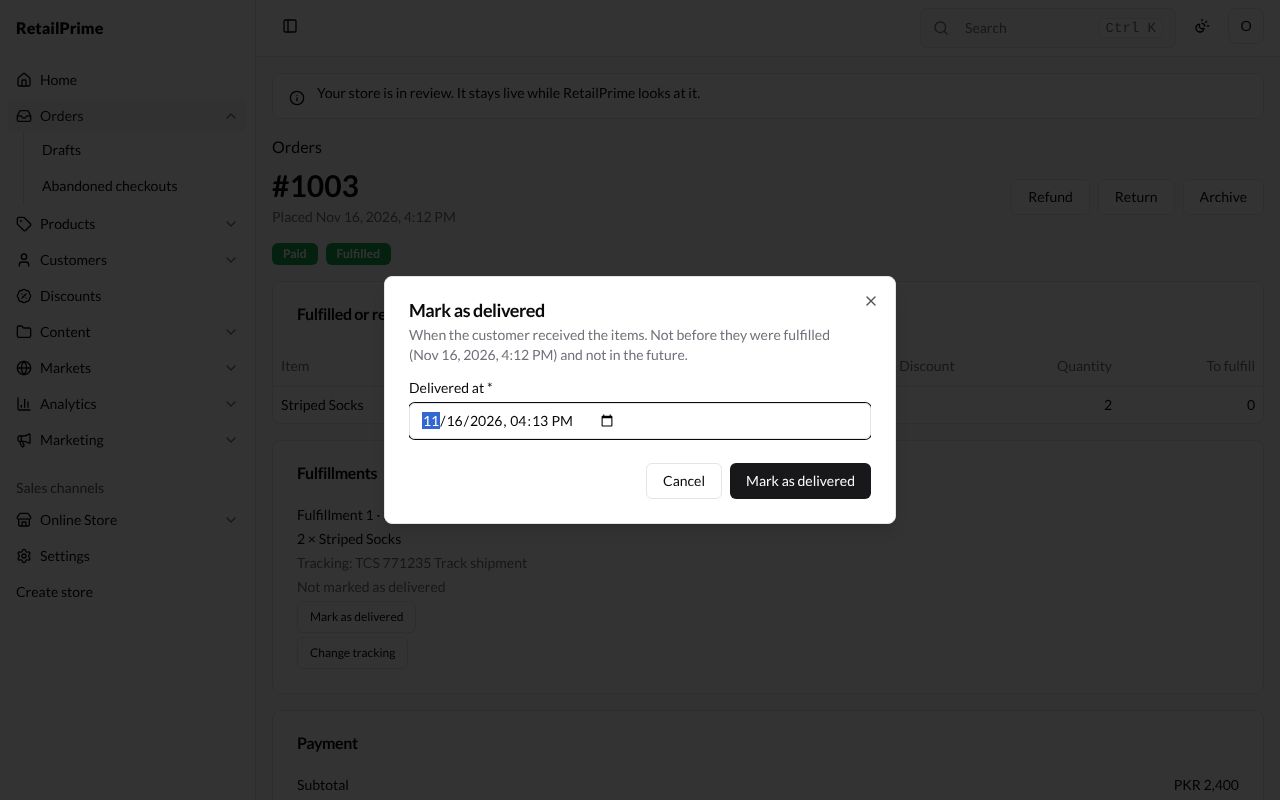
Mark as delivered
When the buyer has the parcel, record it:
- Under the shipment, press Mark as delivered.
- The Mark as delivered box asks when the customer received the items. It says the time can’t be before they were fulfilled (it shows when that was) and can’t be in the future.
- Delivered at * starts at the time now. Change it if they received it earlier.
- Press Mark as delivered.
The shipment now says Delivered with the time, and has two more buttons: Change delivery time opens the same box to fix the time, and Clear delivered takes the mark off.
For an order the buyer picks up from your shop, the buttons say Mark as picked up, Change pickup time and Clear picked up instead.
What’s next
Payments and refunds: take a payment later, and give money back.