Payments and refunds
Record a payment on an order that is paid later, ask the buyer to pay, mark it as paid, and refund money.
Most orders are paid at checkout. An order can also be paid later: for example a draft order marked as payment pending, or an order of a company with payment terms. This page shows how to take those payments and how to give money back.
An order still to be paid
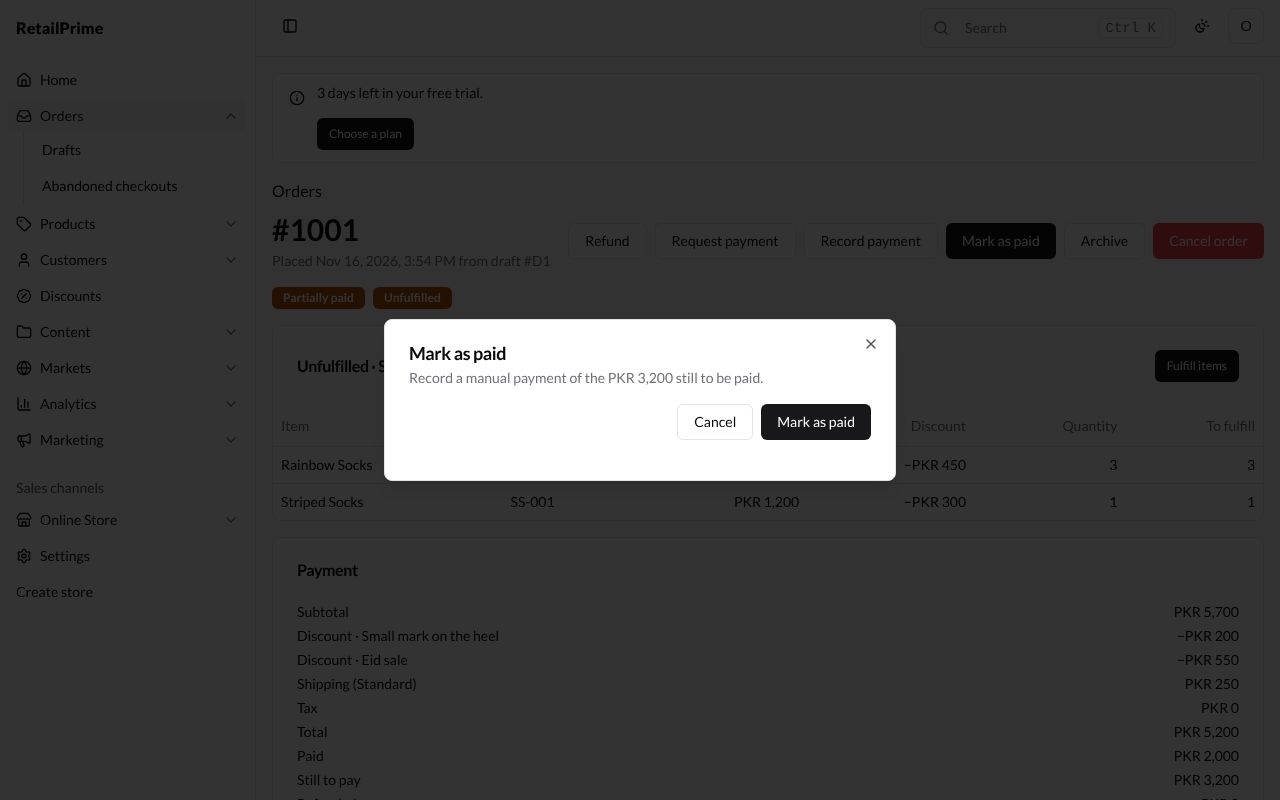
Here is order #1001, made from a draft marked as payment pending with Net 15 days. Its label says Payment pending, and the top right has three more buttons: Request payment, Record payment and Mark as paid.
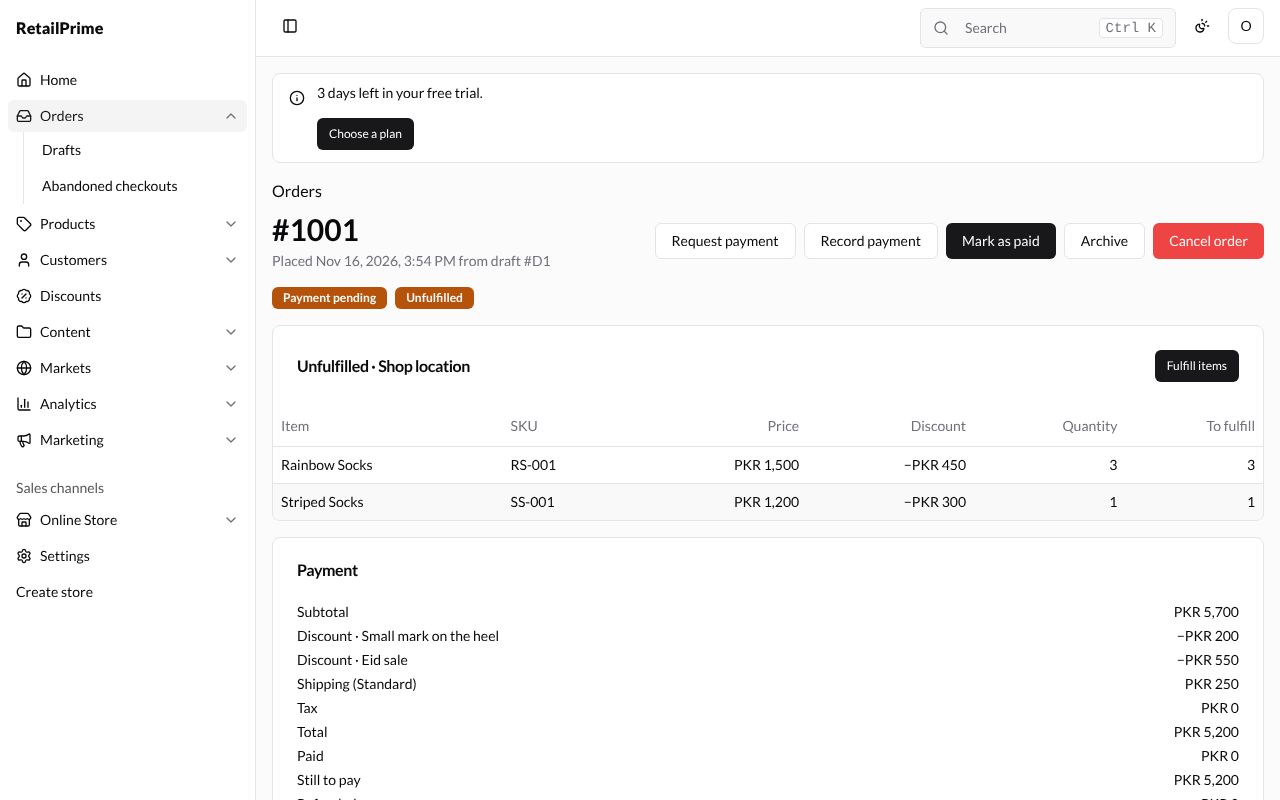
The Payment card says Payment terms: Net 15 days · due and the date it is due. Once that date has passed with something still to pay, the order is Overdue: it gets an Overdue label, and Payment due → Overdue on the orders list finds it.
Record a payment
When the buyer pays part (or all) of it outside your store, for example by bank transfer:
- Press Record payment.
- The Record payment box says how much is still to be paid.
| Box | What to type | Example |
|---|---|---|
| Amount (PKR) | How much they paid. It starts at everything still to pay | 2000 |
| Payment method | How they paid: one of your store’s manual payment methods, or Other | Other |
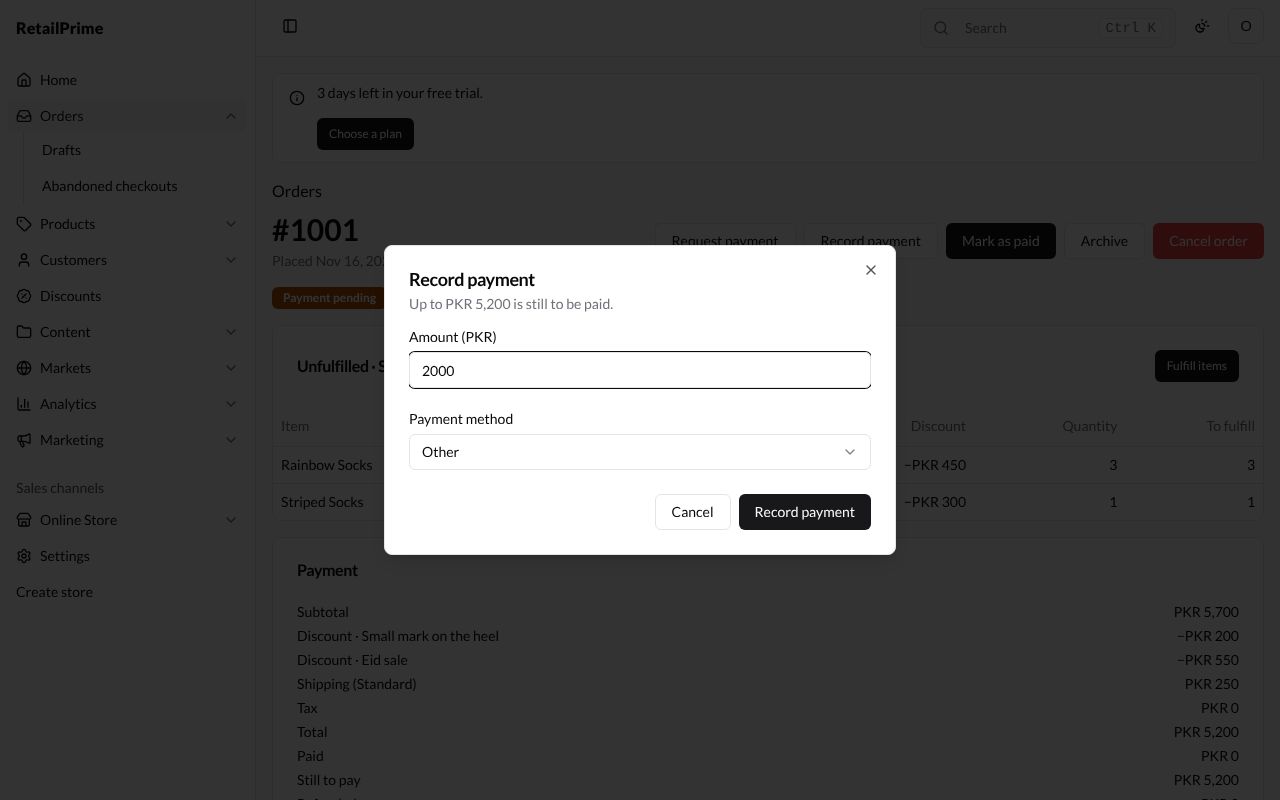
- Press Record payment.
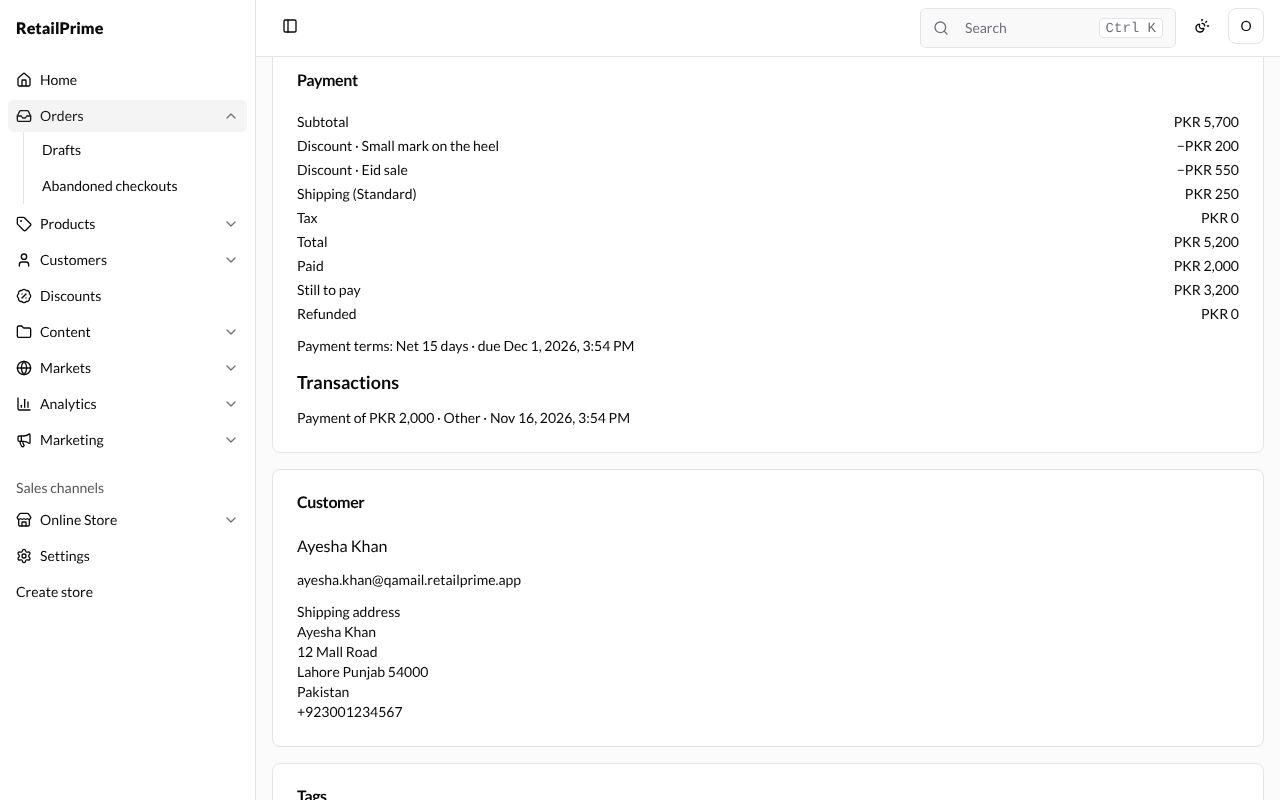
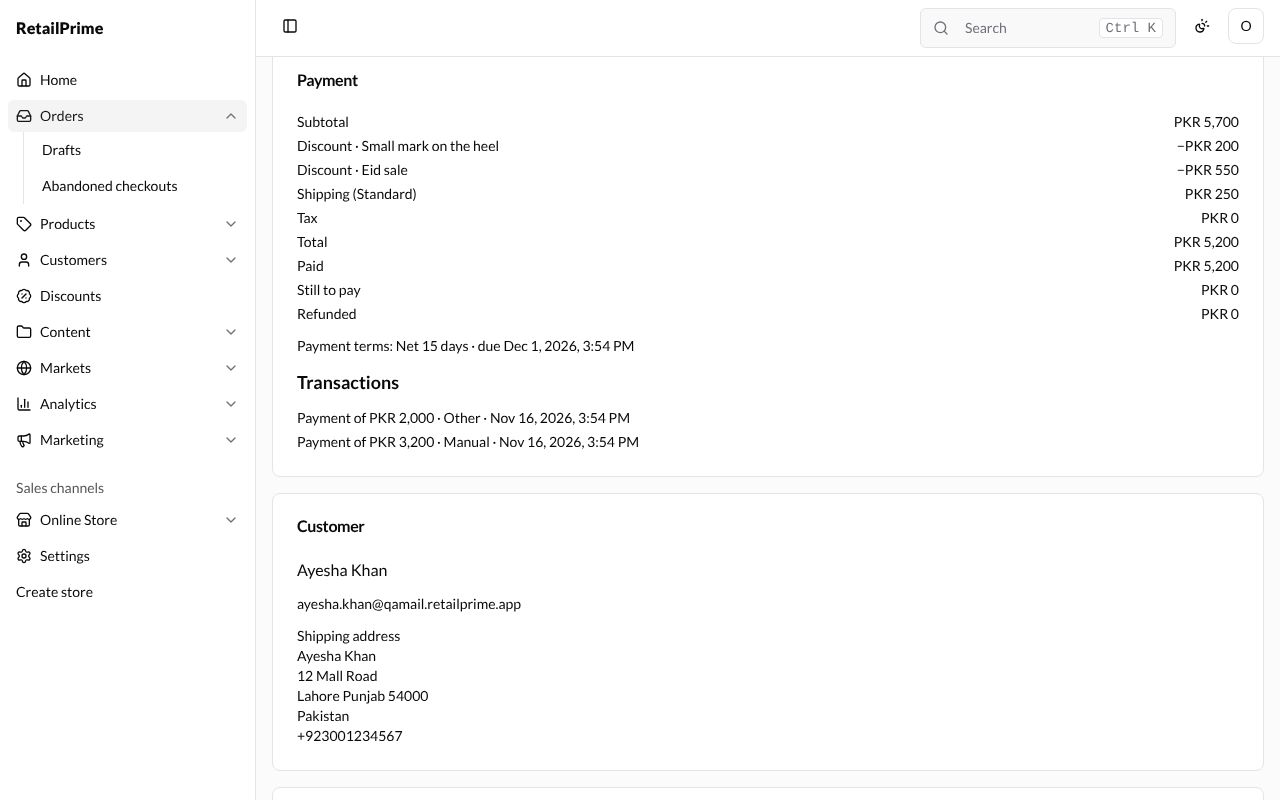
The order is now Partially paid. The Payment card shows what is Paid and Still to pay, and the payment is listed under Transactions with its method.
Request payment
To ask the buyer to pay the rest online:
- Press Request payment. (It is greyed out when the order has no email.)
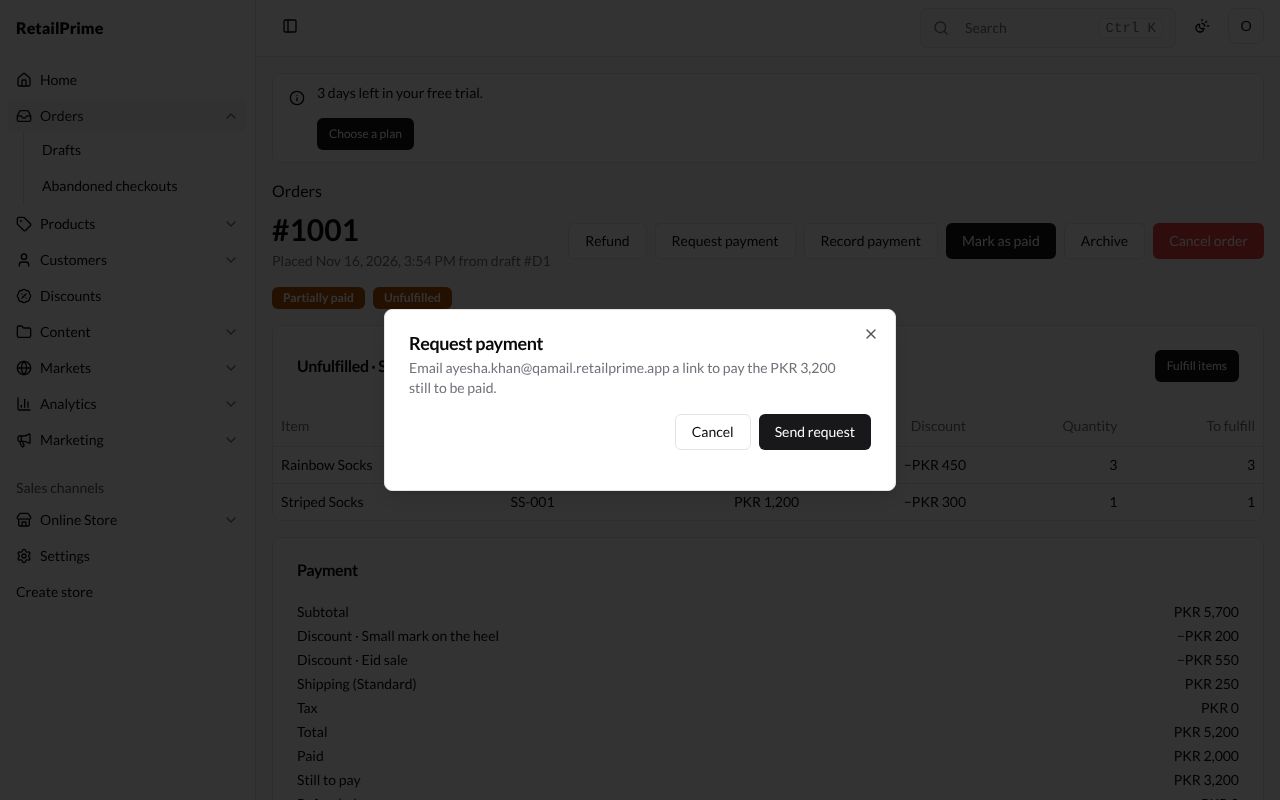
- The box says it emails the buyer a link to pay what is still to be paid.
- Press Send request.
Mark as paid
When the buyer has paid everything outside your store:
- Press Mark as paid.
- The box says it records a manual payment of what is still to be paid.
- Press Mark as paid.
The order is now Paid, with nothing still to pay. The payment shows under Transactions as Manual.
Refund money
- On the order, press Refund at the top right.
- The Refund box says how much can be refunded.
| Box | What it’s for | Example |
|---|---|---|
| Refund quantity of … (of 1) | How many of each item to refund | 0 |
| Restock items | Ticked: refunded items go back into your stock | Leave it ticked |
| Shipping to refund (PKR) | How much of the shipping to give back | 250 |
| Reason (optional) | Why. It shows on the order | Late delivery |
| Refund to store credit | Ticked: the money goes to the customer’s store credit instead of back to how they paid. For a company location’s order, it says the location’s name | Leave it empty |
| Notify customer | Ticked: the buyer gets an email about the refund | Leave it ticked |
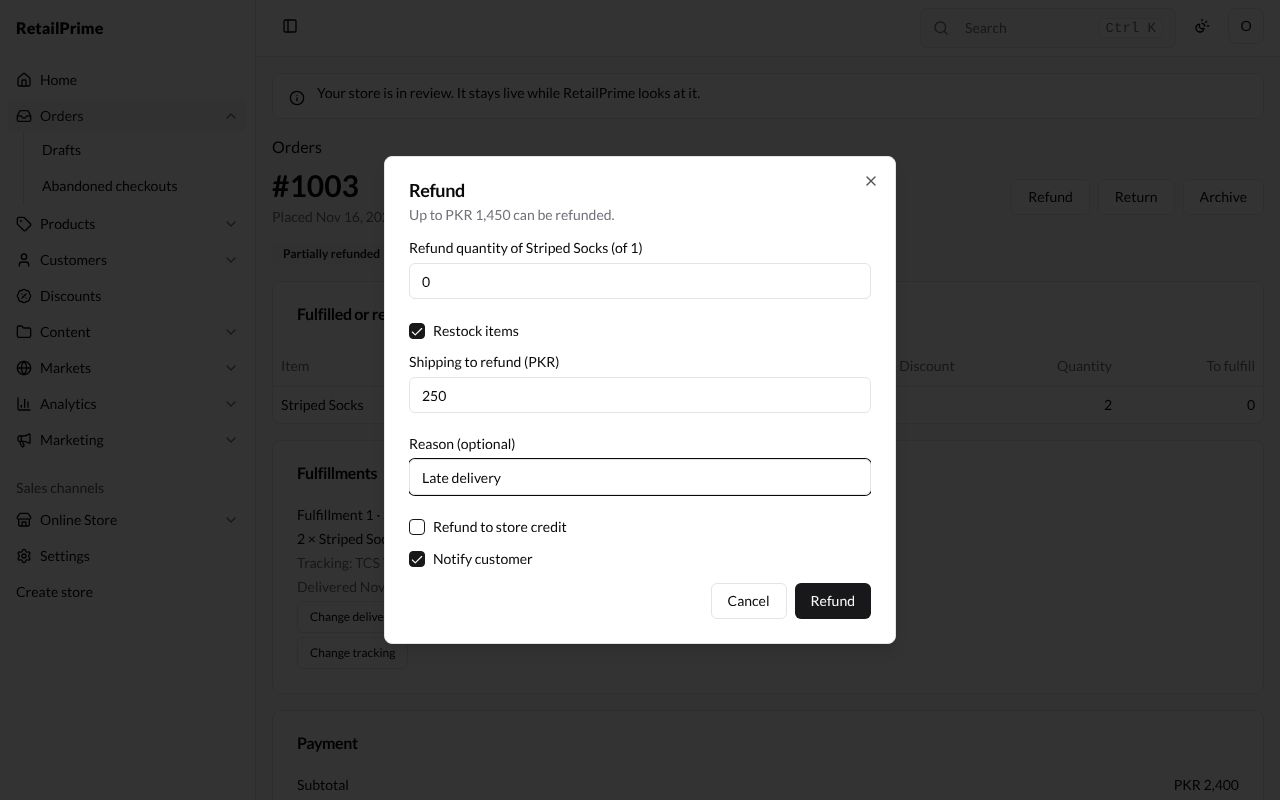
- Press Refund.
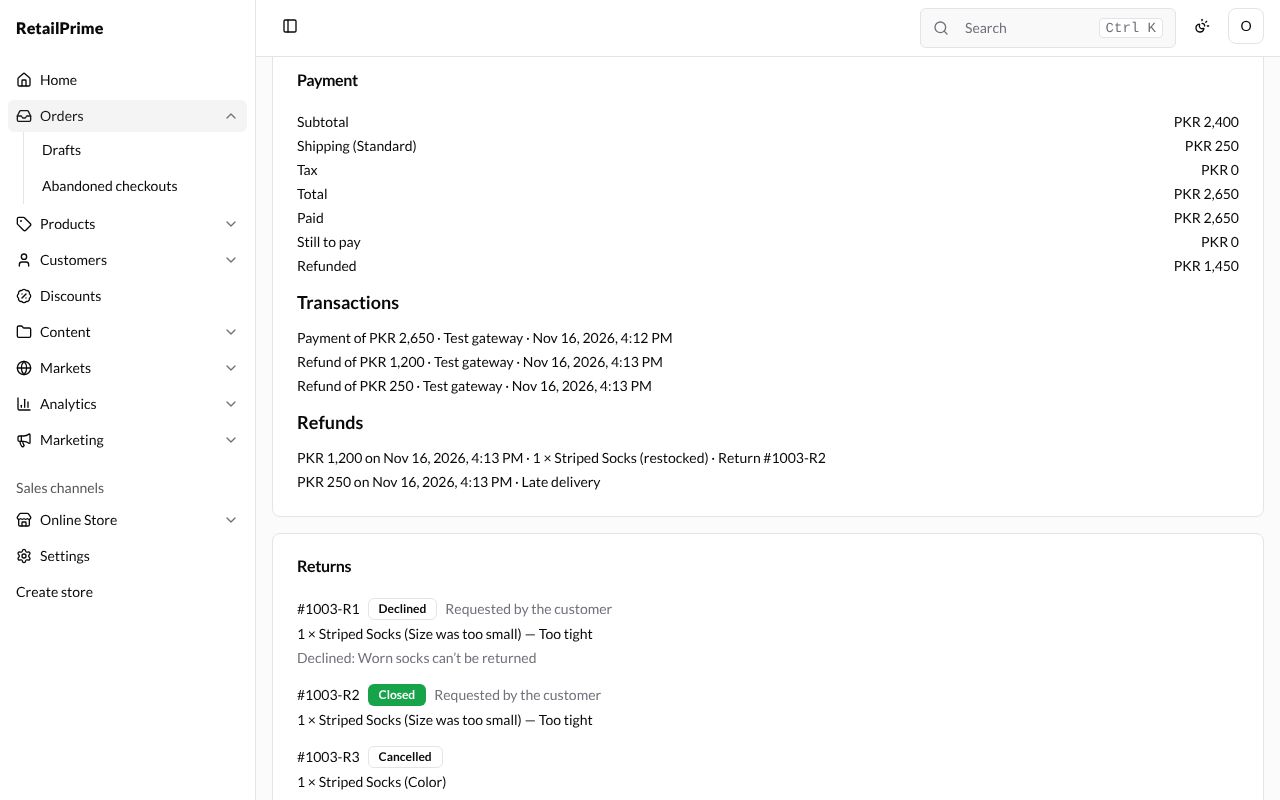
The order is now Partially refunded (or Refunded when all of it was). In the Payment card, Refunded shows the total given back, each refund is under Transactions, and Refunds lists them with their date, items and reason.
What’s next
Returns: take items back.