Draft orders
Create an order for a buyer yourself, with products, a customer, discounts and shipping; send them an invoice, or turn it into an order that is paid or to be paid.
A draft order is an order you put together yourself, for a buyer who orders by phone, chat or in person. While it is a draft you can change anything. When the buyer has paid, or agrees to pay later, you turn it into a real order.
Open Drafts
In the sidebar, press Orders, then Drafts under it. A new store has none, so the list says No draft orders.
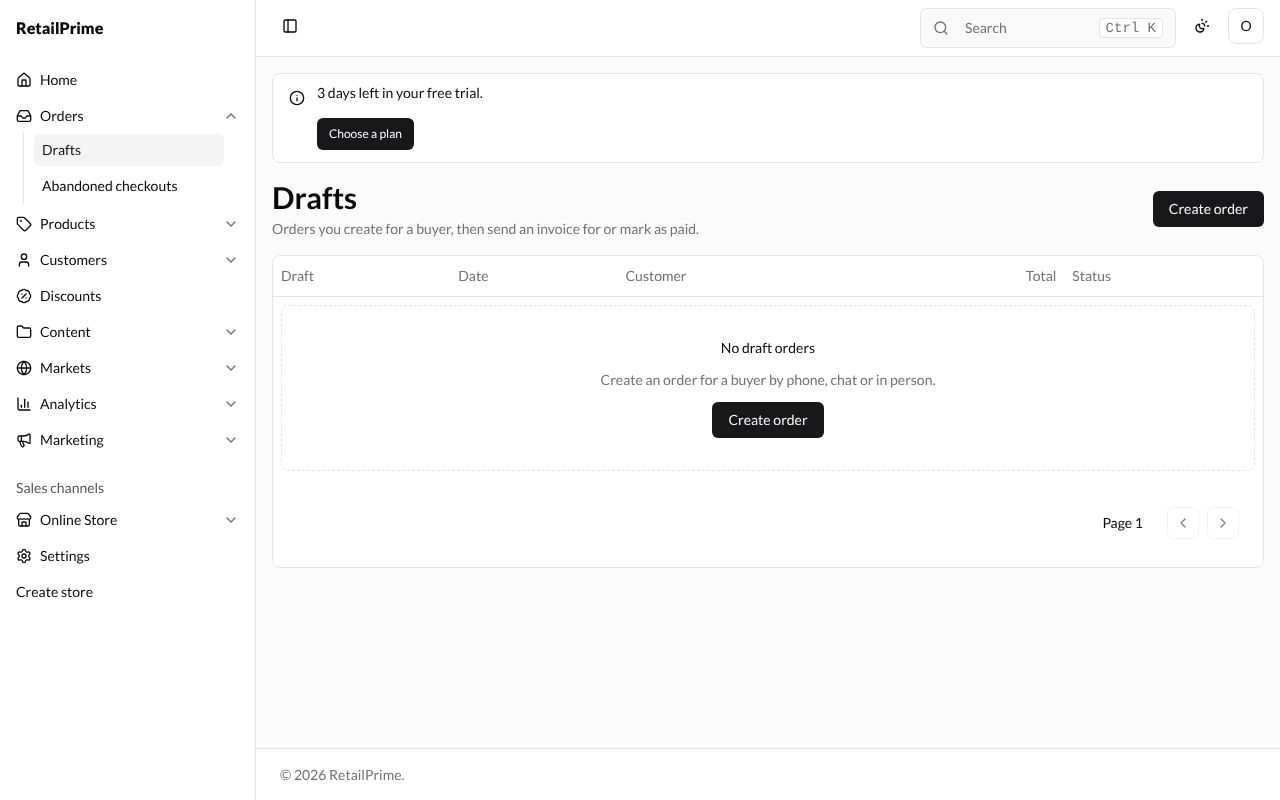
Press Create order. (The Orders page has a Create order button too: it opens the same form.)
Create a draft order
The Create order form has these cards, from top to bottom:
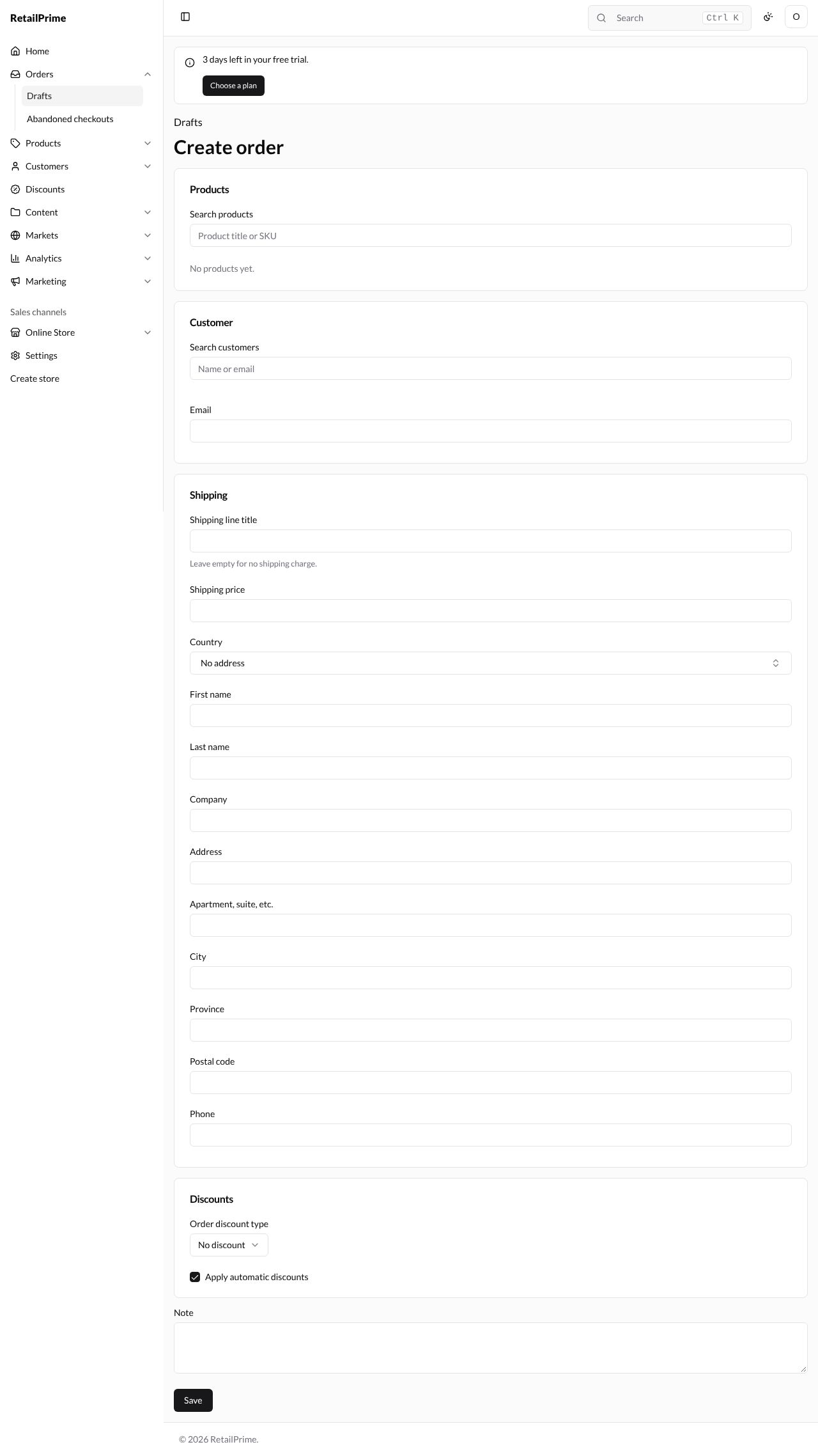
1. Products
- In Search products, type at least two letters of a product’s title or SKU, such as
socks. - Every matching product (and each of its variants) is listed with its price and an Add button.
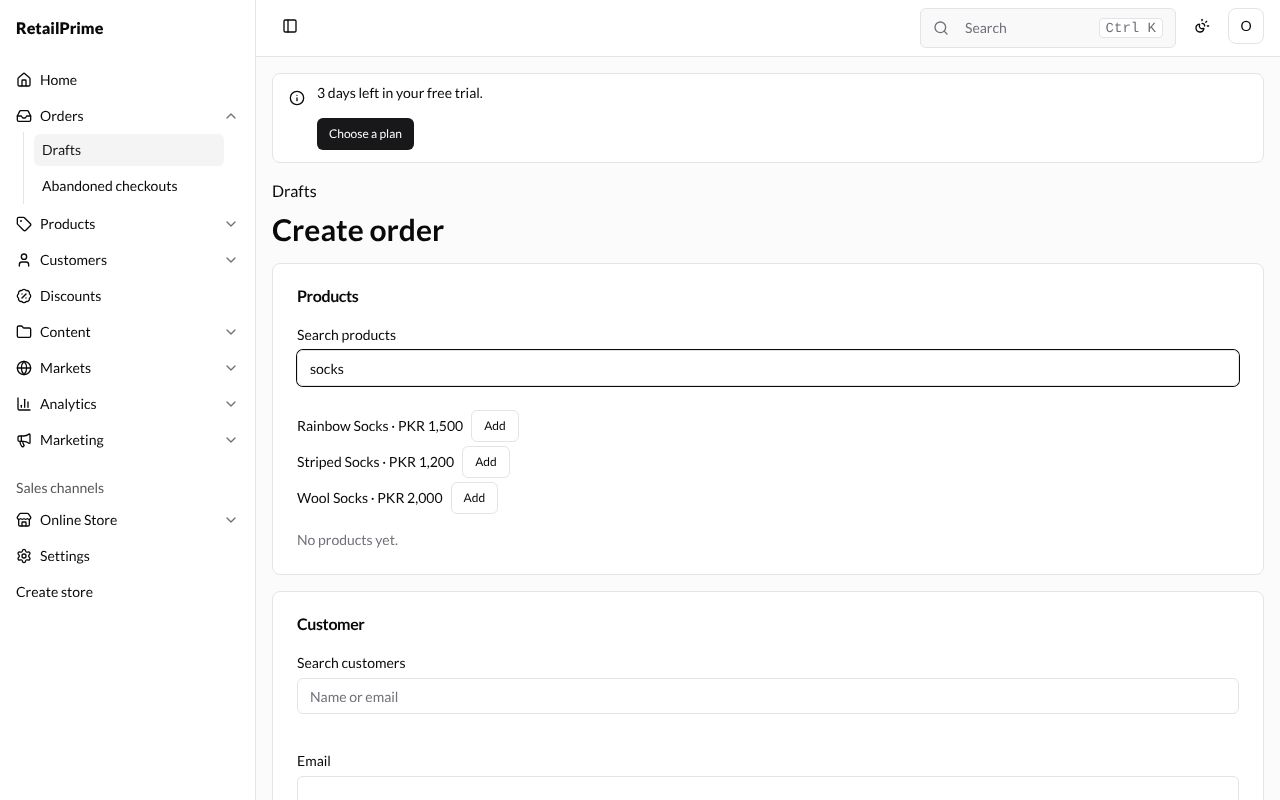
- Press Add next to each product the buyer wants. Here we add Rainbow Socks and Striped Socks. A product already added can’t be added twice.
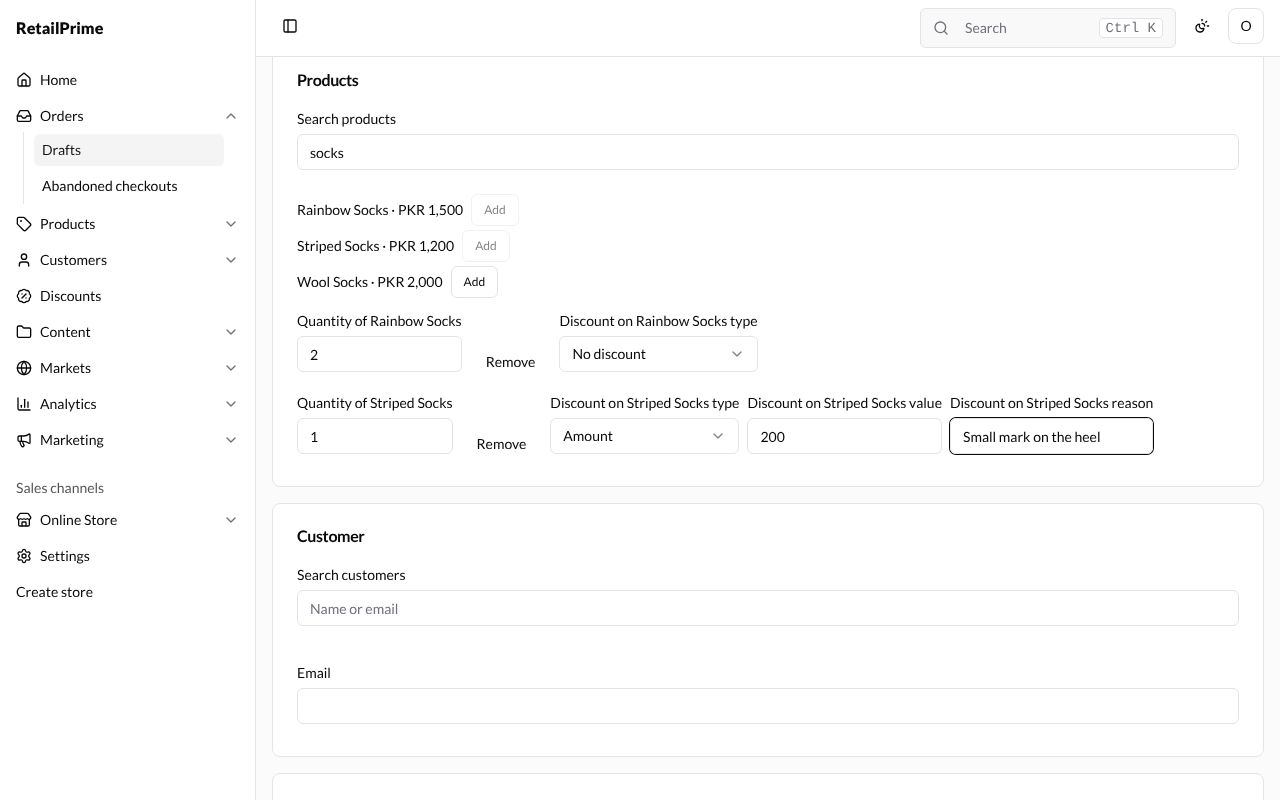
- Each product you add gets its own row:
| Box | What it’s for | Example |
|---|---|---|
| Quantity of … | How many the buyer wants | 2 |
| Remove | Takes the product off the draft | |
| Discount on … type | No discount, Percentage or Amount: a discount on this product only | Amount |
| Discount on … value | How much off: a percentage, or an amount in your currency | 200 |
| Discount on … reason | Why you gave it. It shows in the totals | Small mark on the heel |
The value and reason boxes appear once you choose a discount type.
2. Customer
- In Search customers, type at least two letters of the customer’s name or email, such as
Ayesha. - Press Choose Ayesha Khan.
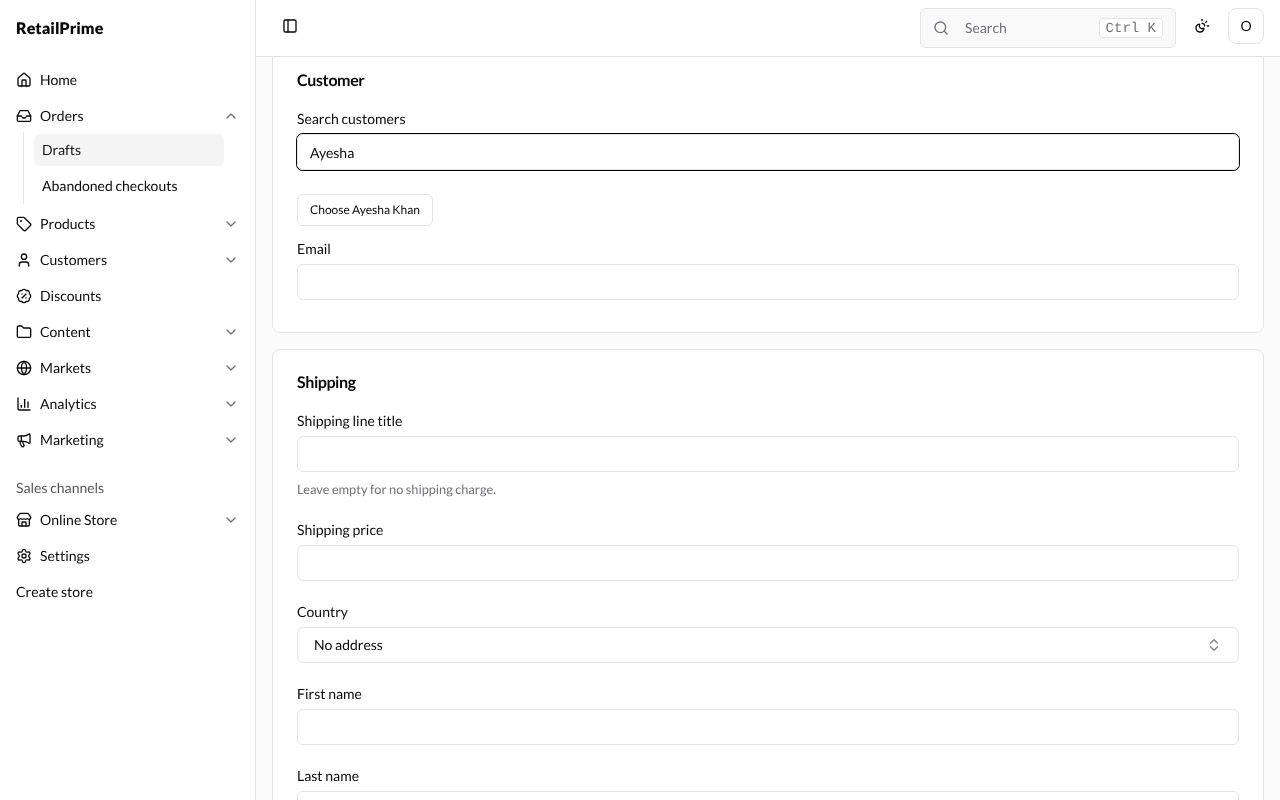
The customer’s name now shows with a Remove customer button, and Email is filled in with their email. For a buyer who is not a customer yet, leave the search empty and just type their Email.
3. Shipping
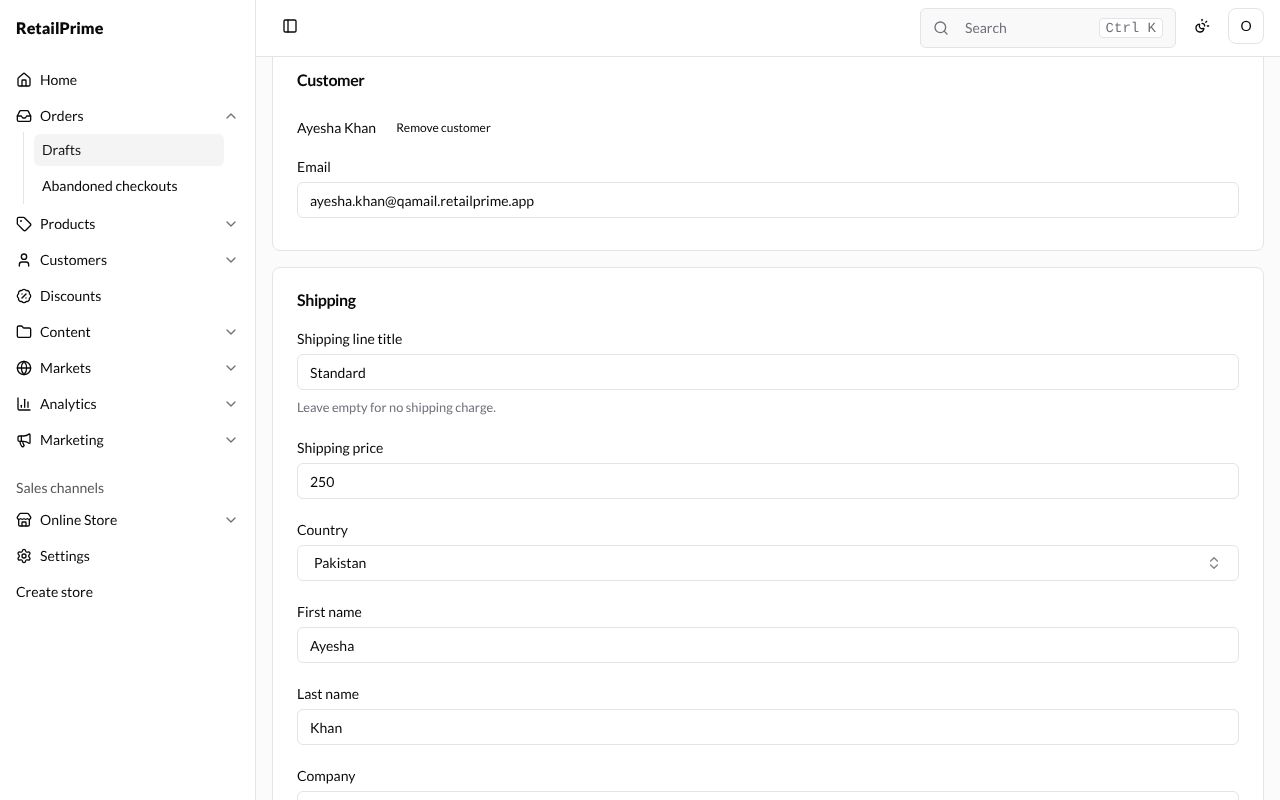
| Box | What to type | Example |
|---|---|---|
| Shipping line title | The name of the shipping charge. Leave it empty for no shipping charge | Standard |
| Shipping price | What shipping costs | 250 |
| Country | Where it ships to. No address means no shipping address | Pakistan |
| First name, Last name, Company | Who it ships to | Ayesha, Khan |
| Address, Apartment, suite, etc. | The street address | 12 Mall Road |
| City, Province, Postal code | Lahore, Punjab, 54000 |
|
| Phone | A phone number for the delivery | +923001234567 |
4. Discounts and note
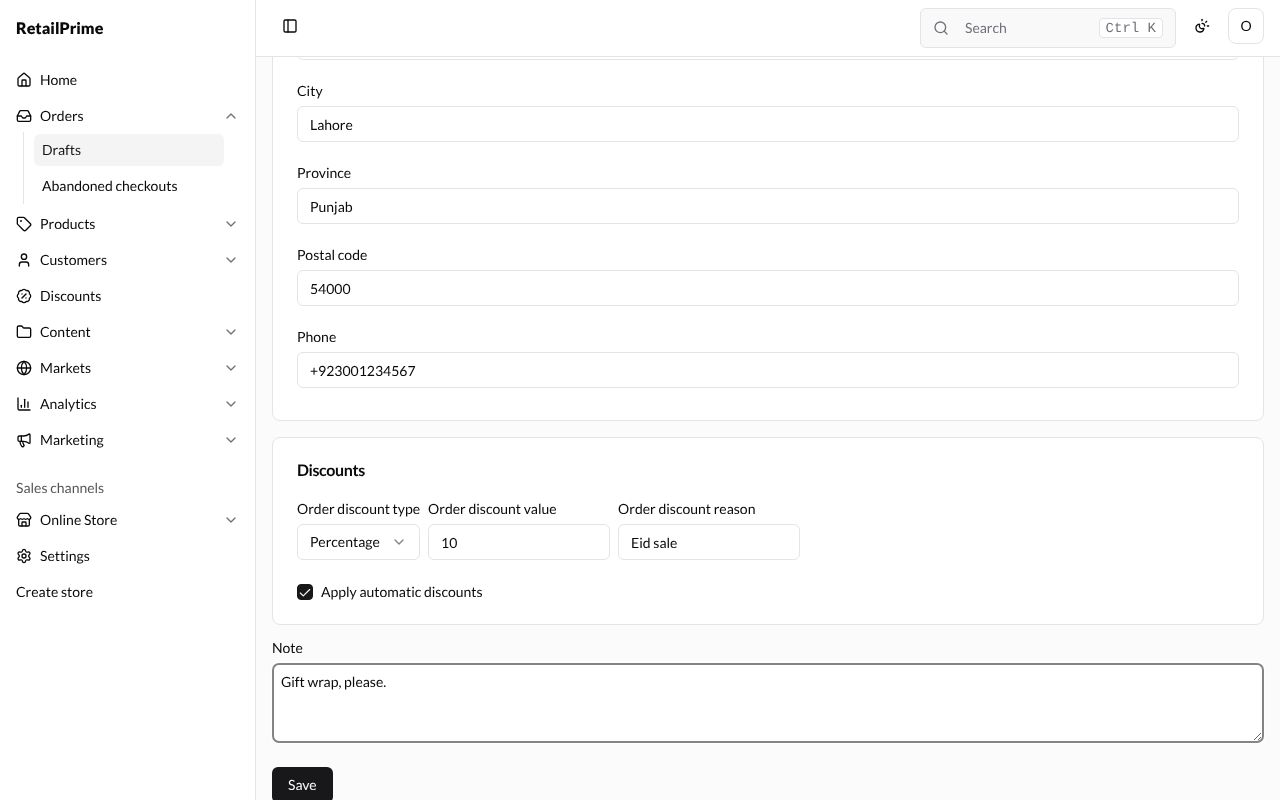
| Box | What it’s for | Example |
|---|---|---|
| Order discount type | No discount, Percentage or Amount: a discount on the whole order | Percentage |
| Order discount value | How much off | 10 |
| Order discount reason | Why. It shows in the totals | Eid sale |
| Apply automatic discounts | Ticked: your store’s automatic discounts apply to the draft too | Leave it ticked |
| Note | A note on the order | Gift wrap, please. |
5. Save
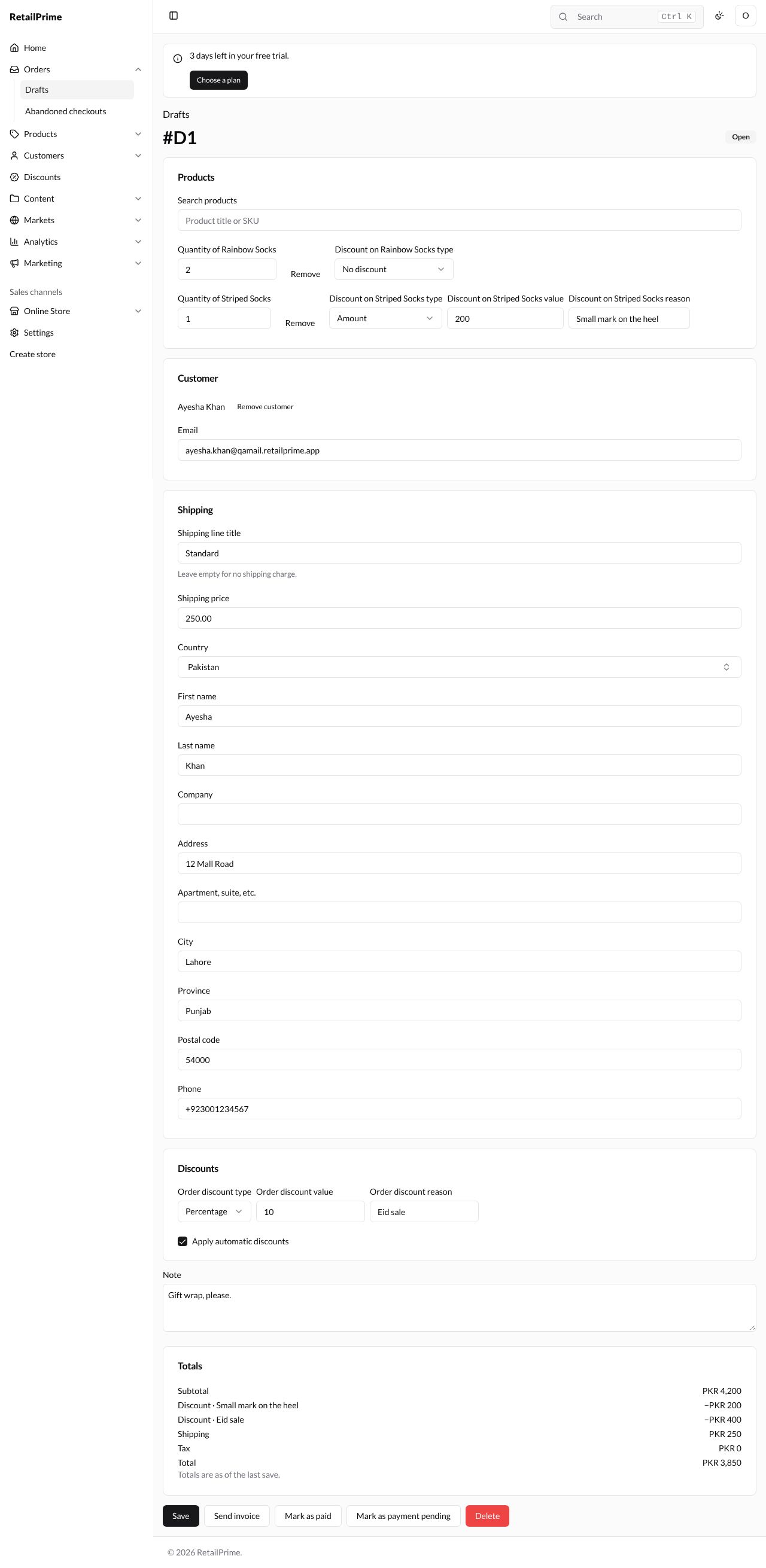
Press Save. The draft opens with its number, such as #D1, and the label Open. Drafts are numbered #D1, #D2 and so on.
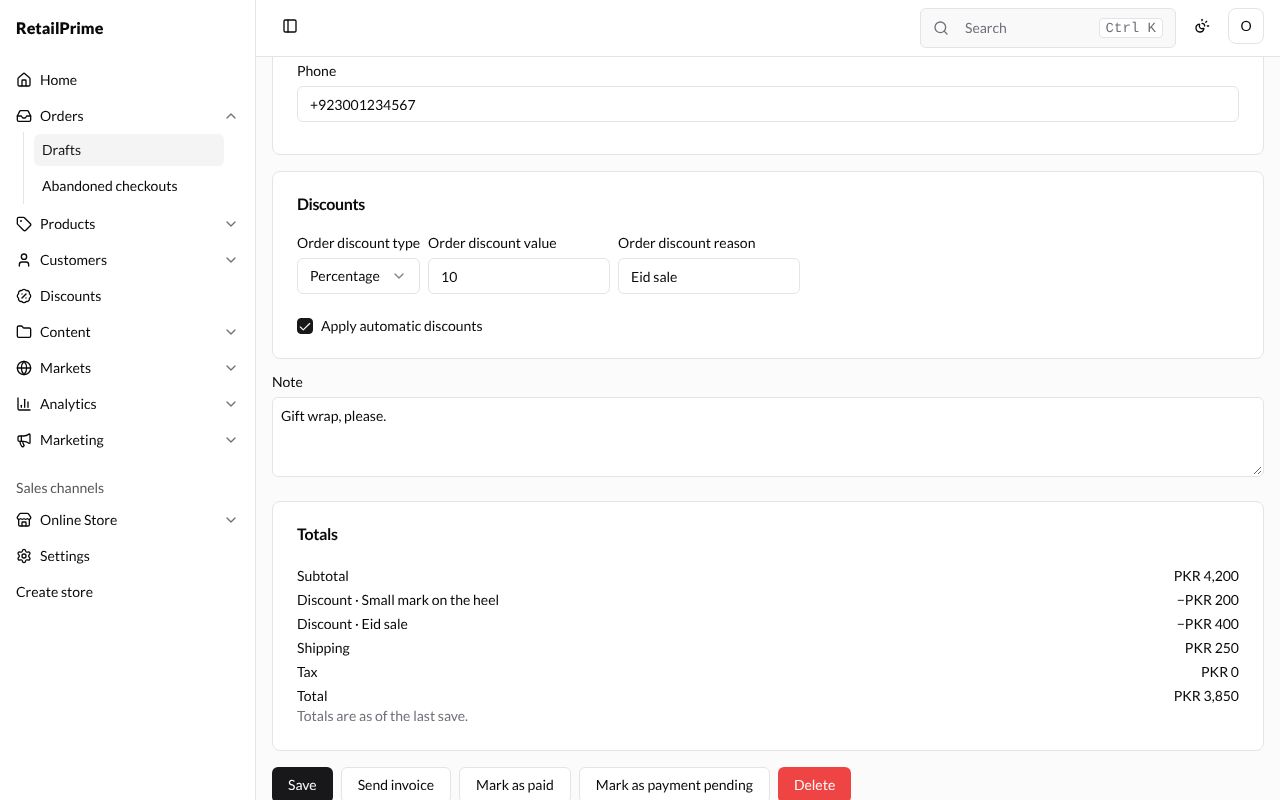
The page now has a Totals card and more buttons at the bottom:
The totals
The Totals card shows the Subtotal, each Discount with its reason, Shipping, Tax and the Total. Under them it says Totals are as of the last save.: after changing the draft, press Save to see the new totals.
Edit a draft
Change any box and press Save. Here we change the Quantity of Rainbow Socks to 3. The totals update:
Send an invoice
Send invoice saves the draft, then emails the buyer a link to pay for it online. The draft needs an email.
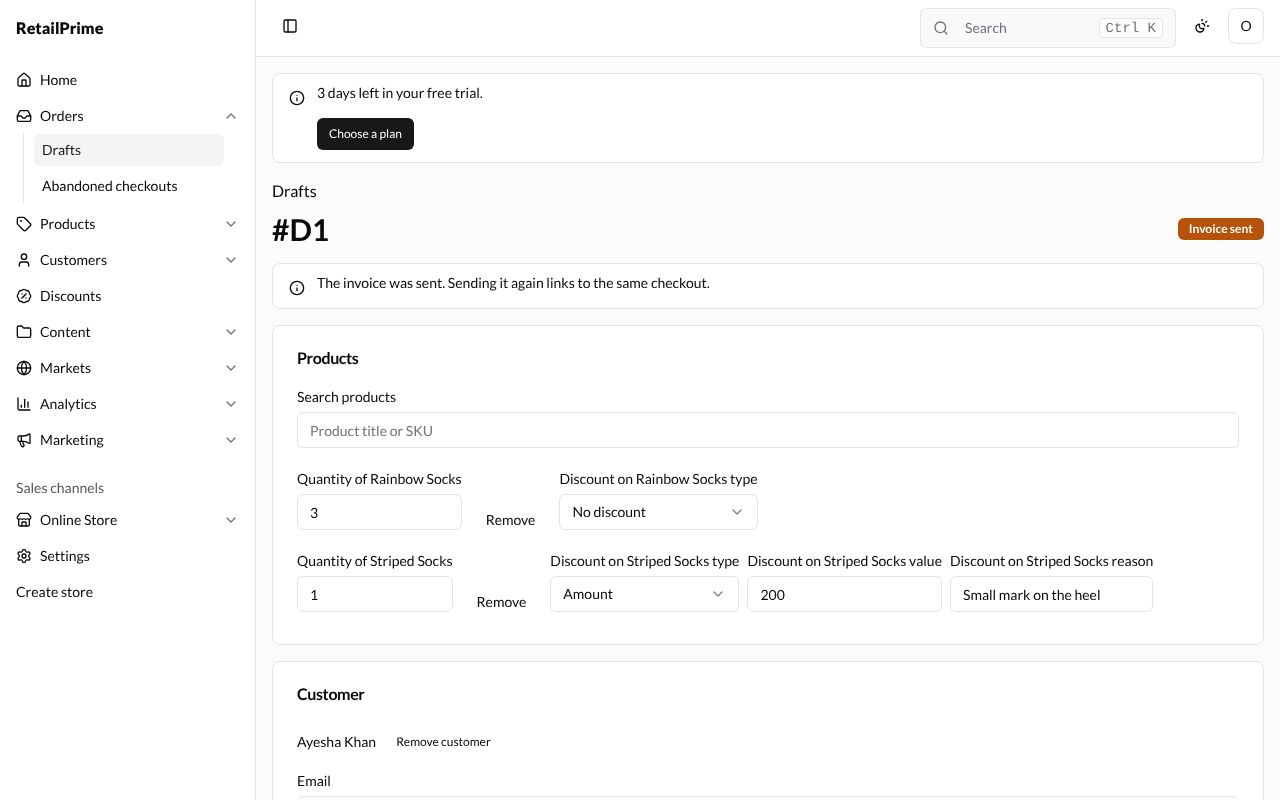
- Press Send invoice.
- The label changes to Invoice sent, and the page says The invoice was sent. Sending it again links to the same checkout.
When the buyer pays through the invoice, the draft becomes an order on its own.
Turn a draft into an order
There are two buttons. Both save the draft first.
| Button | What it does |
|---|---|
| Mark as paid | The buyer has already paid you, for example in cash. The order is created as paid |
| Mark as payment pending | The buyer pays later. The order is created with nothing paid yet |
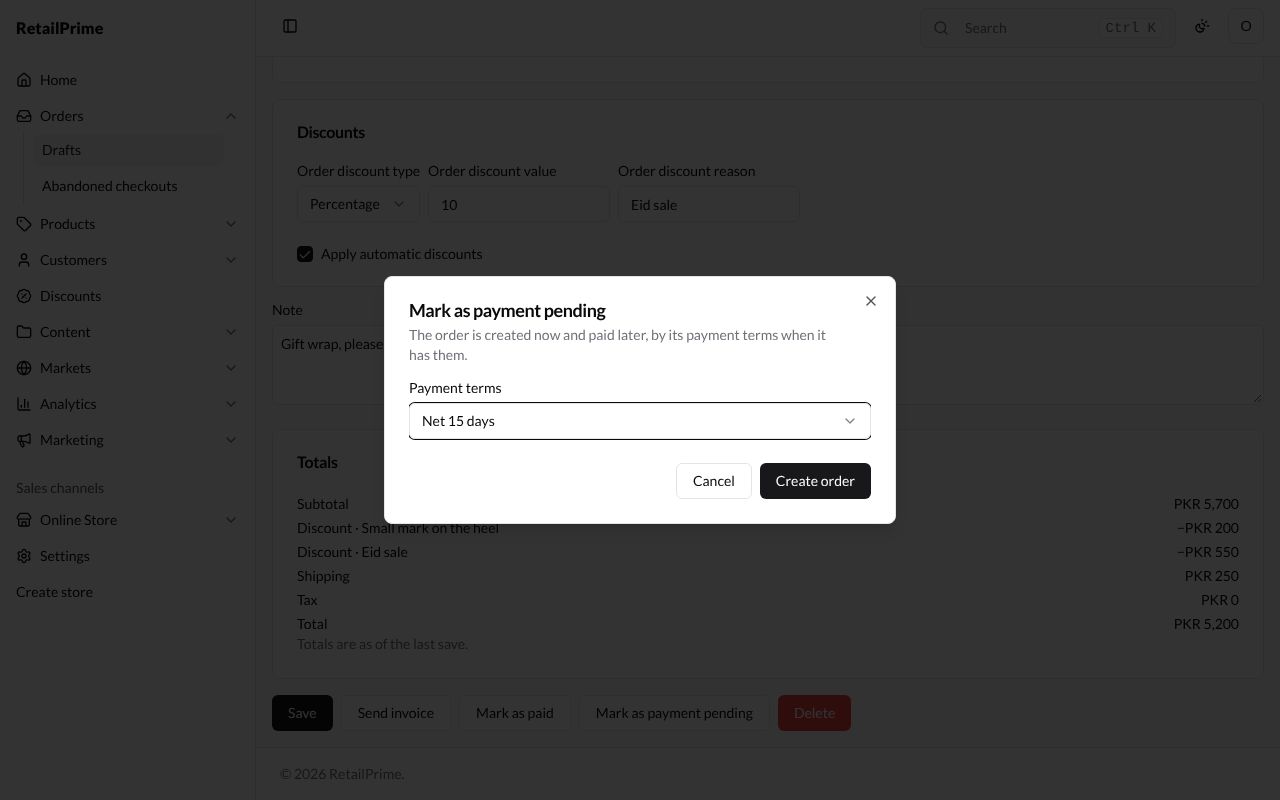
Mark as payment pending opens a box. It says the order is created now and paid later, by its payment terms when it has them. Choose the Payment terms:
- No payment terms;
- Net 7 days, Net 15 days, Net 30 days, Net 45 days, Net 60 days, Net 90 days: the order is due that many days after it is placed;
- Due on fulfillment: the order is due when it is fulfilled.
Here we choose Net 15 days and press Create order:
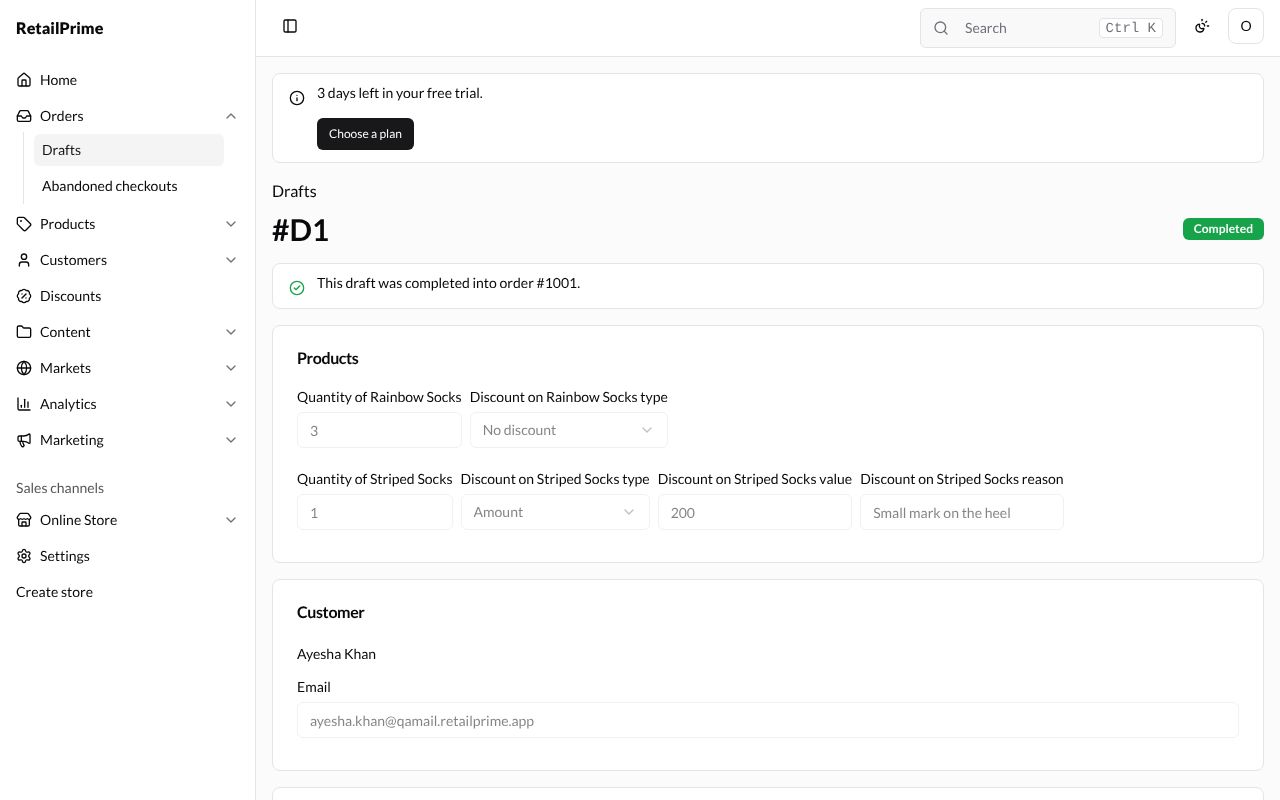
The draft’s label changes to Completed, and the page says This draft was completed into order #1001. Press the order number to open the order. A completed draft can’t be changed any more: its boxes are greyed out.
To learn how the order is paid later, see Payments and refunds.
The drafts list
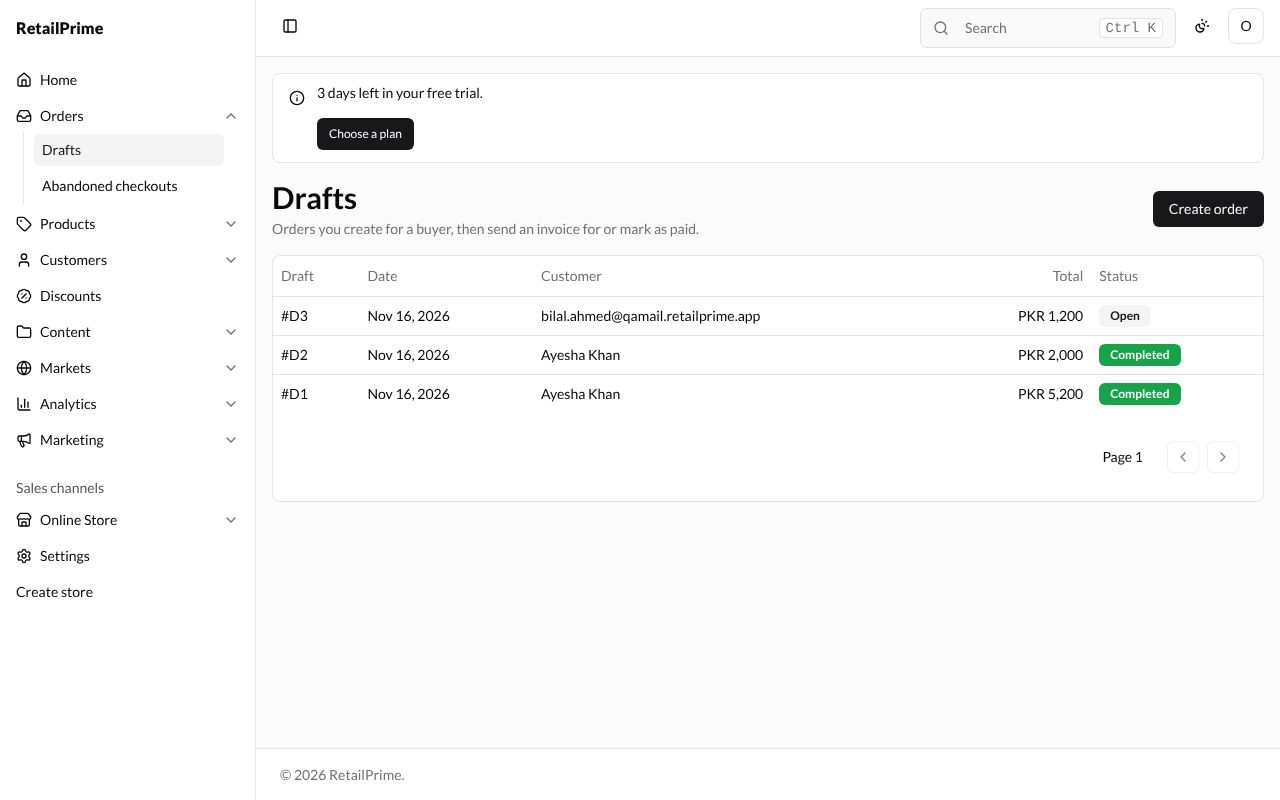
Press Drafts above the draft’s number (or in the sidebar). Every draft is listed with its Draft number, Date, Customer (or the email when there is no customer), Total and Status: Open, Invoice sent or Completed.
Delete a draft
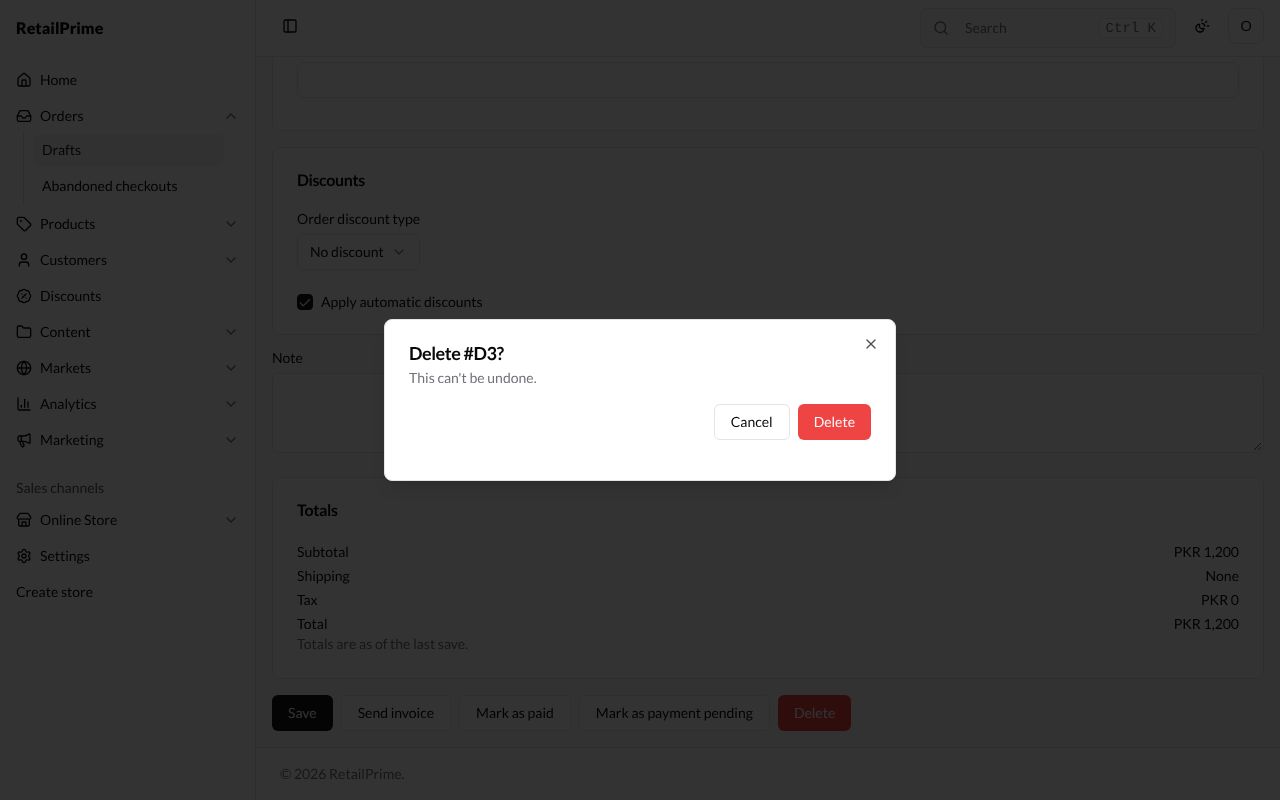
- Open the draft and press Delete (the red button) at the bottom.
- A box asks, for example, Delete #D3? and says this can’t be undone.
- Press Delete, or Cancel to change your mind.
You are back on the drafts list. A completed draft can’t be deleted: its buttons are gone.
What’s next
The orders list: find your orders, filter them and change many at once.