An order's page
Every card on an order's page, and how to tag an order, write its note, comment on its timeline and archive it.
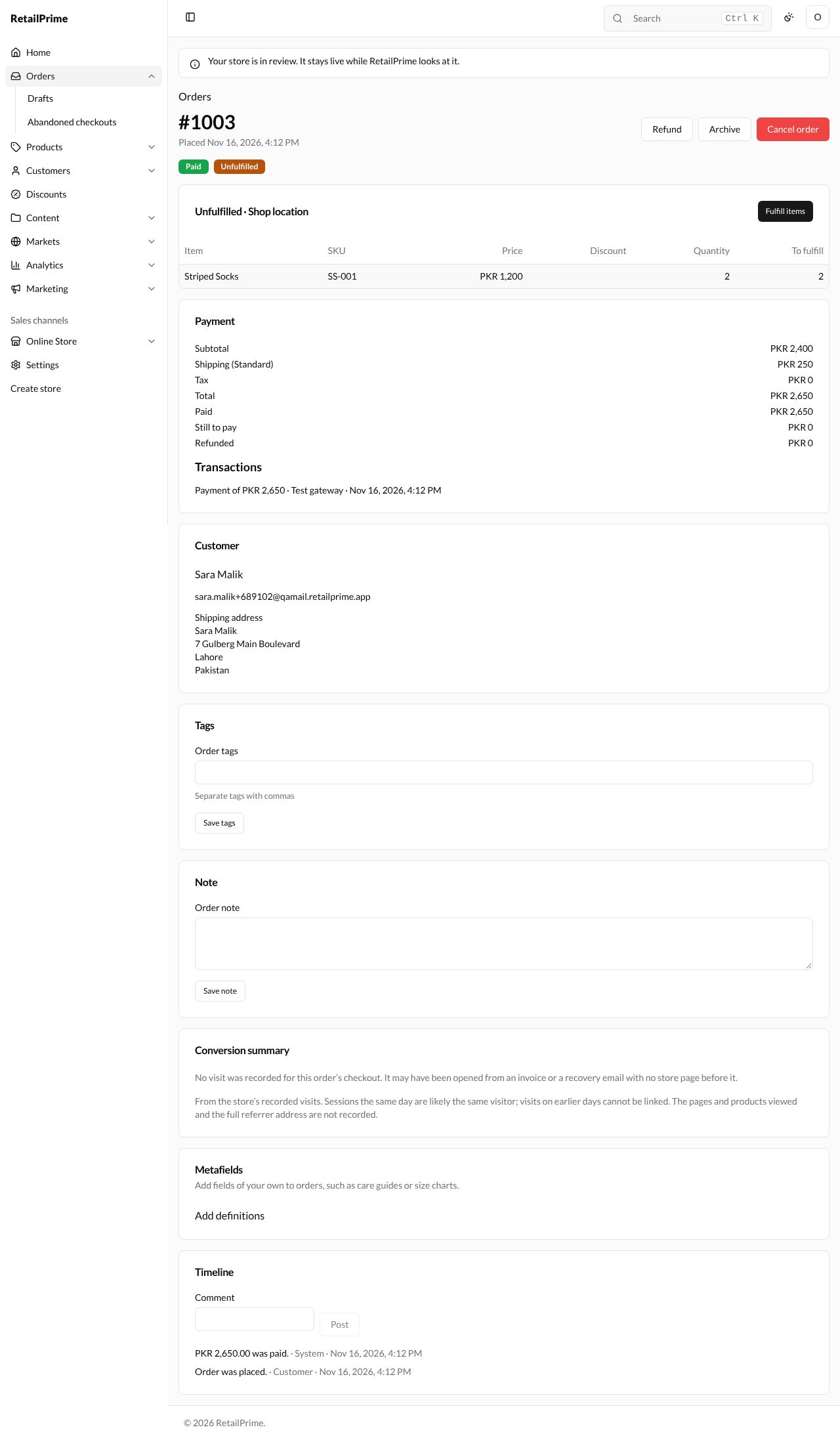
Press an order’s number on the Orders list to open it. Here is order #1003, which a buyer placed on the store, before anything was done to it:
The top of the page
Under the order’s number it says when the order was placed, and, for an order made from a draft, which draft (such as from draft #D1).
The labels under it show the order’s state: its payment status (such as Paid), its fulfillment status (such as Unfulfilled), and, when they apply, Return in progress or Returned, Overdue, Cancelled, Archived and Personal data erased.
The buttons at the top right appear only when they can be used:
| Button | When you see it | Where it’s explained |
|---|---|---|
| Refund | Something can still be refunded | Payments and refunds |
| Return | Fulfilled items can still be returned | Returns |
| Request payment, Record payment, Mark as paid | Something is still to be paid | Payments and refunds |
| Archive or Unarchive | Always | Below |
| Cancel order | Nothing has been fulfilled and the order isn’t cancelled | Cancel an order |
The cards
| Card | What it shows |
|---|---|
| Unfulfilled · Shop location | The items still to send from that location: Item, SKU, Price, Discount, Quantity and how many are left To fulfill, with the Fulfill items button. Once everything is sent it is titled Fulfilled or removed |
| Fulfillments | Each shipment, with its tracking and delivery (see Fulfil and deliver) |
| Payment | Subtotal, discounts, Shipping, Tax, Total, what is Paid, what is Still to pay and what was Refunded; then every payment and refund under Transactions, and Refunds with their reasons |
| Returns | Each return and its state (see Returns) |
| Company | For an order of a company location: the company and location, and the PO number (see Company locations) |
| Customer | The customer (press the name to open them), their email and phone, and the shipping address |
| Tags | The order’s tags (below) |
| Note | The order’s note (below) |
| Conversion summary | How the buyer found your store before buying (below) |
| Metafields | Fields of your own for orders. Add definitions takes you to where you make them, in Settings |
| Timeline | Everything that happened to the order, newest first, and comments (below) |
Conversion summary
For an order placed through your online store, this card shows how the buyer got there: which order of theirs this is, how many sessions they had before buying, the time to convert, when they added to cart and reached checkout, and for their first and last visit, where they came from, the landing page, the device and the pages viewed.
When there is nothing to show, it says why. A draft order says it did not come through the online store’s checkout. Order #1003 above says No visit was recorded for this order’s checkout. It may have been opened from an invoice or a recovery email with no store page before it.
Tags and note
- In the Tags card, type the tags in Order tags, separated by commas, such as
gift, priority, and press Save tags. - In the Note card, type in Order note, such as
Call before delivery., and press Save note.
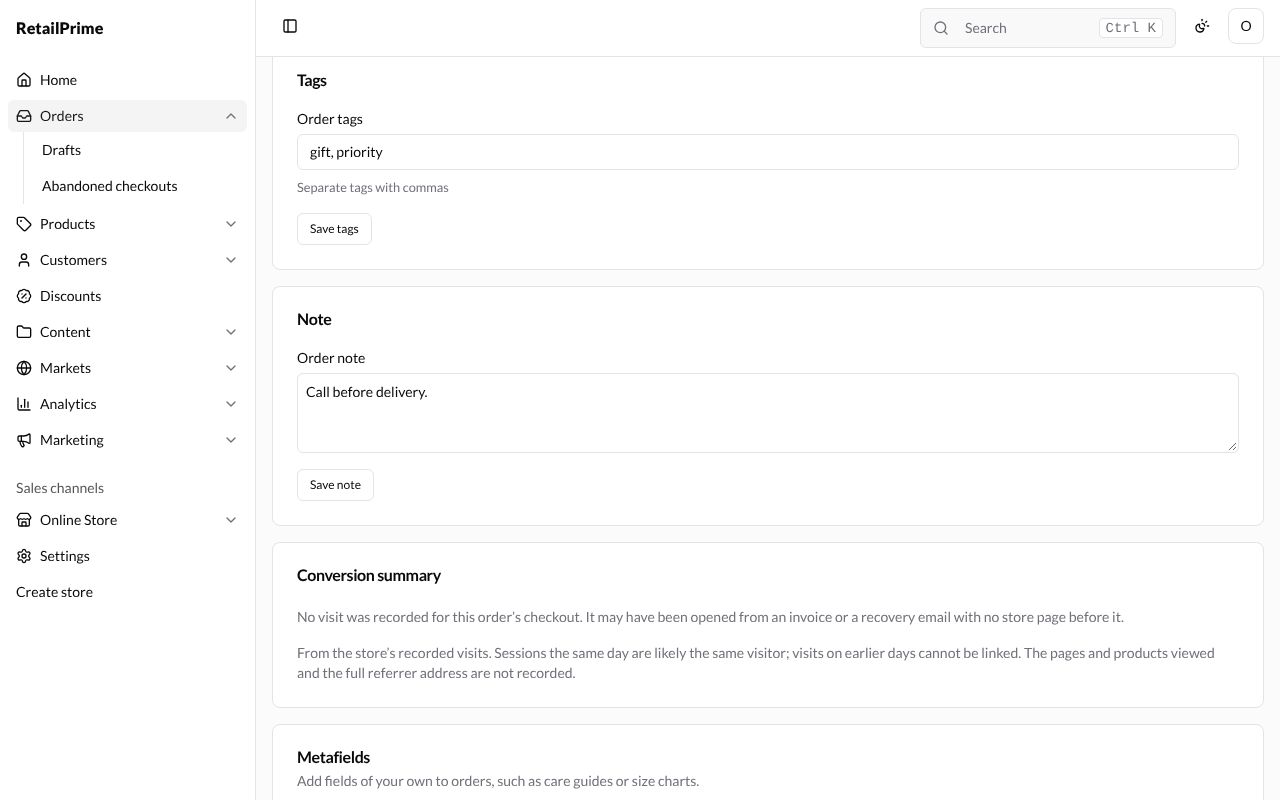
The tags show in the Tags column of the orders list, and you can find the order with Tagged with.
The timeline
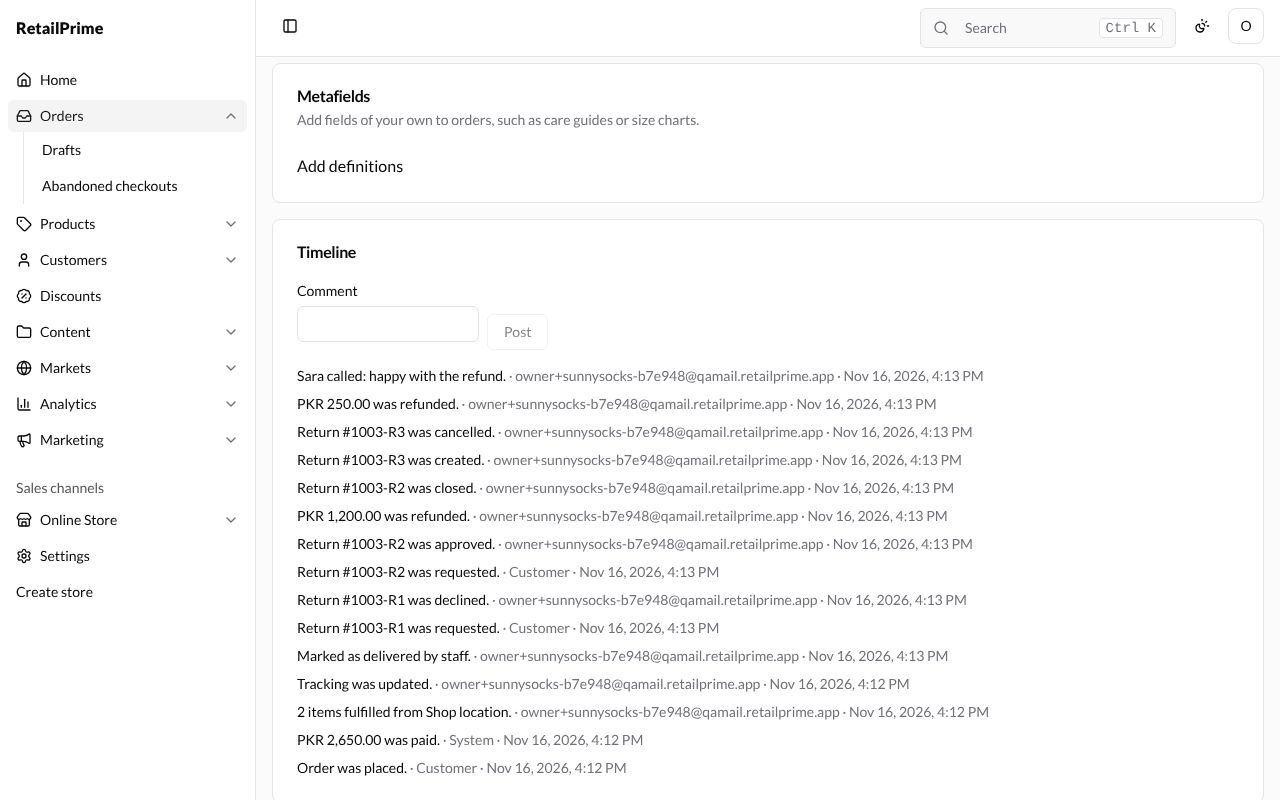
The Timeline lists everything that happened to the order, newest first, with who did it (a staff member’s email, Customer or System) and when: when it was placed and paid, fulfilled, delivered, returned, refunded and more.
To add a comment for your team, type it in Comment and press Post. Comments show in bold.
Archive an order
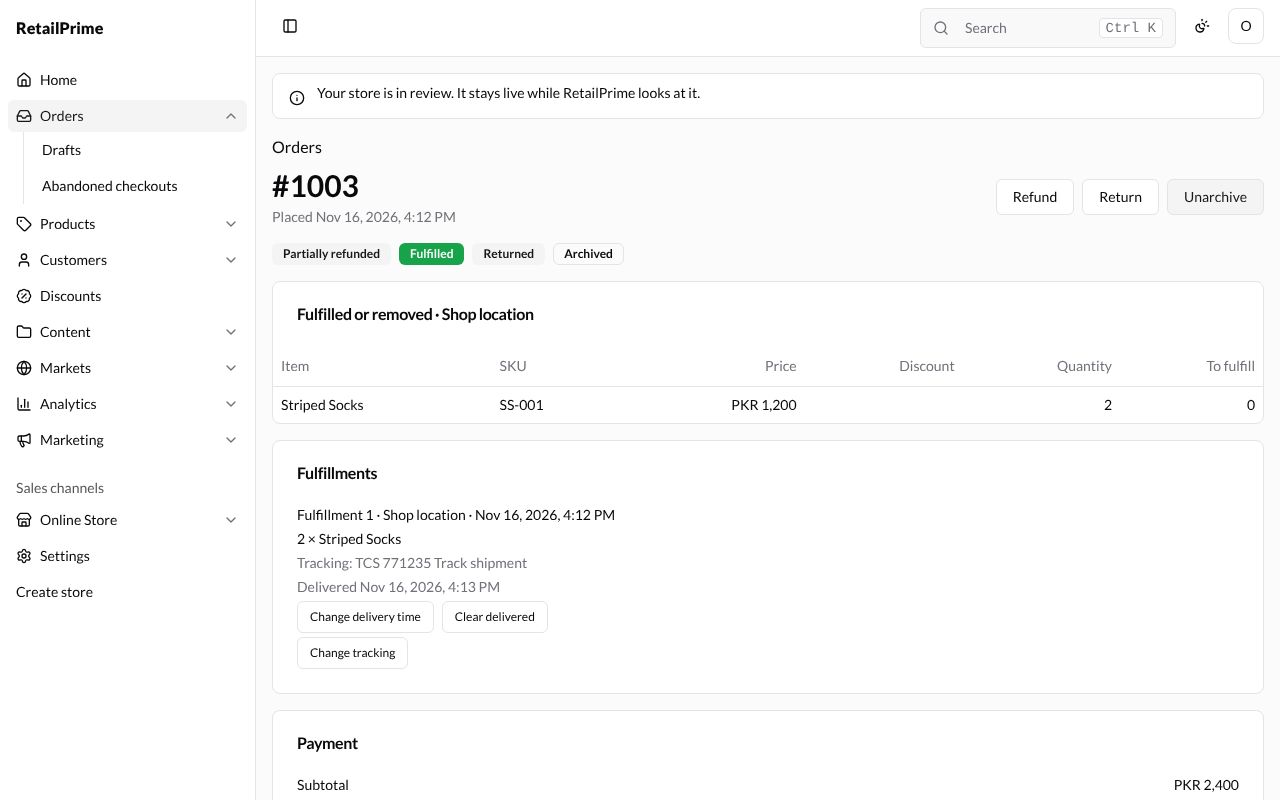
Press Archive at the top right. The order gets the label Archived and moves out of the Open view of the orders list; nothing else about it changes. The button becomes Unarchive: press it to bring the order back.
What’s next
Fulfil and deliver: send the items, add tracking and mark them as delivered.