Transfers
Send stock from one location to another, track it on the way, and receive it.
A transfer is a note that stock is travelling from one location (the origin) to another (the destination), such as from your shop to your warehouse. It follows the stock from packing to arrival.
A transfer goes through these steps. Its status says where it is:
| Status | Means | You can |
|---|---|---|
| Draft | Being prepared | Change everything, Mark as ready to ship, Duplicate, Delete |
| Ready to ship | The units are set aside at the origin | Create shipment, Cancel transfer, Duplicate |
| In progress | Everything has shipped, not all received yet | Receive, Duplicate |
| Transferred | Everything shipped has been received | Duplicate |
| Canceled | Canceled before everything shipped | Duplicate |
Open Transfers
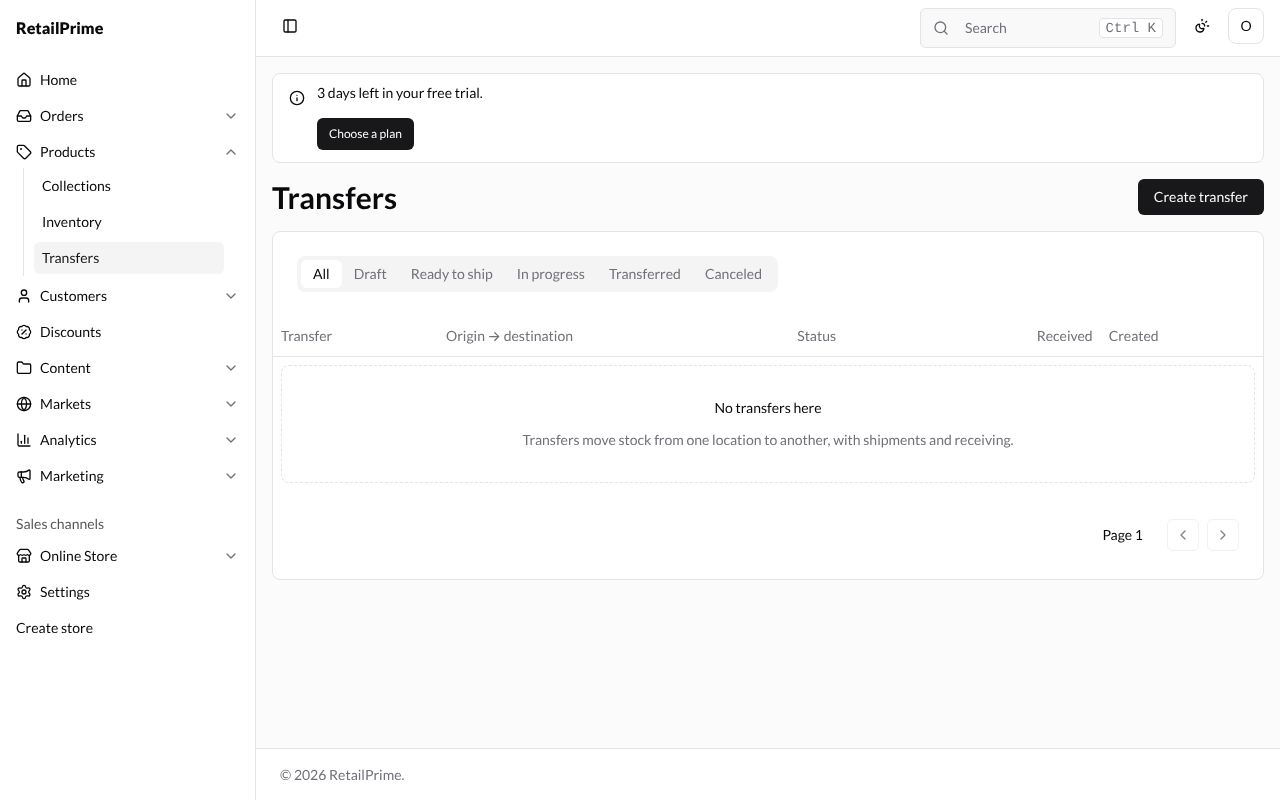
In the sidebar, press Products, then Transfers. The tabs at the top (All, Draft, Ready to ship, In progress, Transferred, Canceled) show transfers with that status. A new store says No transfers here.
Create a transfer
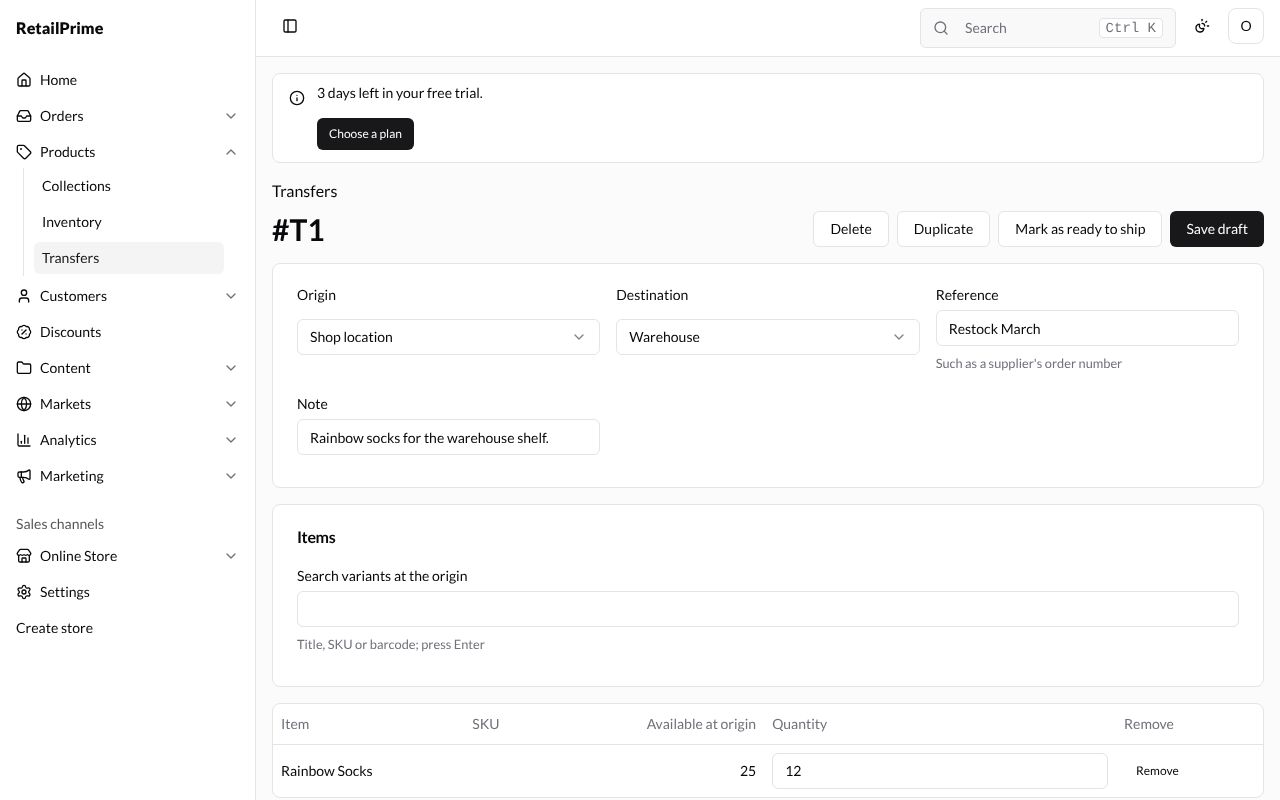
- Press Create transfer. You see an empty form:
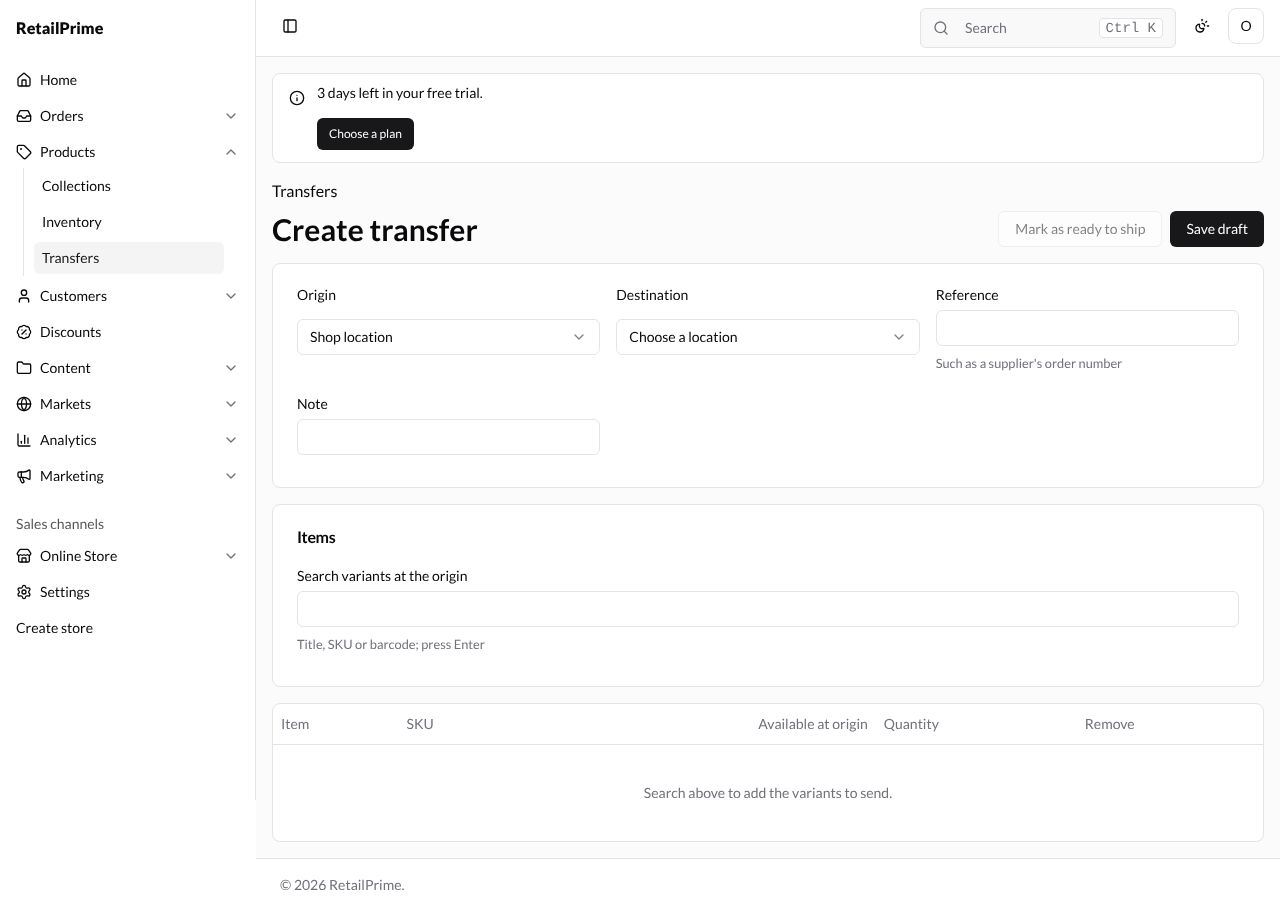
- Fill in the top card:
| Box | What to choose or type | Example |
|---|---|---|
| Origin | Where the stock leaves from | Shop location |
| Destination | Where it goes | Warehouse |
| Reference | Your own reference, such as a supplier’s order number (optional) | Restock March |
| Note | Anything to remember (optional) | Rainbow socks for the warehouse shelf. |
- Under Items, type a product’s title, SKU or barcode in Search variants at the origin and press Enter. The results show how many are Available at the origin.
- Press Add on the row you want.
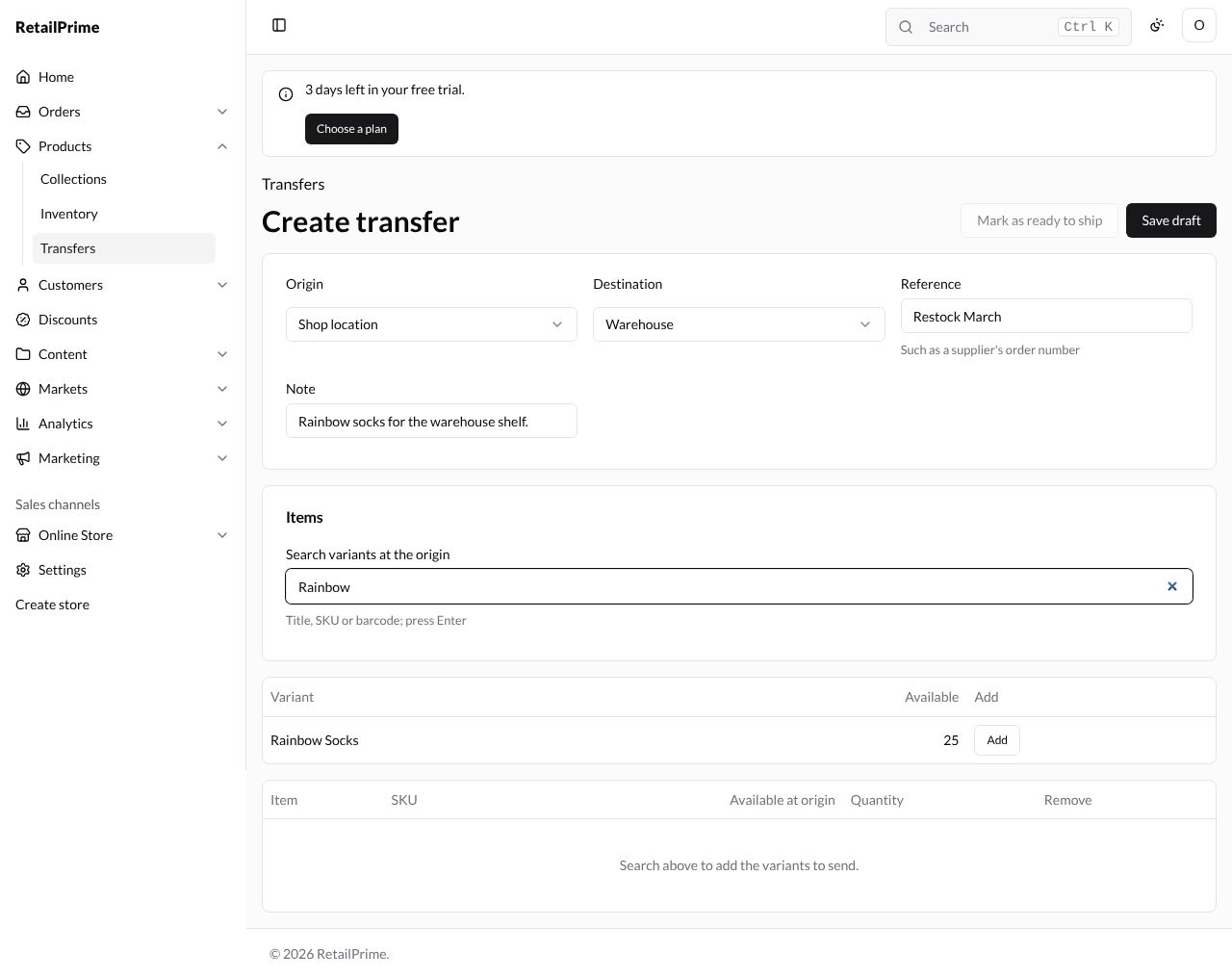
- The product moves to the list of items to send. In Quantity, type how many to send, here
12. Remove takes an item off the list.
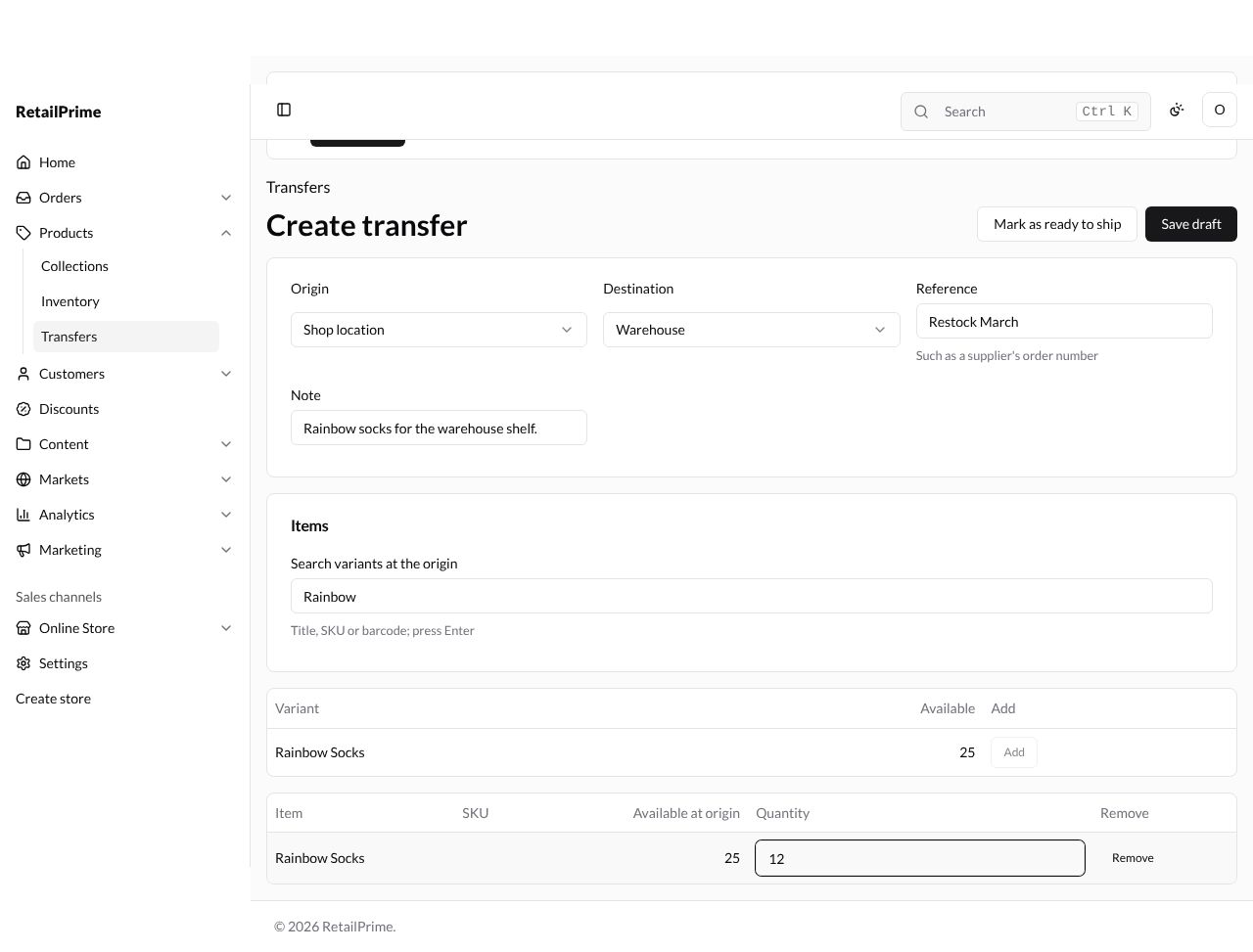
- Press Save draft to keep it for later, or Mark as ready to ship if you’re packing it now.
After Save draft, the transfer gets a number, such as #T1. A draft can still be changed: change it and press Save draft again.
Mark it as ready to ship
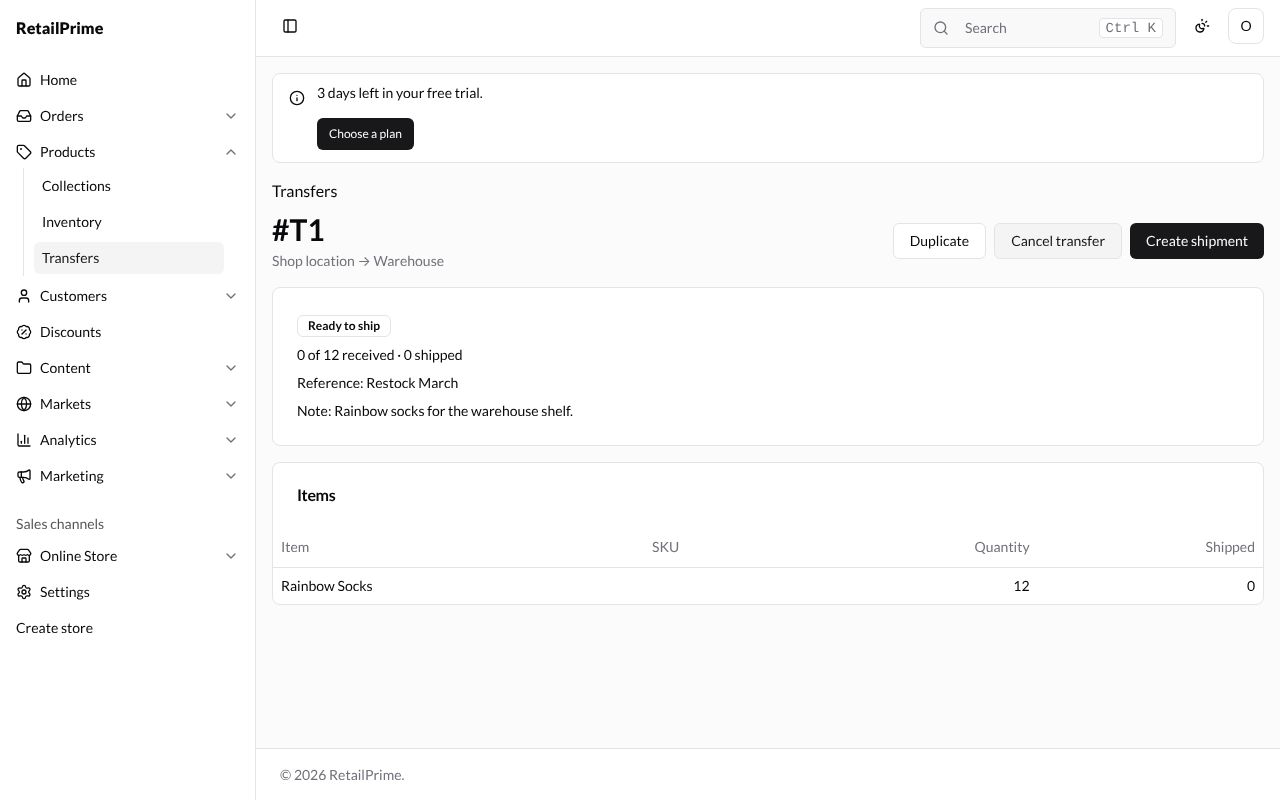
Press Mark as ready to ship. The units are set aside at the origin, so they can’t be sold or sent twice. The page now shows Ready to ship, and how many are received and shipped (0 of 12 received · 0 shipped).
Ship it
- Press Create shipment.
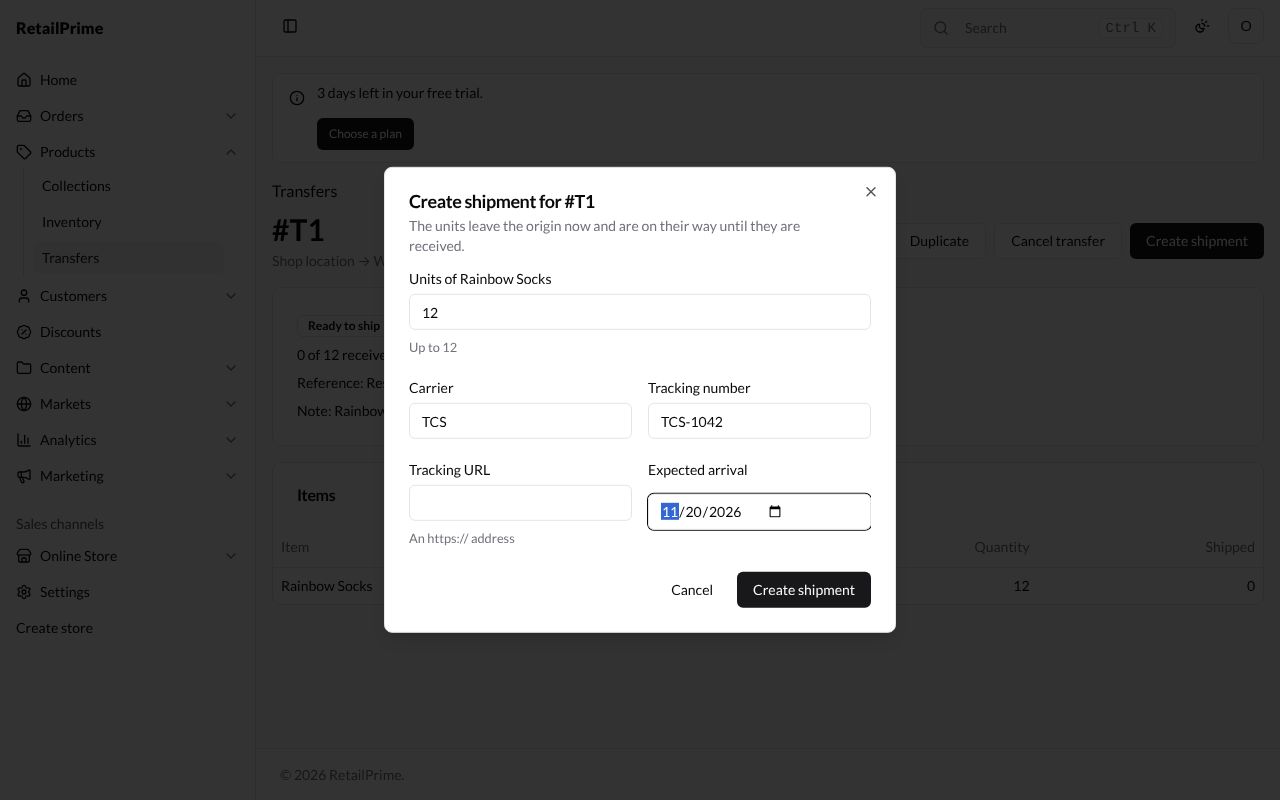
- A box opens: Create shipment for #T1. The units leave the origin now and are on their way until they are received.
- In Units of Rainbow Socks, type how many are in this parcel (up to what is still unshipped). You can send them in more than one shipment.
- Fill in what you know (all optional):
| Box | What to type | Example |
|---|---|---|
| Carrier | The delivery company | TCS |
| Tracking number | The number the carrier gave you | TCS-1042 |
| Tracking URL | The carrier’s tracking page for this parcel, starting with https:// |
(add it later, below) |
| Expected arrival | The day it should arrive. Press the calendar in the box and pick a day | 20 November 2026 (shown as 11/20/2026 or 20/11/2026, as your computer writes dates) |
- Press Create shipment.
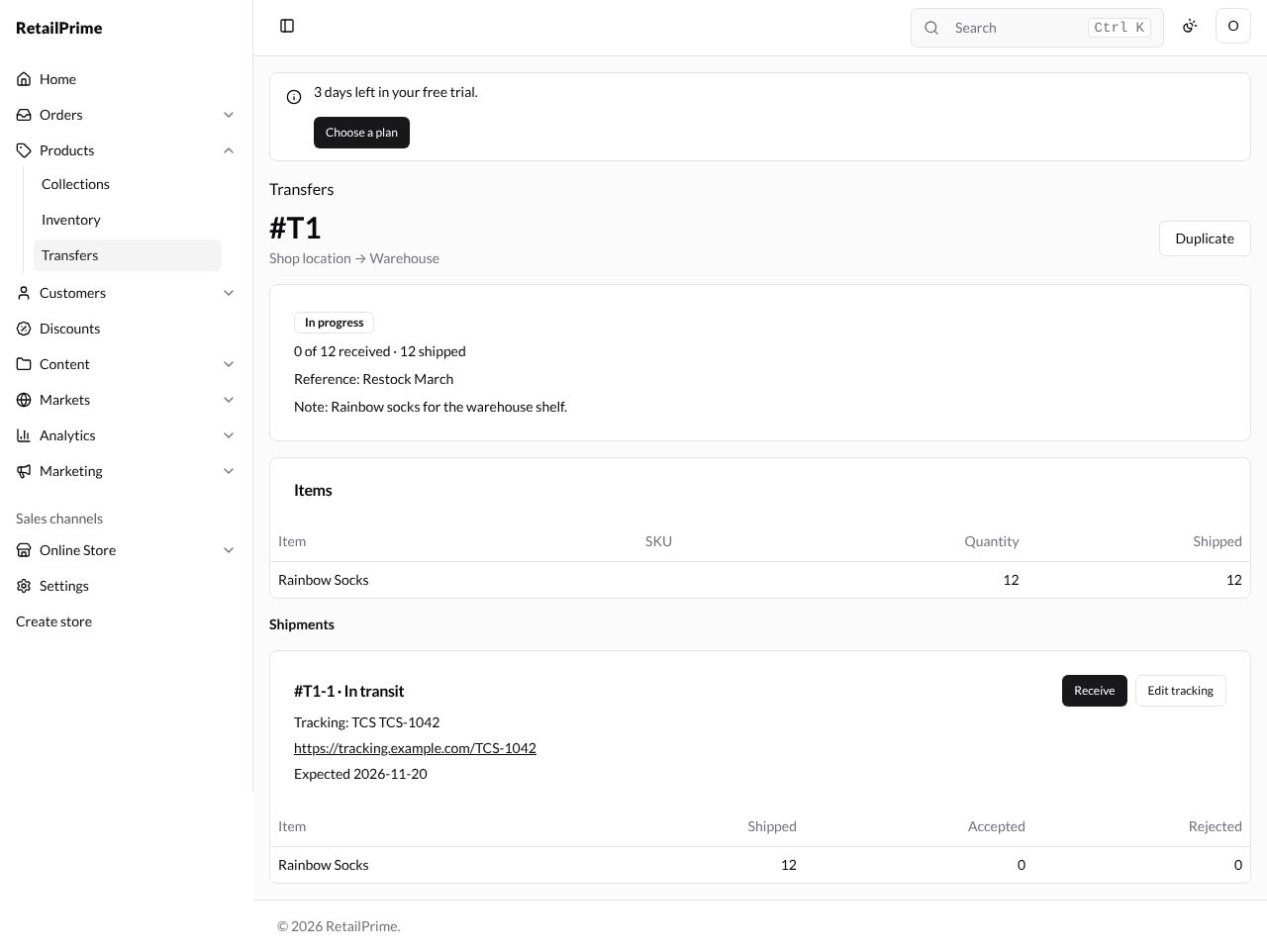
Under Shipments, the shipment is listed as #T1-1 · In transit, with its tracking and Expected date. When everything has shipped, the transfer shows In progress.
Edit tracking
You can change a shipment’s tracking until it is received in full. Here we add the tracking page.
- On the shipment, press Edit tracking.
- A box opens: Tracking for #T1-1, with Carrier, Tracking number, Tracking URL and Expected arrival as you left them.
- Change what you need. Here we type
https://tracking.example.com/TCS-1042in Tracking URL. - Press Save tracking.
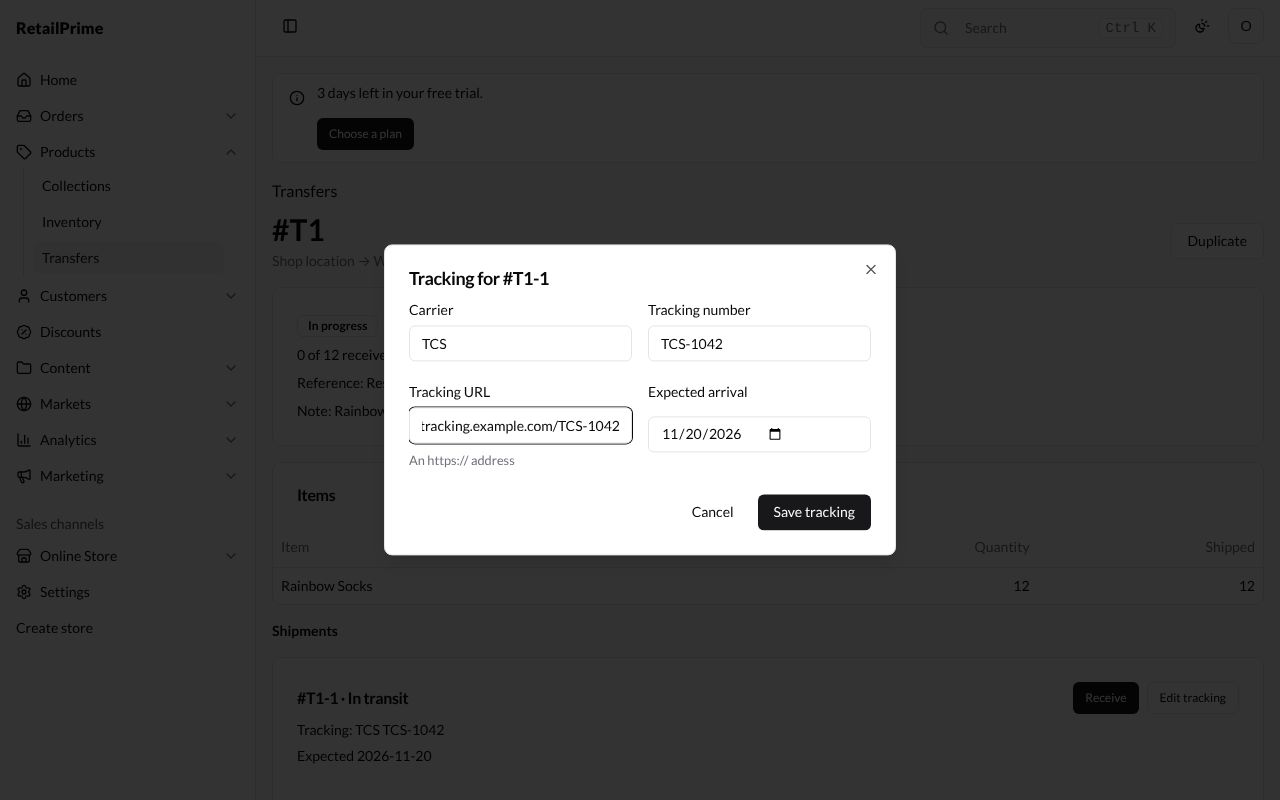
The shipment now shows the tracking link. Press it to open the carrier’s page.
Receive it
When the parcel arrives:
- Press Receive on the shipment.
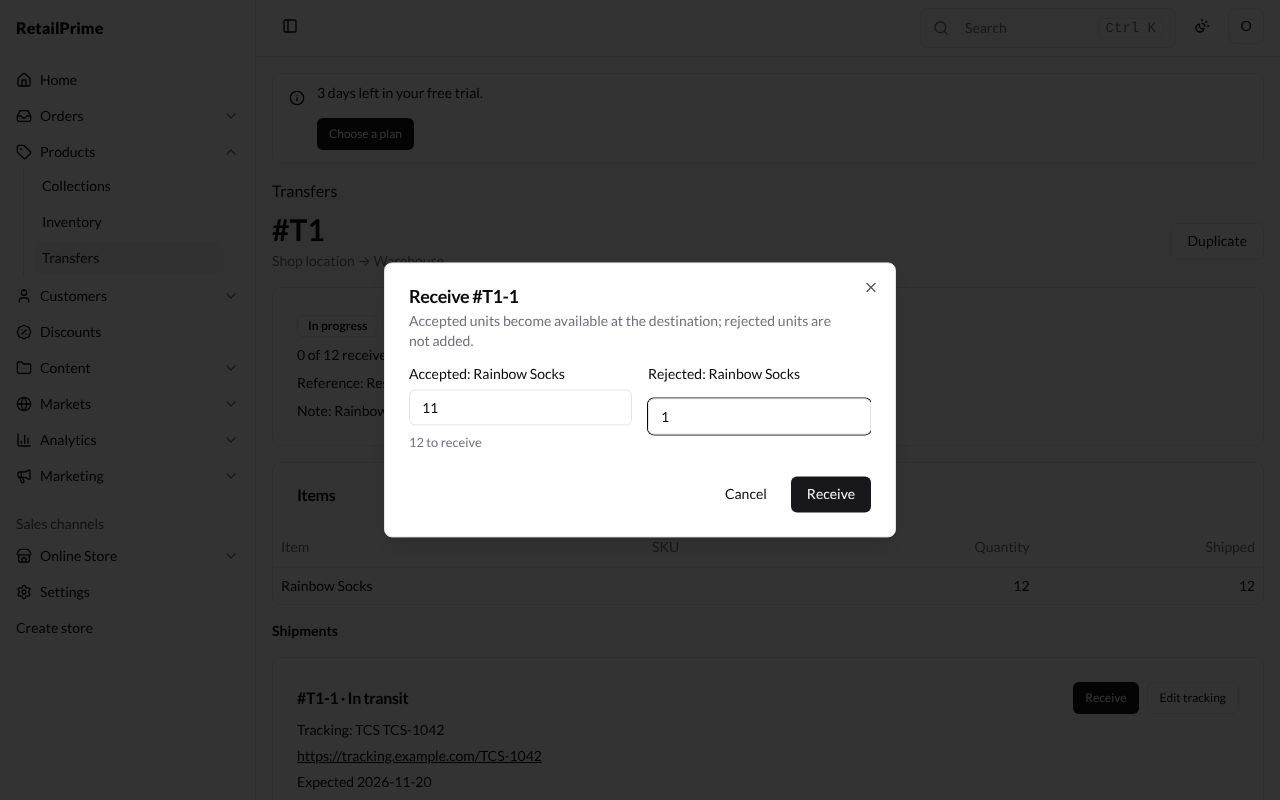
- A box opens: Receive #T1-1. Accepted units become available at the destination; rejected units are not added.
- In Accepted: Rainbow Socks, type the good units, here
11. - In Rejected: Rainbow Socks, type any you won’t keep (damaged or wrong), here
1. - Press Receive.
You don’t have to receive everything at once: receive what has arrived, and the rest later.
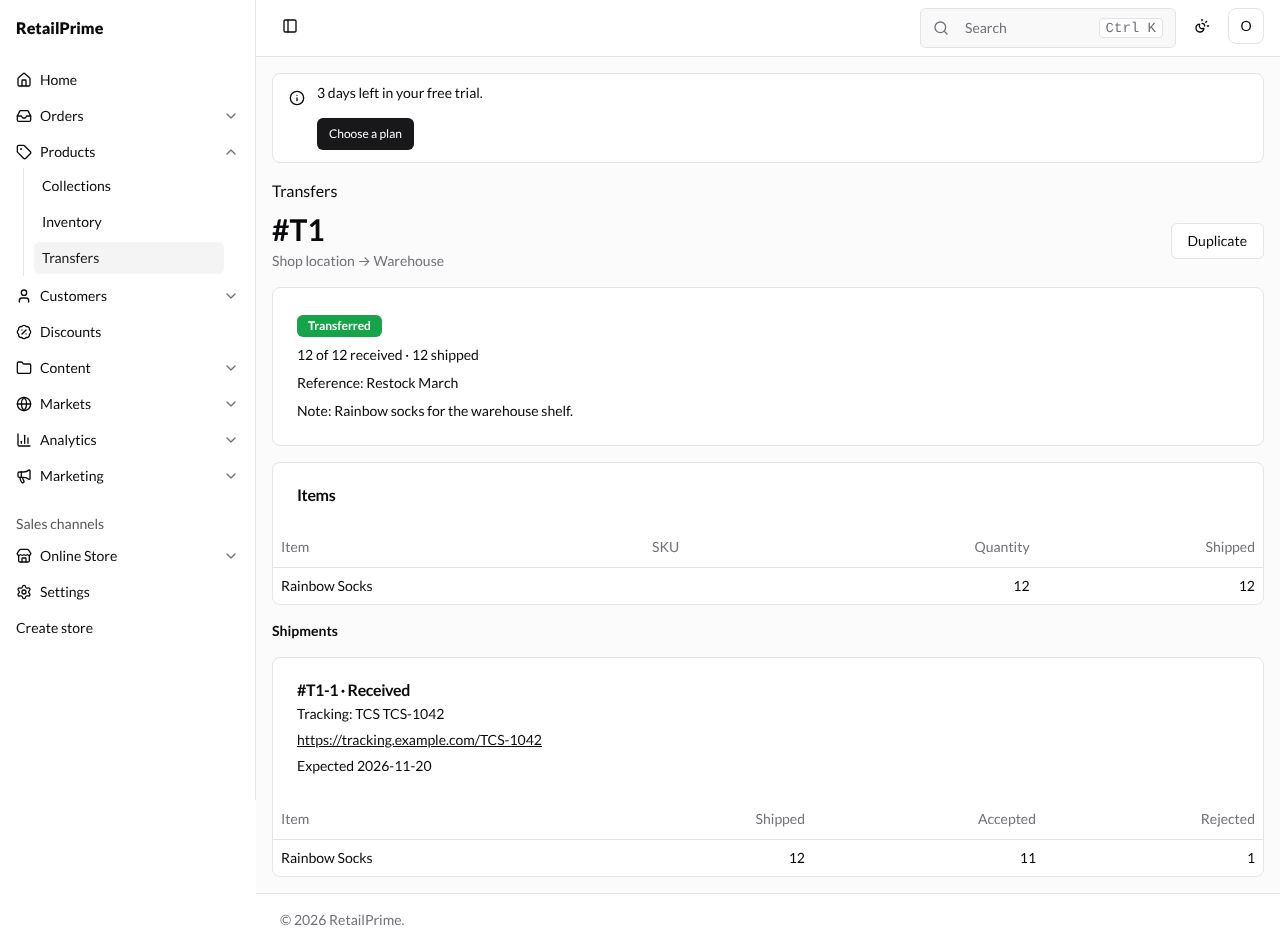
When all of it is received, the shipment shows Received and the transfer Transferred. The 11 accepted pairs are now available at the Warehouse on the Inventory page.
Cancel a transfer
You can cancel a transfer that is Ready to ship.
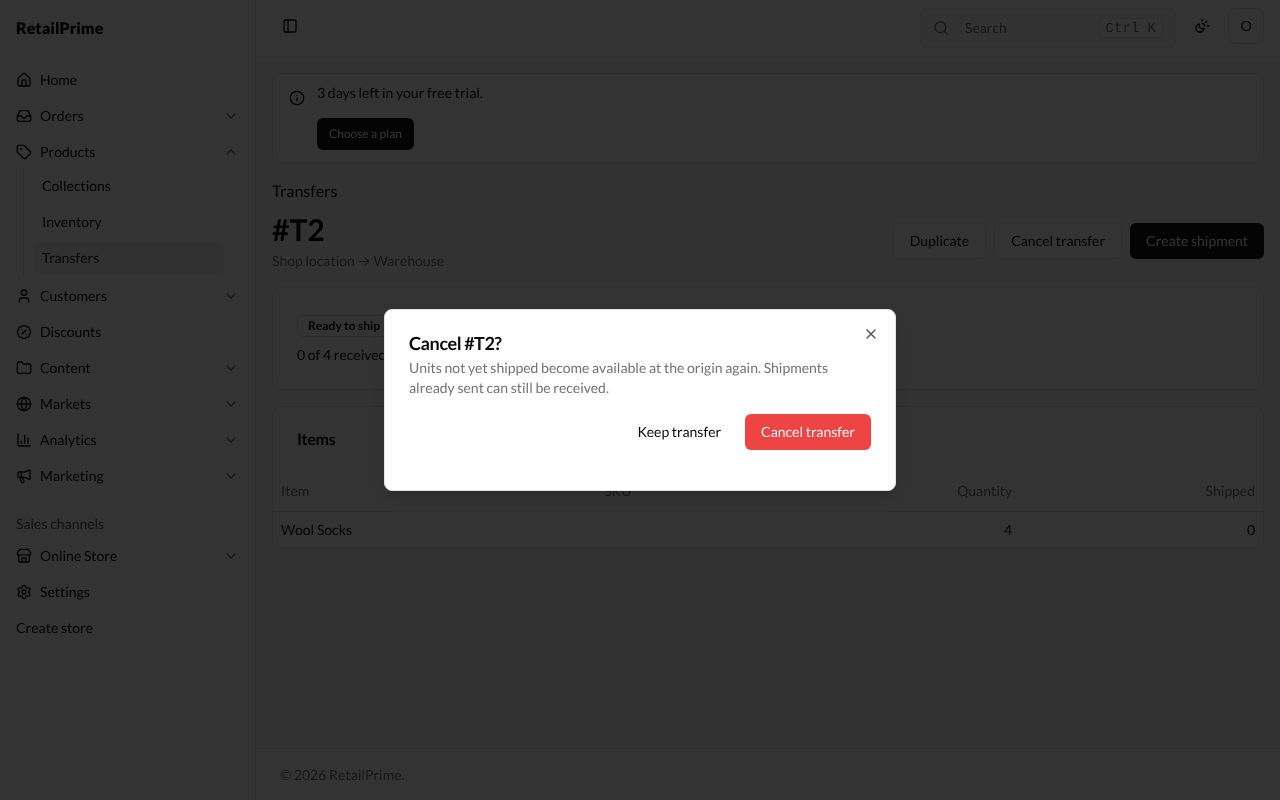
- Open it and press Cancel transfer.
- A box asks, for example, Cancel #T2? Units not yet shipped become available at the origin again. Shipments already sent can still be received.
- Press Cancel transfer, or Keep transfer to change your mind.
The transfer shows Canceled.
Delete a draft
Only a Draft can be deleted.
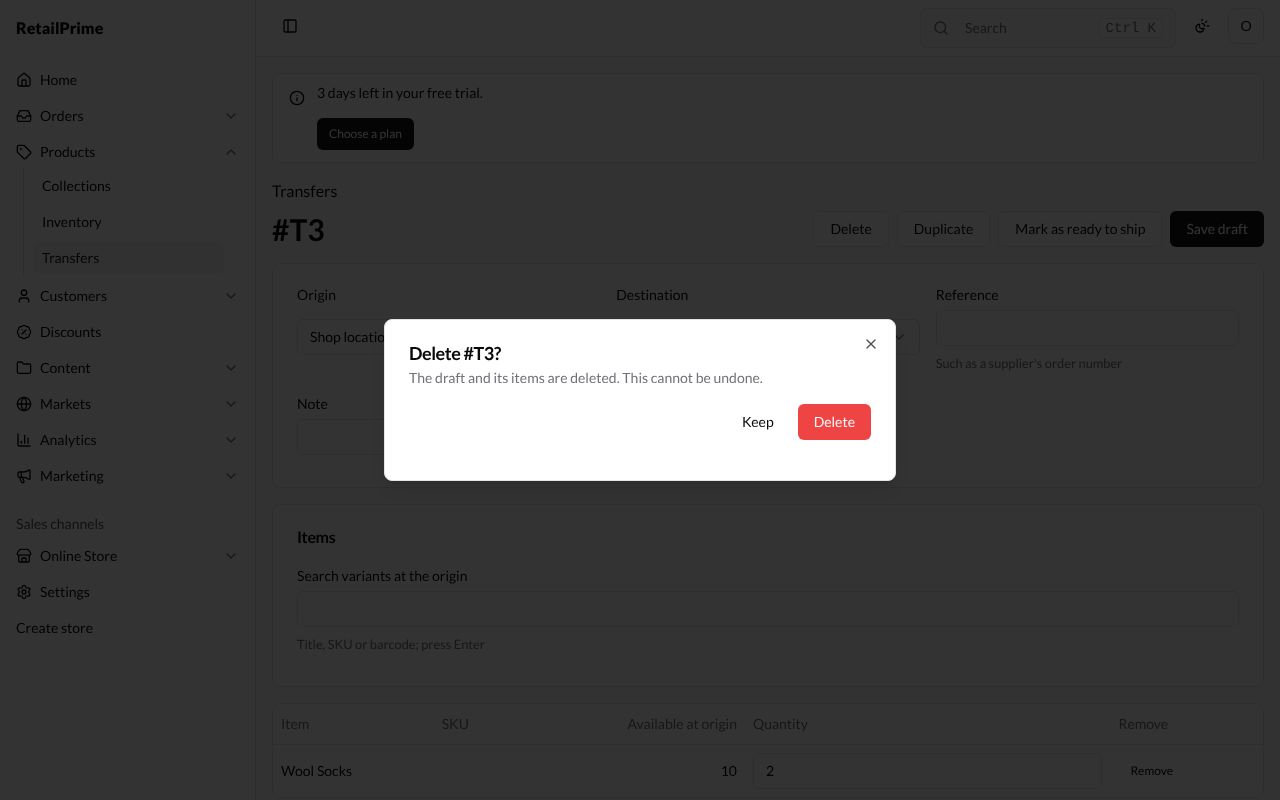
- Open the draft and press Delete.
- A box asks, for example, Delete #T3? The draft and its items are deleted. This cannot be undone.
- Press Delete, or Keep.
Duplicate a transfer
Press Duplicate on any transfer to start a new draft with the same locations, reference, note and items. Handy for a delivery you make every week.
The transfers list
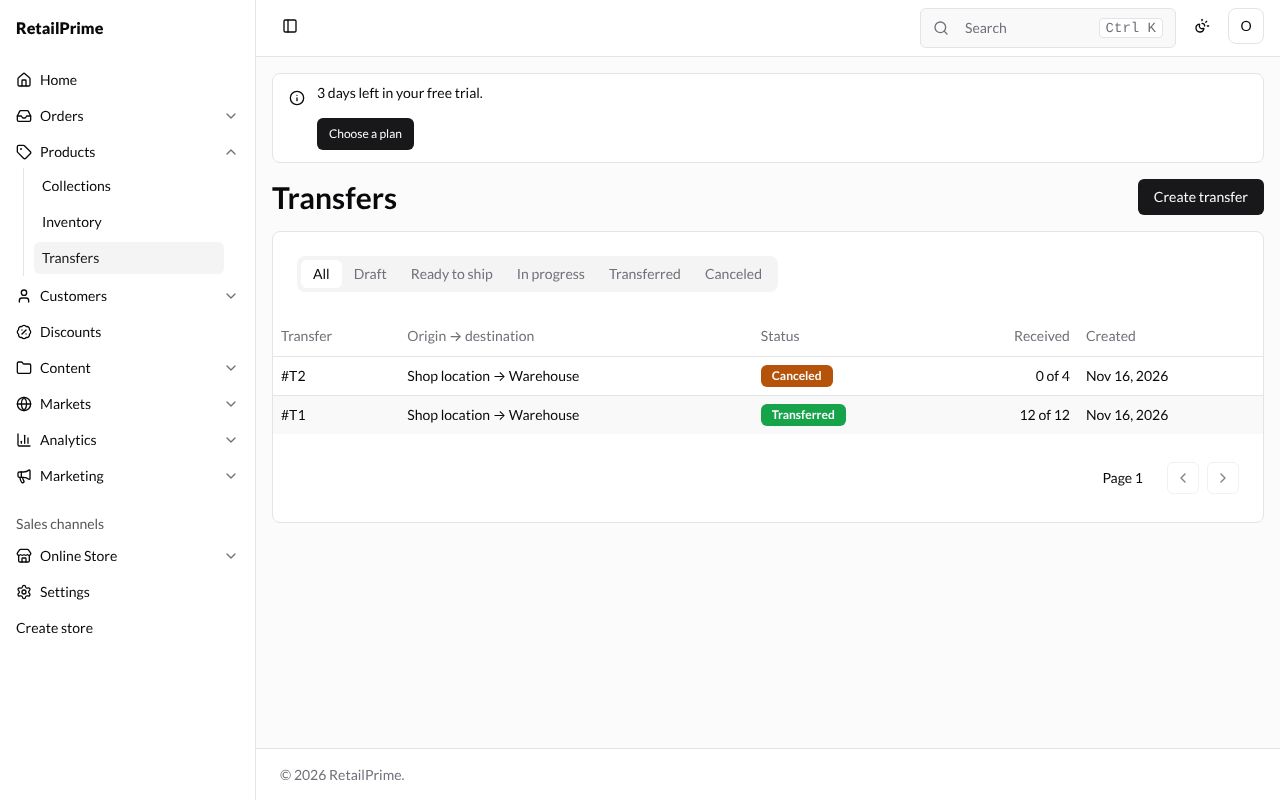
Back on Transfers, each transfer shows where it goes, its status, how many units were received, and the day it was created.
What’s next
Add many products from a spreadsheet, and change many at once: Import products and edit in bulk.