Add a product
Put your first product in your store, with its photo, price, stock and every other box explained.
A product is something you sell, such as a pair of socks. In this page you add one called Rainbow Socks.
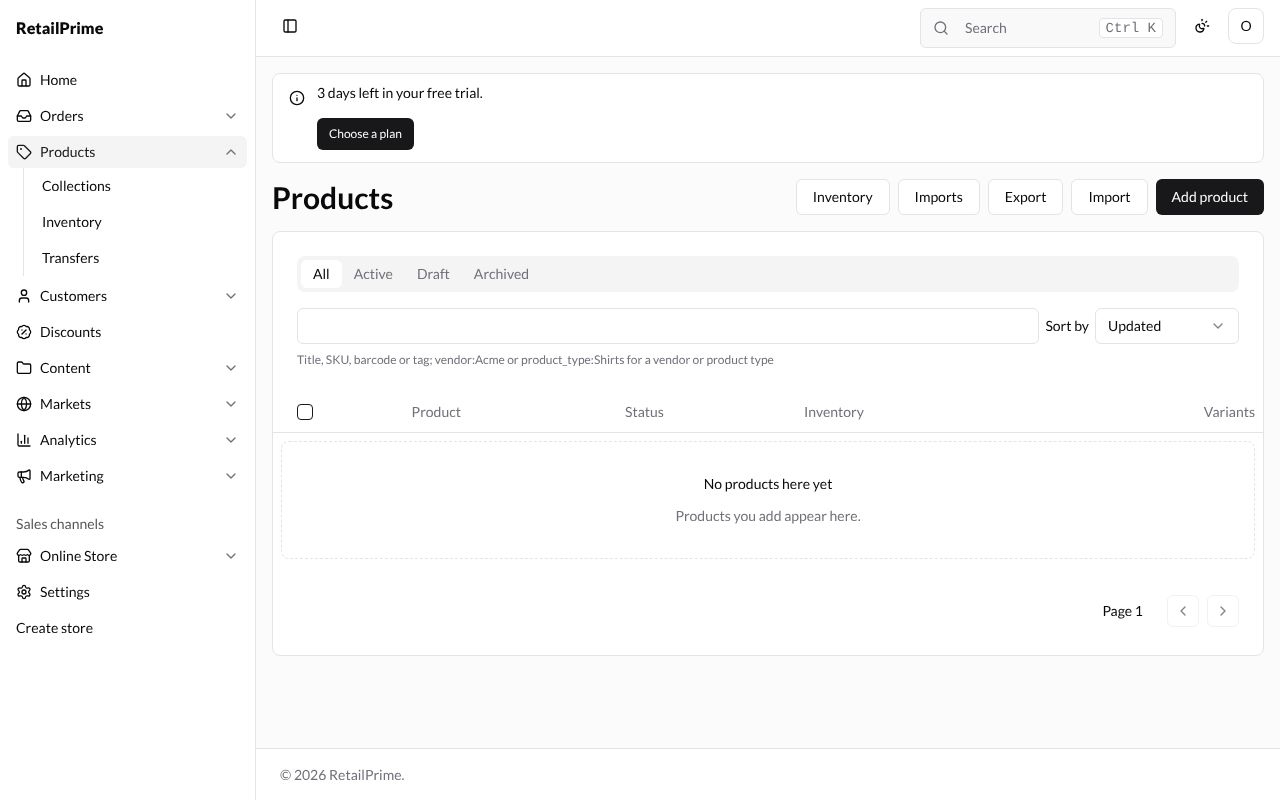
Open Products
In the sidebar, press Products. A new store has none yet, so the list says No products here yet.
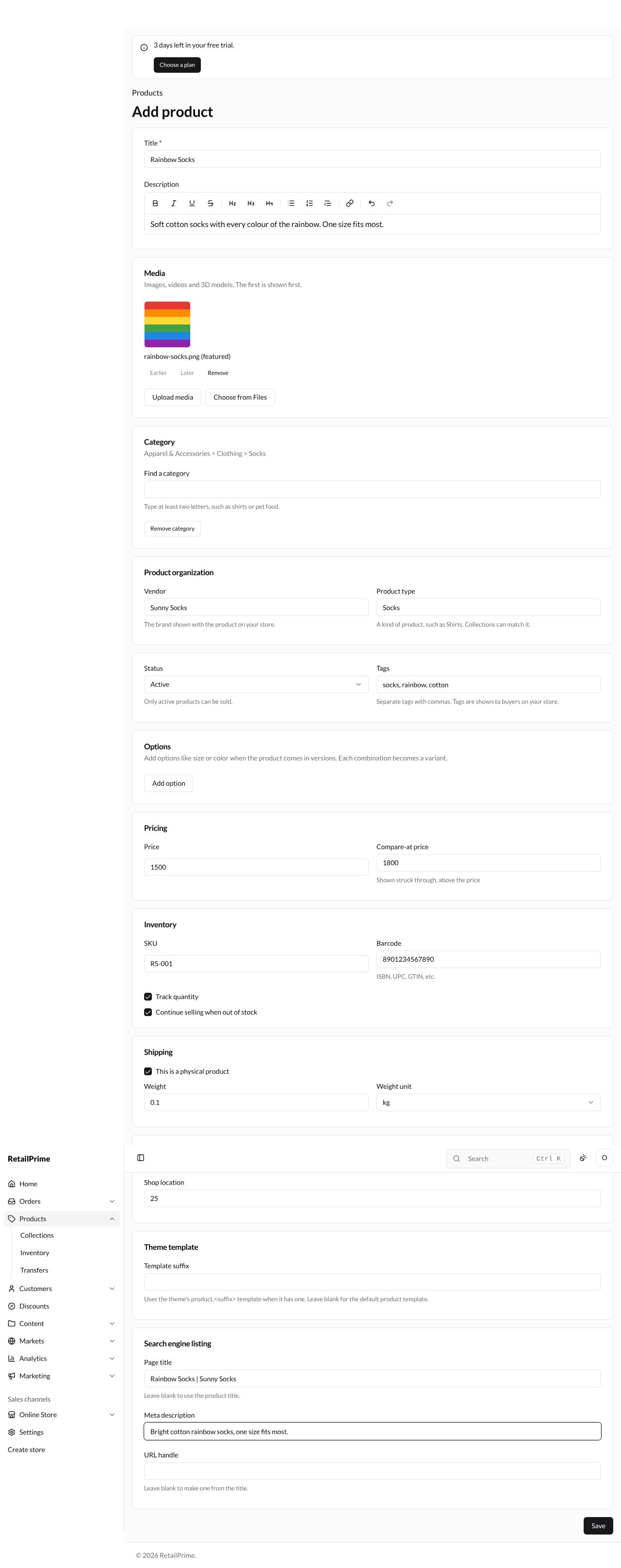
Press Add product at the top right. You see Add product, a long form made of boxes called cards. Here it is from top to bottom:
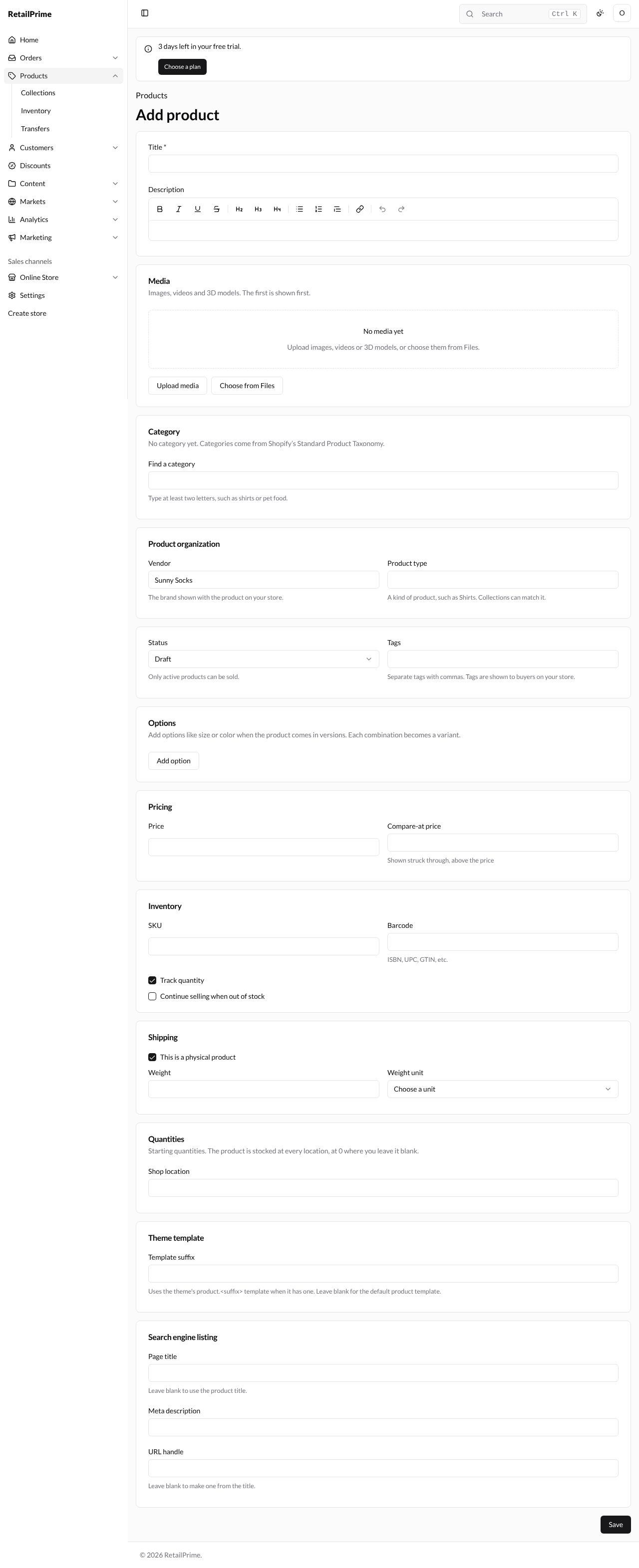
Only Title has a star (*), so it is the only box you must fill. Fill in the rest to give buyers everything they need.
1. Title and description
| Box | What to type | Example |
|---|---|---|
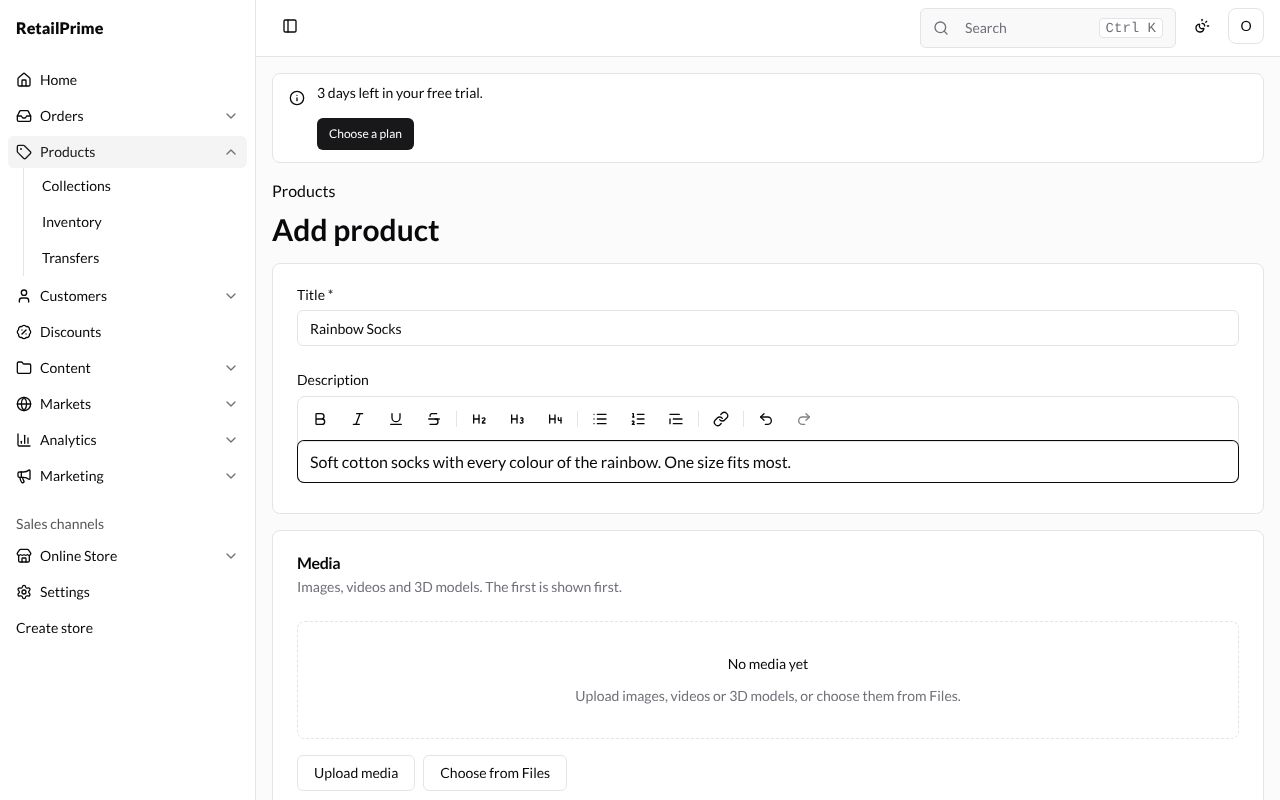
| Title | The product’s name, as buyers see it | Rainbow Socks |
| Description | A few words about it. The buttons above the box make text bold, italic, a heading, a list or a link | Soft cotton socks with every colour of the rainbow. One size fits most. |
2. Media and category
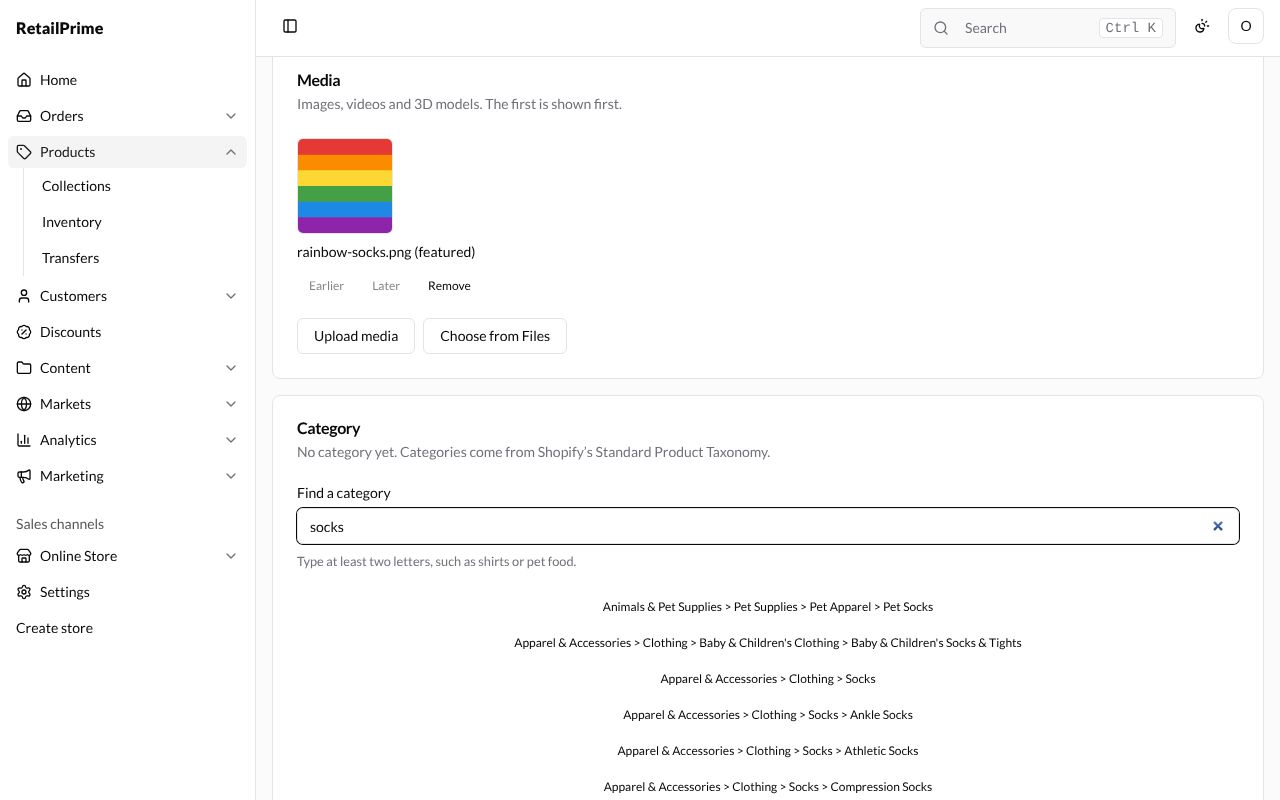
Media holds the product’s pictures, videos and 3D models. The first one is shown first.
- Press Upload media and choose a picture from your computer. It appears with (featured) after its name, because it is the first.
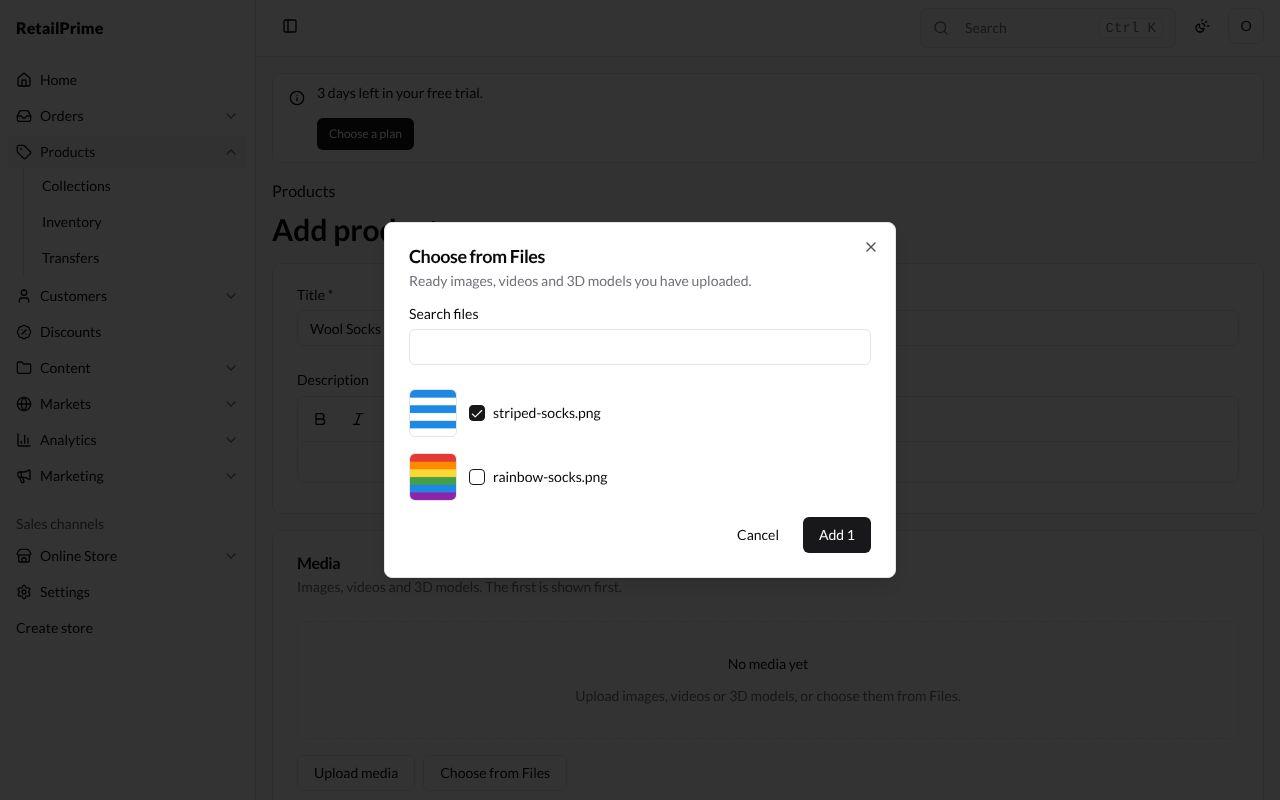
- To use a picture you already uploaded (for another product, or in Content → Files), press Choose from Files instead. A box opens with your images, videos and 3D models. Type in Search files to find one, tick the ones you want, and press Add 1 (the number is how many you ticked).
- Under each picture, Earlier and Later change its place, and Remove takes it off the product.
Category says what kind of thing the product is. Categories come from Shopify’s Standard Product Taxonomy.
- In Find a category, type at least two letters, such as
socks. - A list of matching categories appears. Press the one that fits, here Apparel & Accessories > Clothing > Socks.
- The card now shows the category you chose. Remove category takes it off.
3. Organization, status and tags
| Box | What it’s for | Example |
|---|---|---|
| Vendor | The brand shown with the product on your store. It starts filled with your store’s name | Sunny Socks |
| Product type | A kind of product. Collections can match it | Socks |
| Status | Active, Draft or Archived. A new product starts as Draft. Only active products can be sold | Active |
| Tags | Words that help you group and find products. Separate them with commas. Buyers see them on your store | socks, rainbow, cotton |
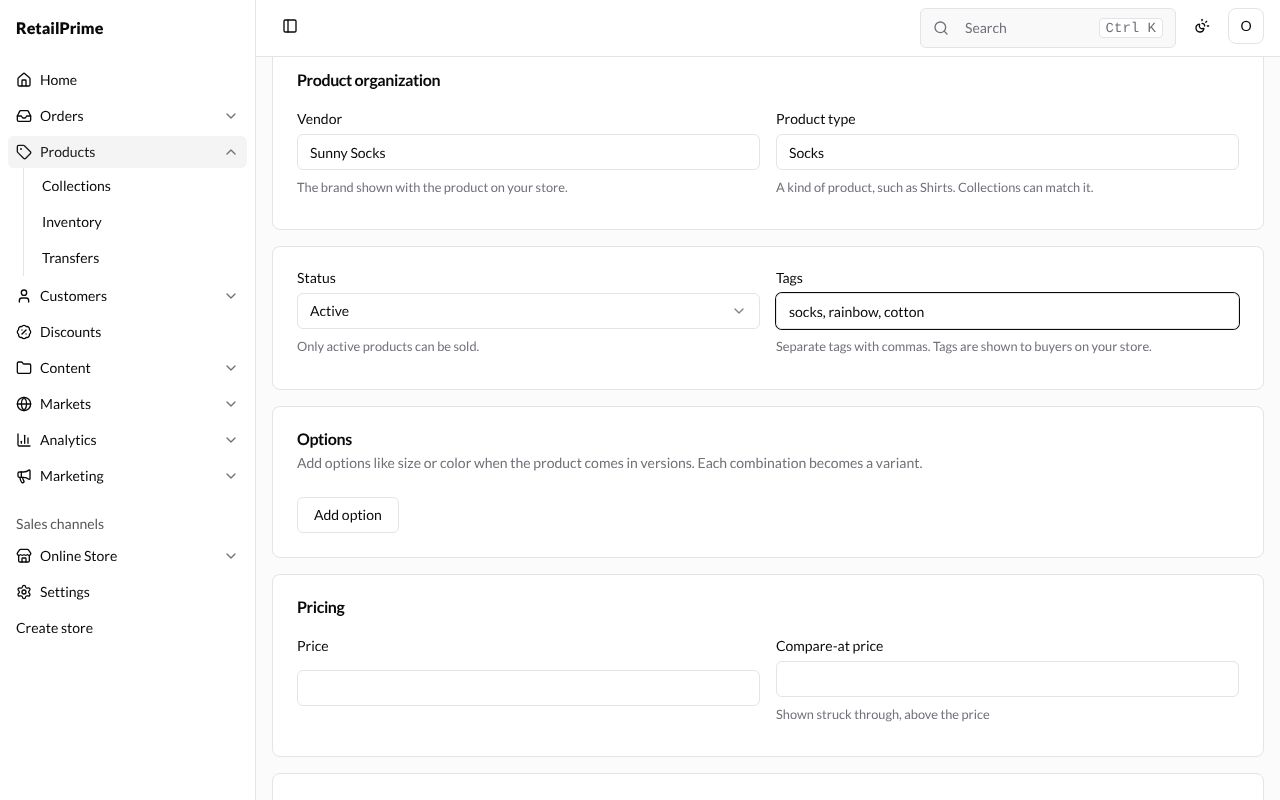
Leave Options empty for now. Options are for products that come in sizes or colours: see Options and variants.
4. Price, stock and shipping
| Box | What to type | Example |
|---|---|---|
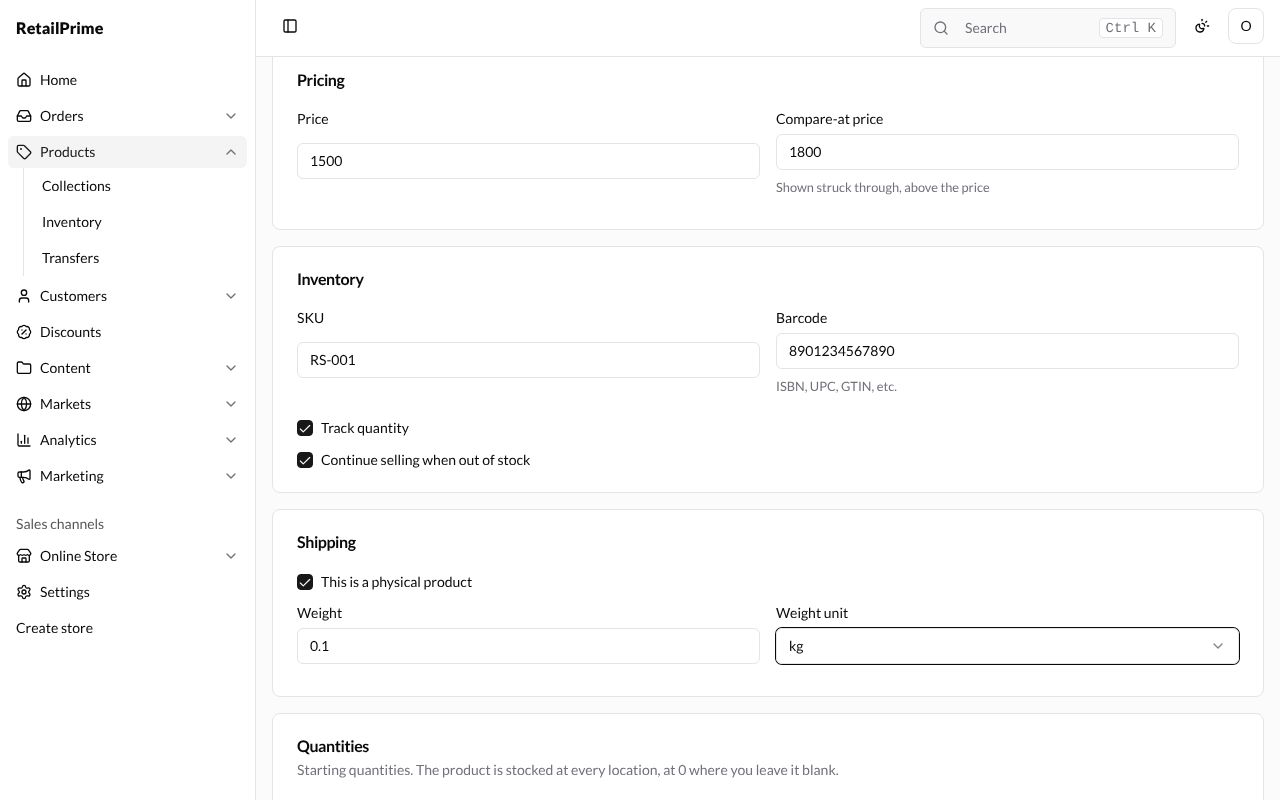
| Price | What buyers pay, in your store’s currency | 1500 |
| Compare-at price | A higher “was” price. It is shown struck through, above the price | 1800 |
| SKU | Your own code for the product, to find it quickly | RS-001 |
| Barcode | The number under the barcode on the package (ISBN, UPC, GTIN, etc.) | 8901234567890 |
| Weight and Weight unit | How heavy one is, packed. Choose kg, g, lb or oz | 0.1 and kg |
| Shop location (under Quantities) | How many you have there now | 25 |
And the tick boxes:
- Track quantity (ticked at first): RetailPrime keeps count of how many you have at each location.
- Continue selling when out of stock: buyers can still order when the count reaches 0. Leave it empty if you can’t make more.
- This is a physical product (ticked at first): it needs shipping. Untick it for things you don’t post, such as a gift card. The weight boxes then go away.
5. Search engine listing
These boxes are how the product looks in search engines such as Google. All three are optional.
| Box | What it does | Example |
|---|---|---|
| Page title | The title in search results. Leave blank to use the product title | Rainbow Socks | Sunny Socks |
| Meta description | The short text under the title in search results | Bright cotton rainbow socks, one size fits most. |
| URL handle | The end of the product’s web address. Leave blank to make one from the title | (blank, so it becomes rainbow-socks) |
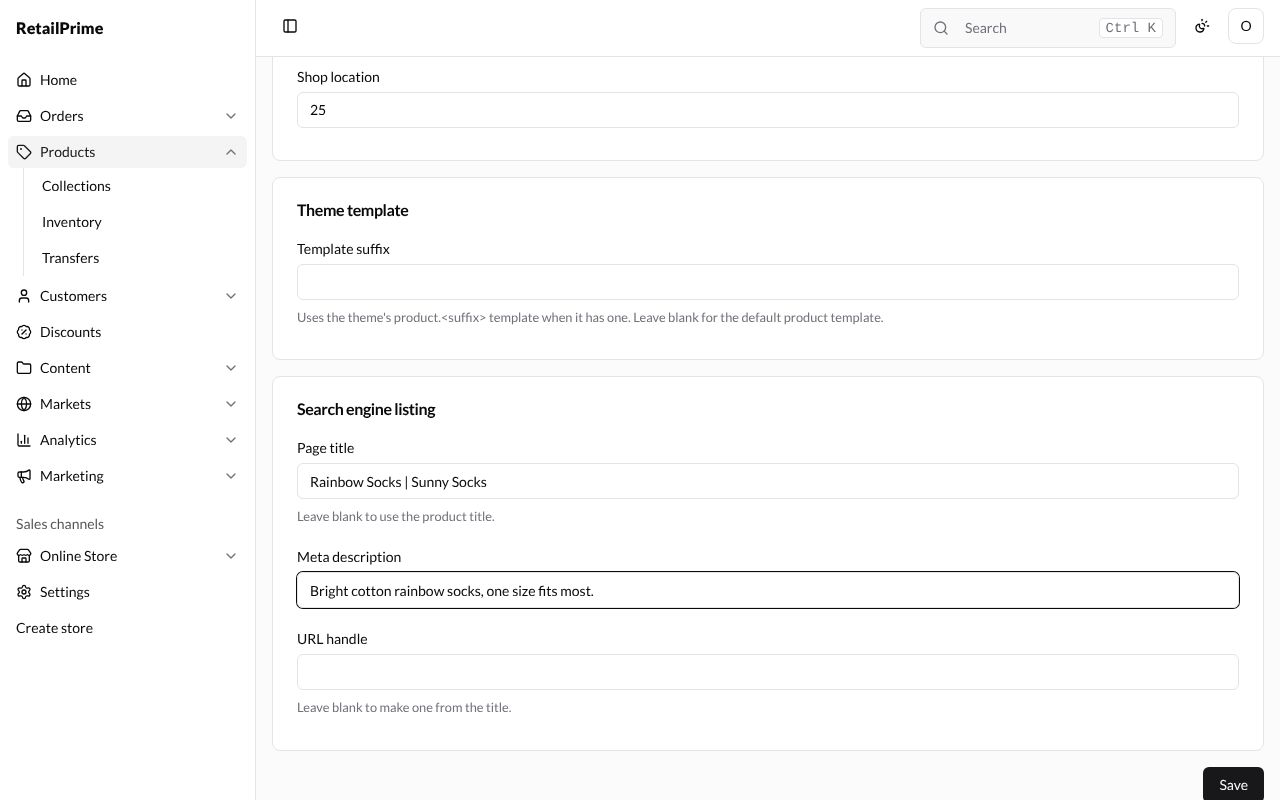
Theme template → Template suffix is for stores whose theme has more than one product page design. Leave it blank.
6. Save
Here is the whole form, filled in:
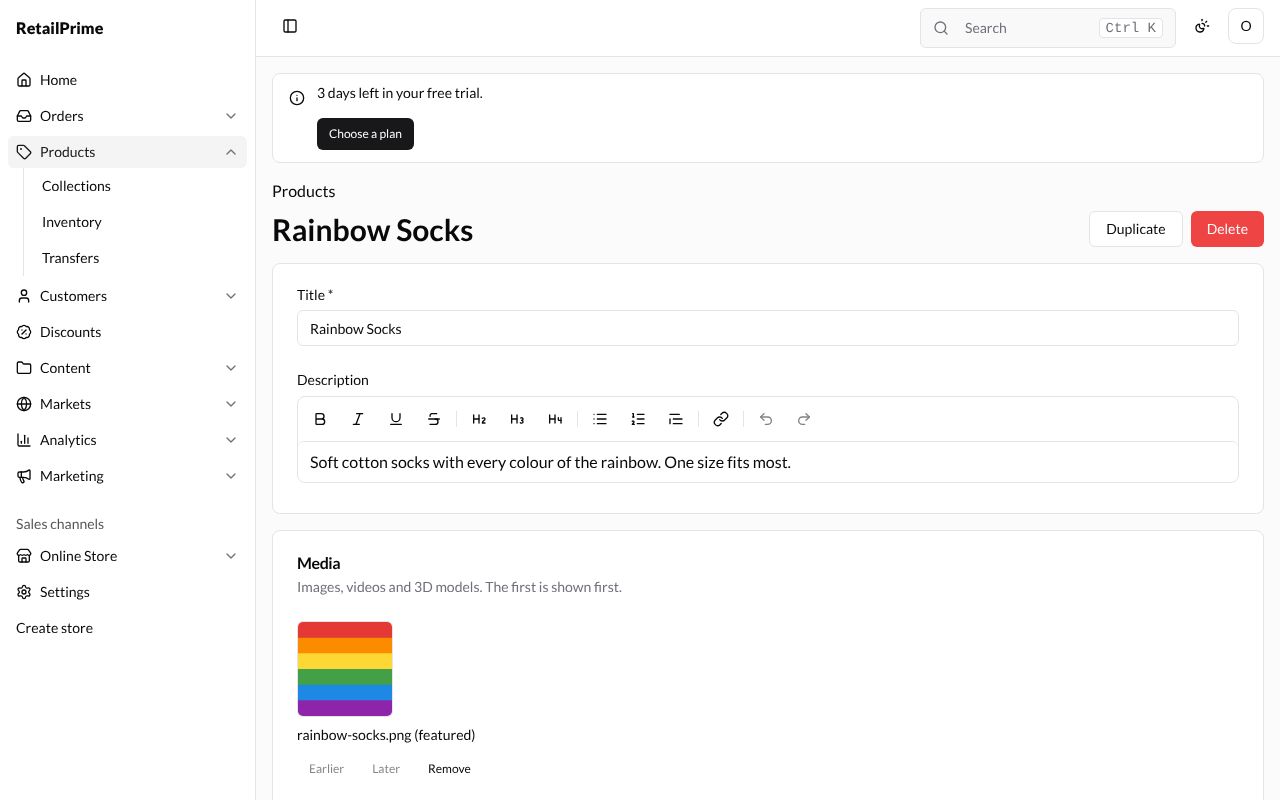
Press Save at the bottom. The page now shows Rainbow Socks as its title, with Duplicate and Delete at the top right. Your product is saved.
Further down, the saved product shows two new cards:
- Quantities by location: how many you have at each location.
- Collections: the collections it is in. A new product says Not in any collection.
What’s next
Sell the same product in different sizes: Options and variants.