Collections
Group products for your store, by hand or with conditions, then change or delete the group.
A collection is a group of products, such as Best sellers or All socks. Buyers browse them on your store, and you can put them in your store’s menus.
There are two kinds:
- Manual: you add products one by one.
- Automated: you set conditions, such as “the title contains Socks”, and every product that matches is added, now and later.
Open Collections
In the sidebar, press Products, then Collections. A new store says No collections yet.
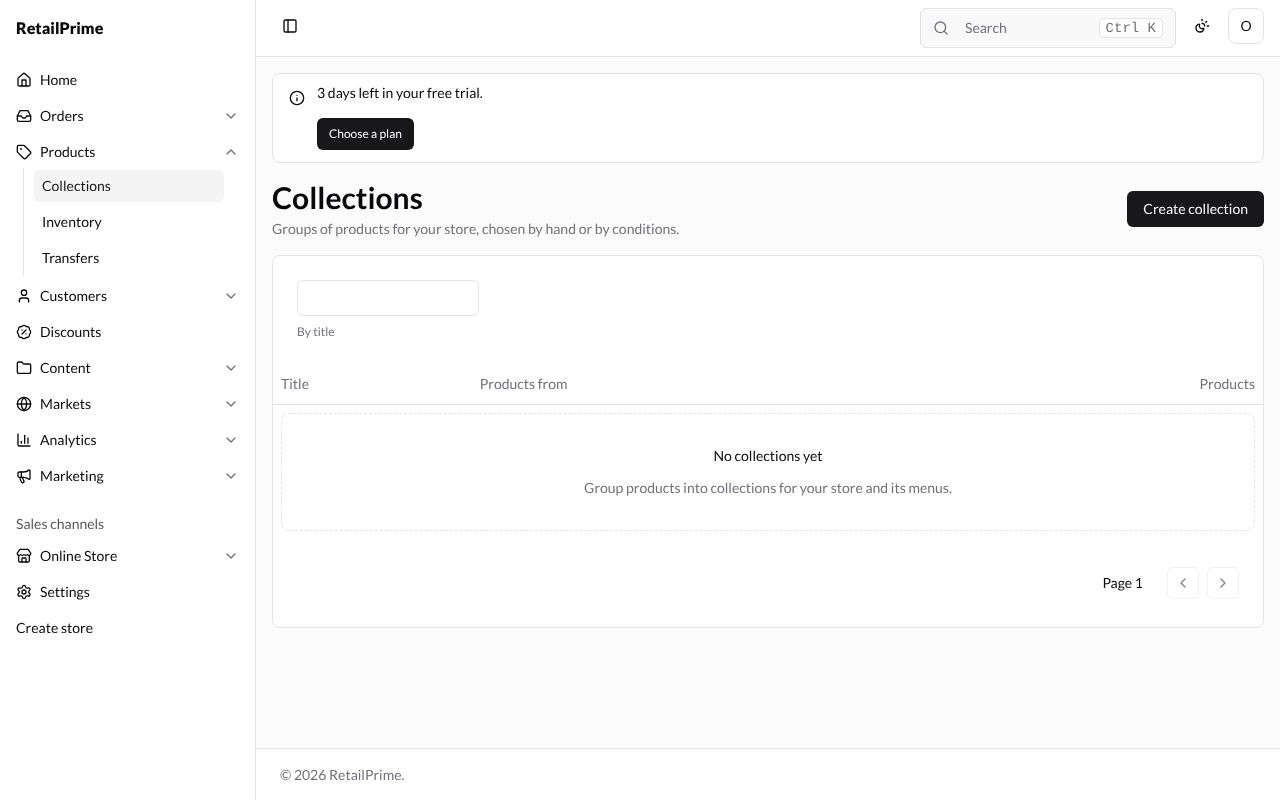
Create a manual collection
- Press Create collection.
- Fill in the form:
| Box | What to type | Example |
|---|---|---|
| Title * | The collection’s name | Best sellers |
| Description | A few words buyers see with it | Our most loved socks. |
| Image | A picture for the collection: Upload image, or Choose from Files | (optional) |
| How products are added | Manual: add products one by one | Manual |
| Sort products | The order buyers see: Manually (the order you set), Title A–Z, Title Z–A, Price, low to high, Price, high to low, Newest or Oldest | Manually |
Theme template and Search engine listing work as on a product (see Add a product).
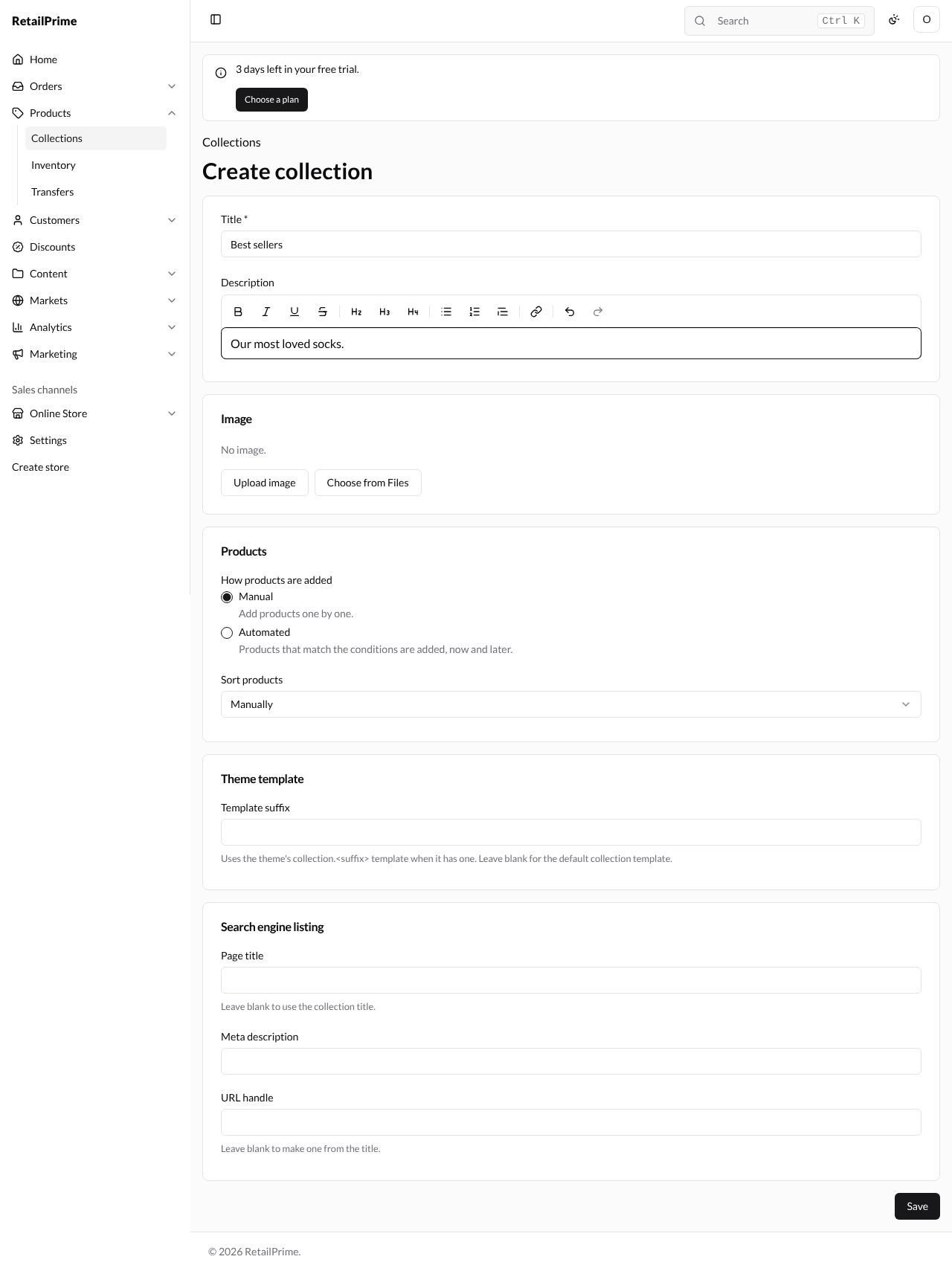
- Press Save. The collection opens, titled Best sellers.
Add products to it
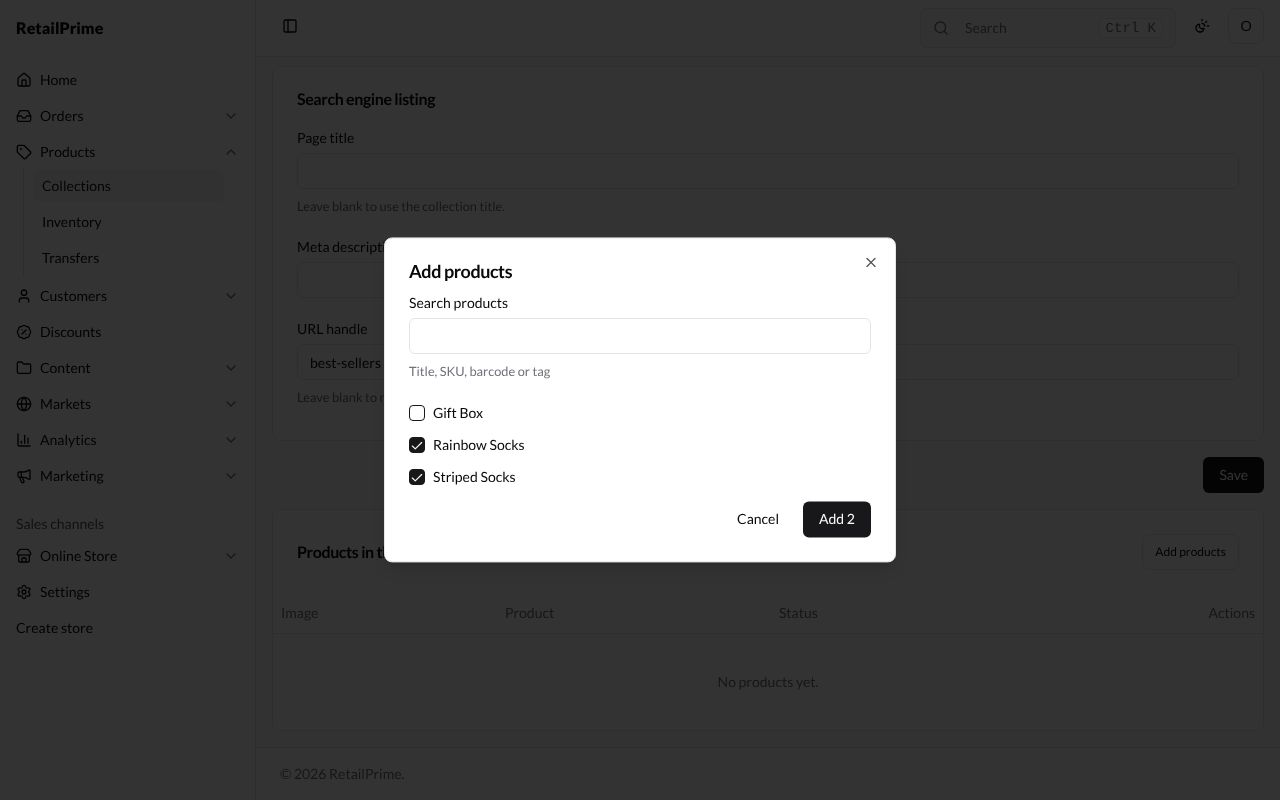
- Scroll down to Products in this collection and press Add products.
- A box opens with your products. Type in Search products to find one by title, SKU, barcode or tag.
- Tick the products you want, here Rainbow Socks and Striped Socks.
- Press Add 2 (the number is how many you ticked).
The products are now listed in the collection.
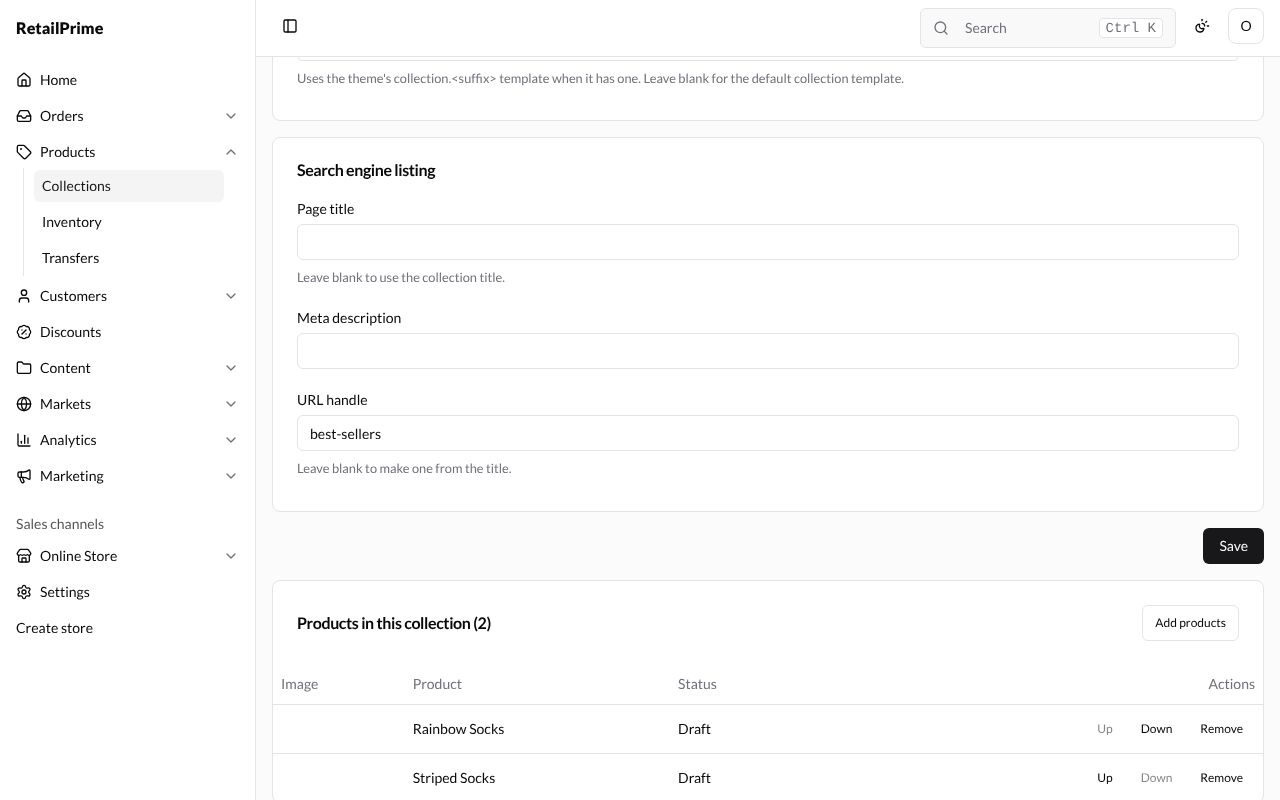
- Up and Down move a product earlier or later, when Sort products is Manually.
- Remove takes the product out of the collection. The product itself is kept.
You can also add products from the products list: tick them and press Add to collection (see The products list).
Create an automated collection
- Go back to Collections and press Create collection.
- Type the Title, here
All socks. - Under How products are added, choose Automated. More boxes appear:
| Box | What it means | Example |
|---|---|---|
| Products must match | All conditions (every one must be true) or Any condition (one is enough) | All conditions |
| Condition 1 | What to look at: Product title, Product tag, Price, Compare-at price, Inventory stock, Variant title, Product vendor or Product type | Product title |
| Comparison 1 | How to compare, such as is equal to, contains, starts with or is greater than (the choices depend on the condition) | contains |
| Value 1 | What to compare with | Socks |
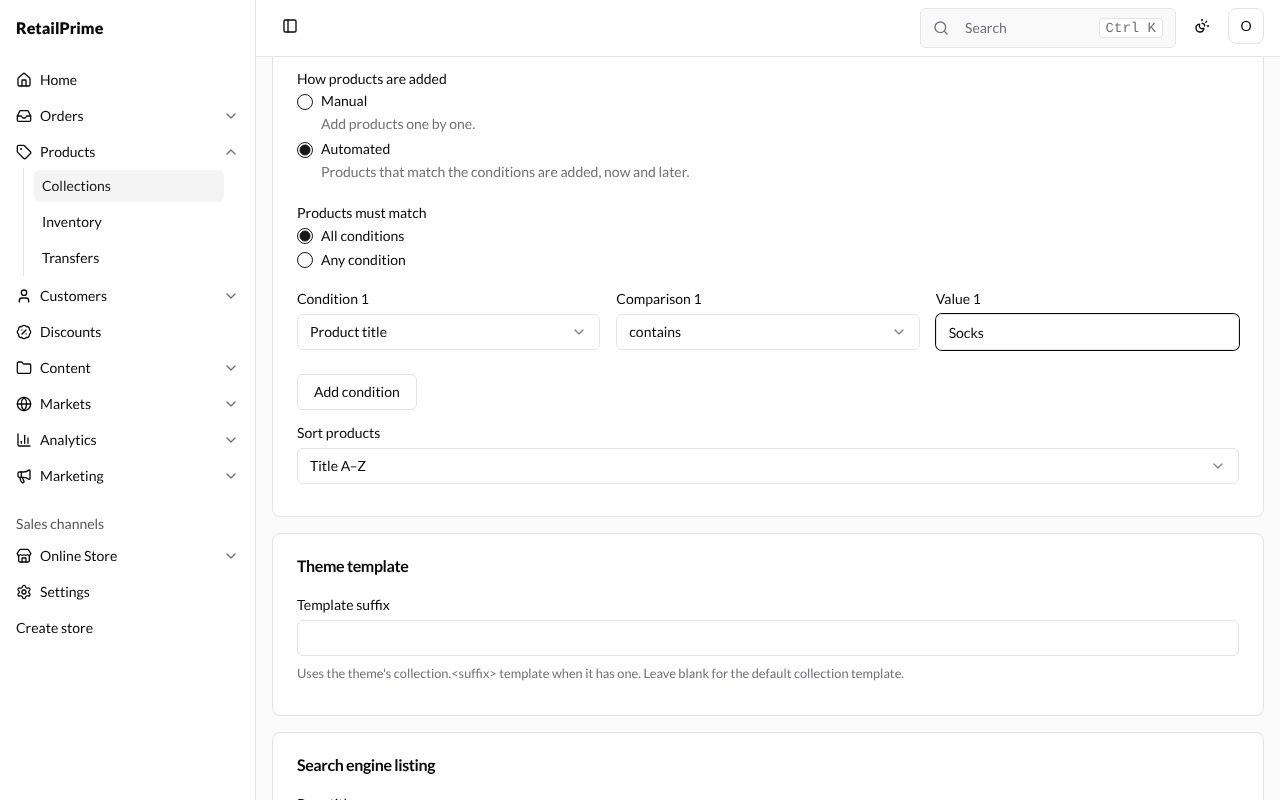
- To add another condition, press Add condition. With more than one, each has a Remove condition button.
- Press Save.
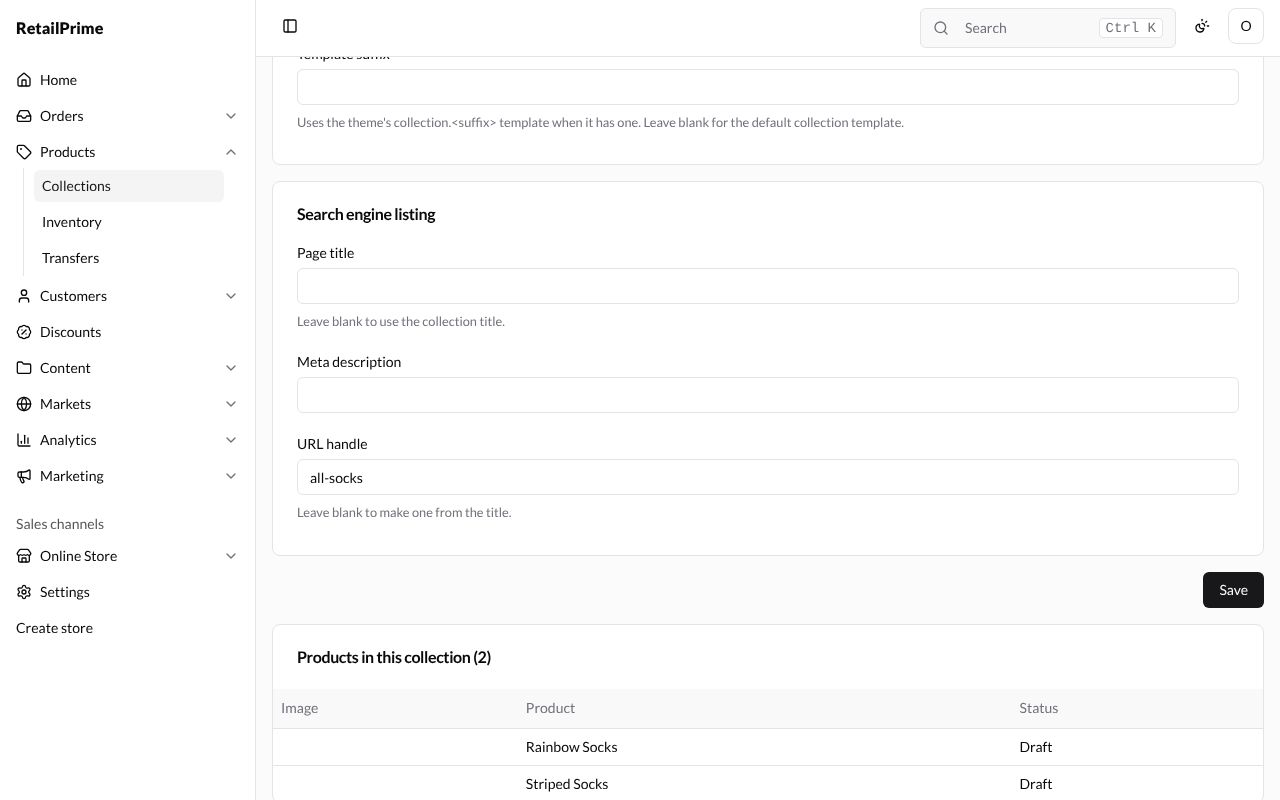
The matching products are listed at the bottom, under Products in this collection. Here both socks are in, and the Gift Box is not, because its title doesn’t contain “Socks”.
Edit a collection
- In Collections, press the collection’s name.
- Change what you need, such as the Title (here to
Every sock) or the conditions. - Press Save.
The list shows each collection, where its products come from (Manual, or its conditions in words), and how many products it has.
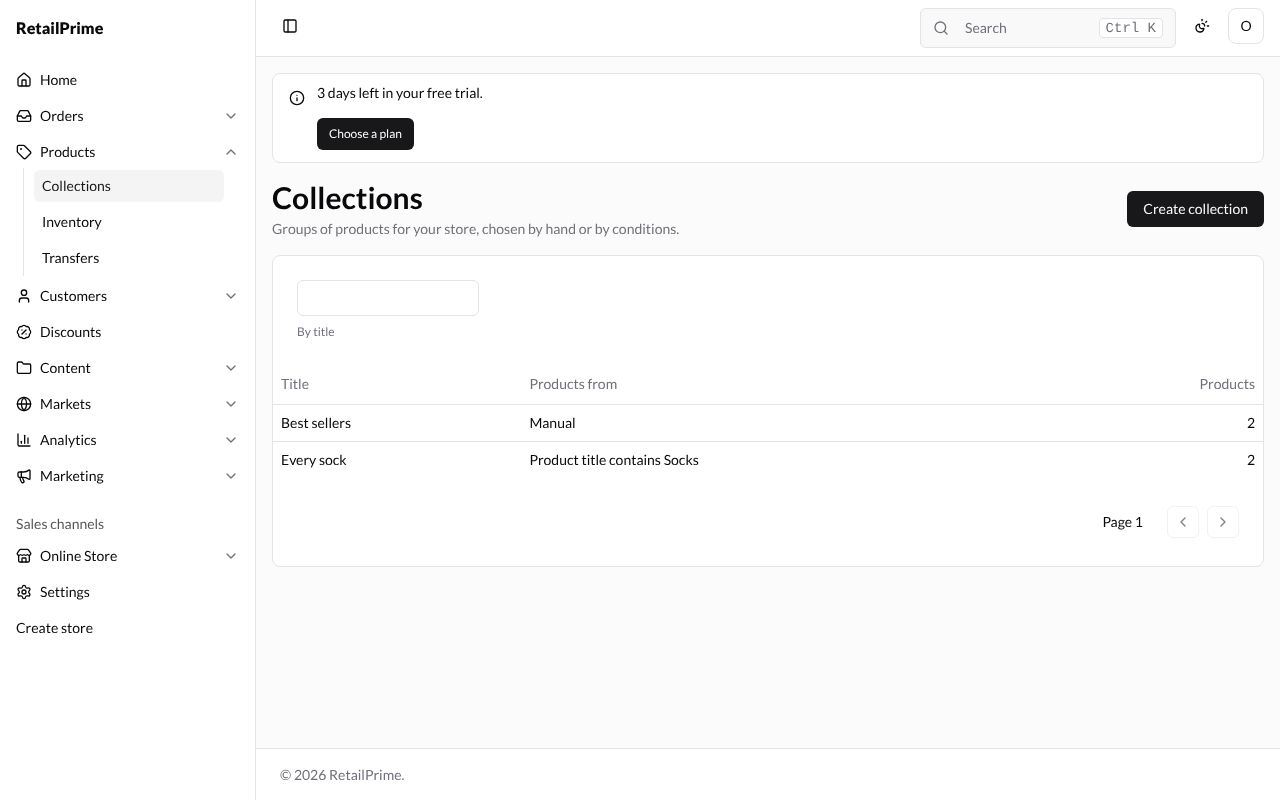
Type in the box above the list to find a collection by title.
Delete a collection
- Open the collection, here Best sellers.
- Press Delete at the top right.
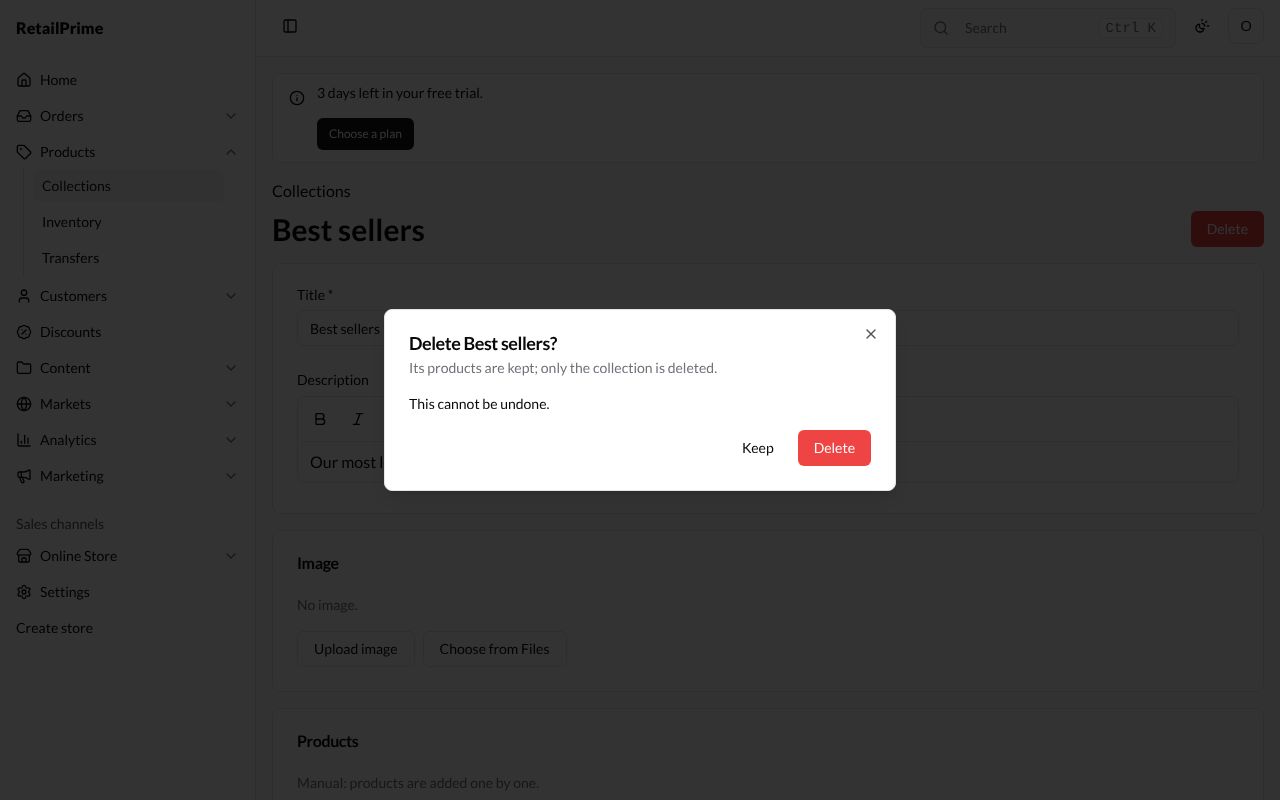
- A box asks Delete Best sellers? Its products are kept; only the collection is deleted.
- Press Delete, or Keep to change your mind.
What’s next
Count and change your stock: Inventory.