Short socks for trainers.
,Sunny Socks,socks,active,Size,S,AS-S,900,shopify ankle-socks,,,,,,,M,AS-M,900,shopify ankle-socks,,,,,,,L,AS-L,950,shopify bamboo-socks,Bamboo Socks,Soft bamboo socks.
,Sunny Socks,socks,draft,Title,Default Title,BS-1,1100,shopify ``` | Column | What goes in it | | --- | --- | | **Handle** | A short name for the product, with no spaces, on every row (it becomes the end of the product's web address) | | **Title**, **Body (HTML)**, **Vendor**, **Tags**, **Status** | Filled on the product's first row only. **Status** is `active`, `draft` or `archived` | | **Option1 Name** / **Option1 Value** | The option (such as `Size`) on the first row, and each variant's value on its own row. A product without options uses `Title` and `Default Title` | | **Variant SKU**, **Variant Price** | Each variant's SKU and price | | **Variant Inventory Tracker** | `shopify` to tick **Track quantity**, or empty to leave it unticked. Use `shopify` if you want to count stock, and to [import quantities](/products-and-inventory/inventory) later | :::note[What isn't imported] The file can be up to 15 MB and 50,000 rows, in UTF-8. **Images and quantities are not imported**: add pictures on each product page, and quantities on the [Inventory](/products-and-inventory/inventory) page (by hand, or with its own **Import**). ::: ### Upload it 1. Go to **Products** and press **Import** at the top. 2. A box opens: **Import products**. Press **Choose CSV file** and pick your file. 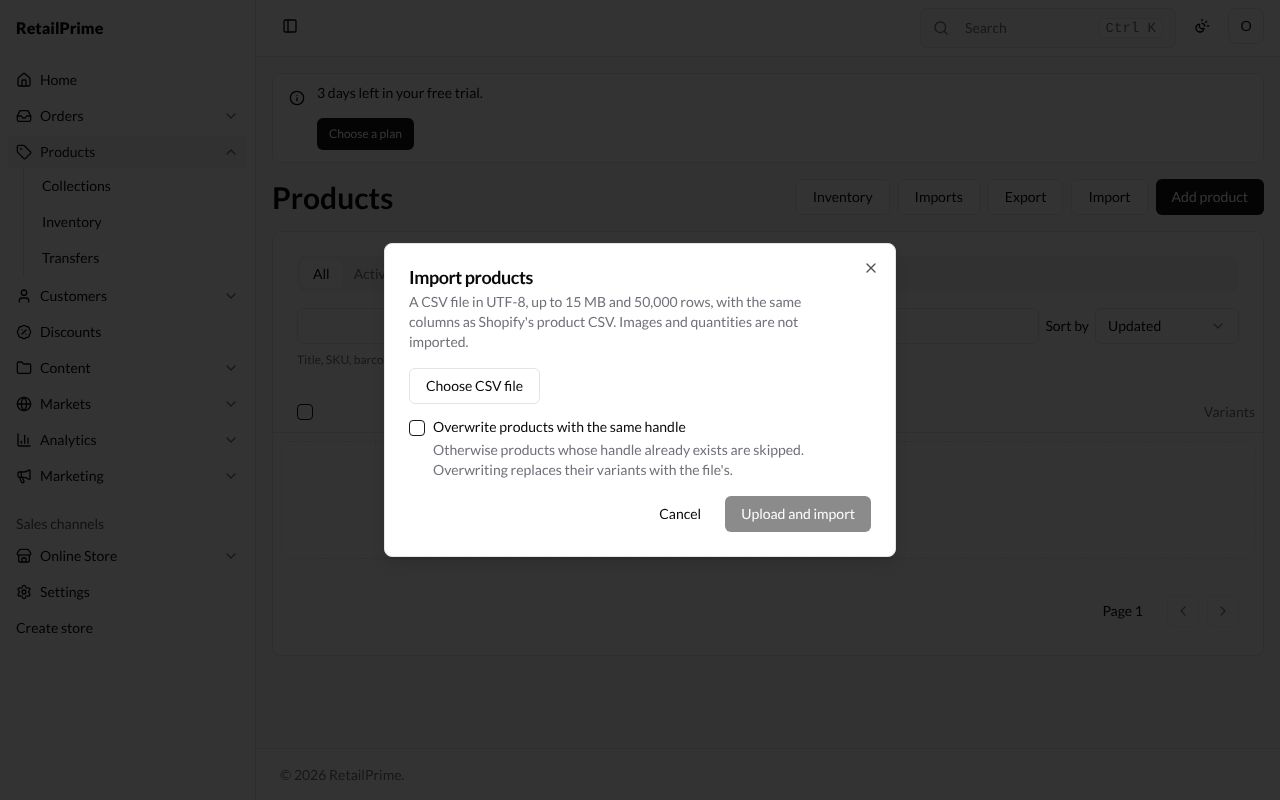 3. The file's name and size appear under the button. 4. **Overwrite products with the same handle**: leave it empty to skip products whose handle you already have. Tick it to replace them; overwriting replaces their variants with the file's. 5. Press **Upload and import**. 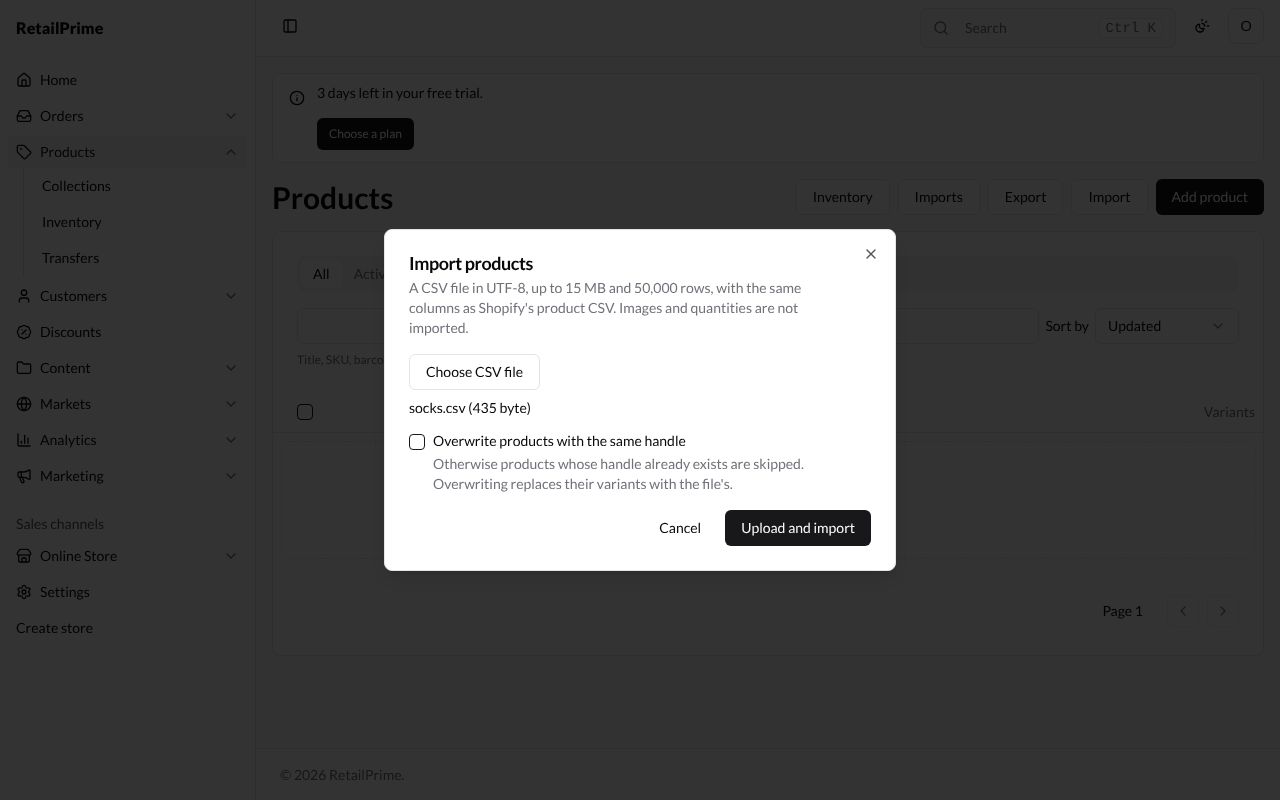 ### Follow the import The import's own page opens, named after your file. The import runs by itself; you can leave the page and come back. 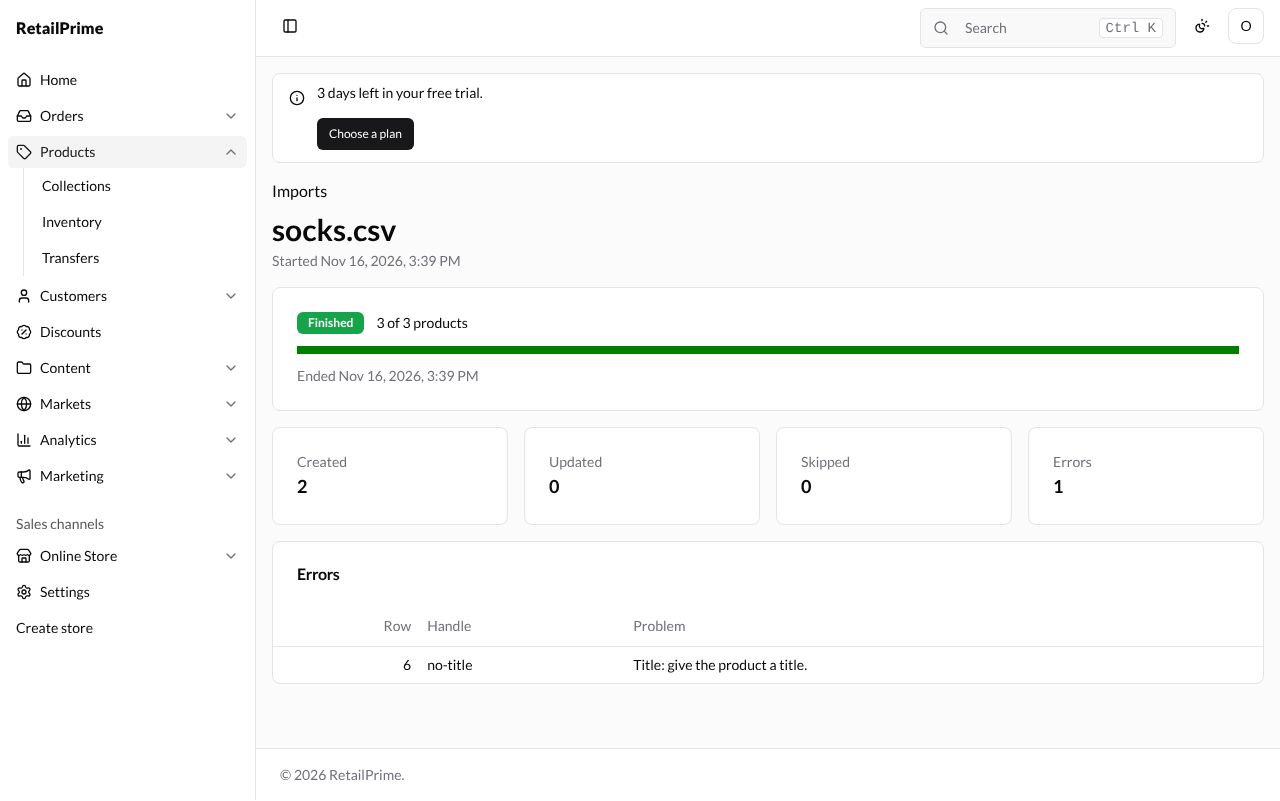 | Part | What it shows | | --- | --- | | The status | **Waiting**, **Importing**, **Finished** or **Failed** | | **3 of 3 products** and the bar | How far it has got | | **Created**, **Updated**, **Skipped** | New products, products overwritten, and products skipped because their handle already exists | | **Errors** | Rows that couldn't be imported. The table gives the **Row** of the file, the **Handle** and the **Problem** | Here row 6 had a handle but no title, so it says **Title: give the product a title.** Fix the row in your file and import it again. ### All your imports Press **Imports** above the file name (or the **Imports** button on the products list). You see every import with its **Status**, **Progress**, how many were **Created, updated, skipped**, its **Errors** and when it **Started**. Press a file name to open its page. 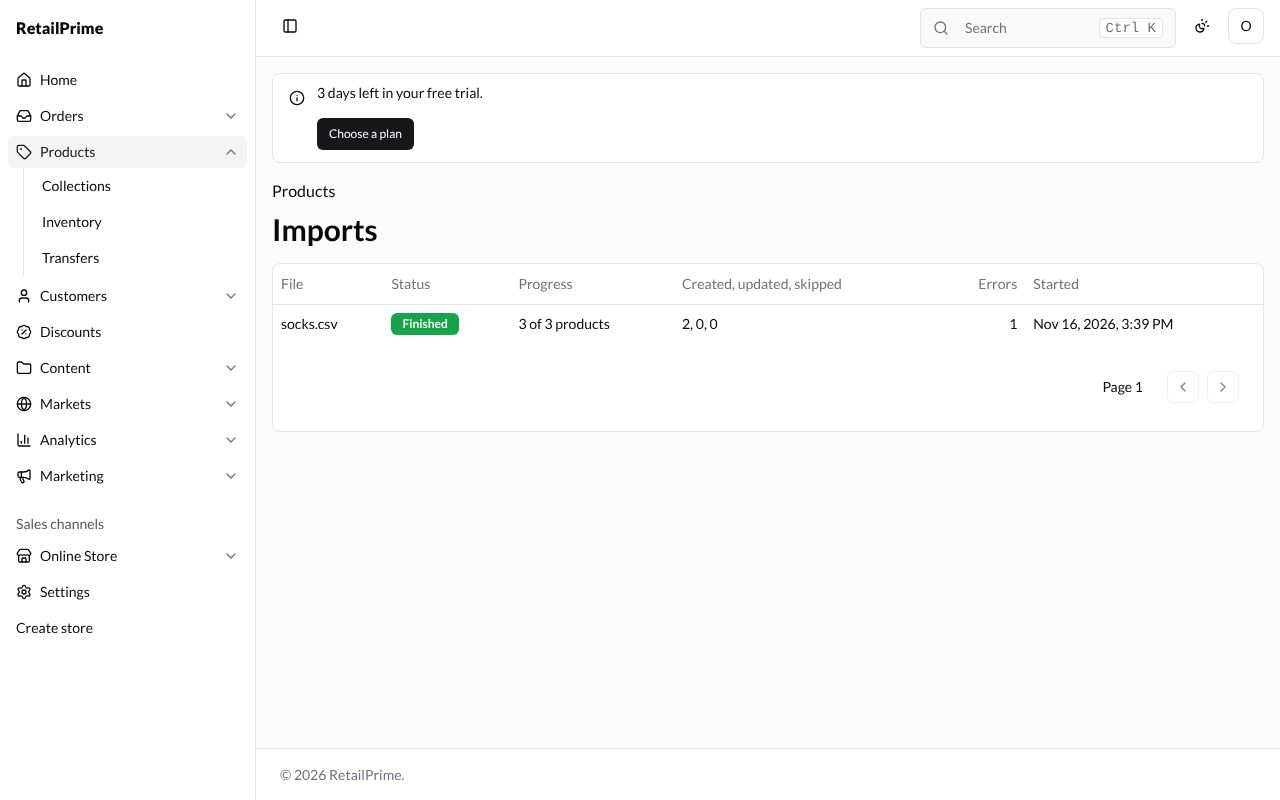 ## Edit many products in one table The bulk editor shows the products you choose in one table, like a spreadsheet, so you can change many prices or SKUs quickly. 1. Go to **Products** and tick the products to change (the box in the heading row ticks the whole page). The bulk editor takes up to 50 products at a time. 2. In the bar above the list, press **Edit products**. The **Edit products** page lists one row per product, with its title and **Status**. A product with options has a row under it for each variant (here **S**, **M** and **L**), with its **Price**, **Compare-at price**, **SKU** and **Barcode**. 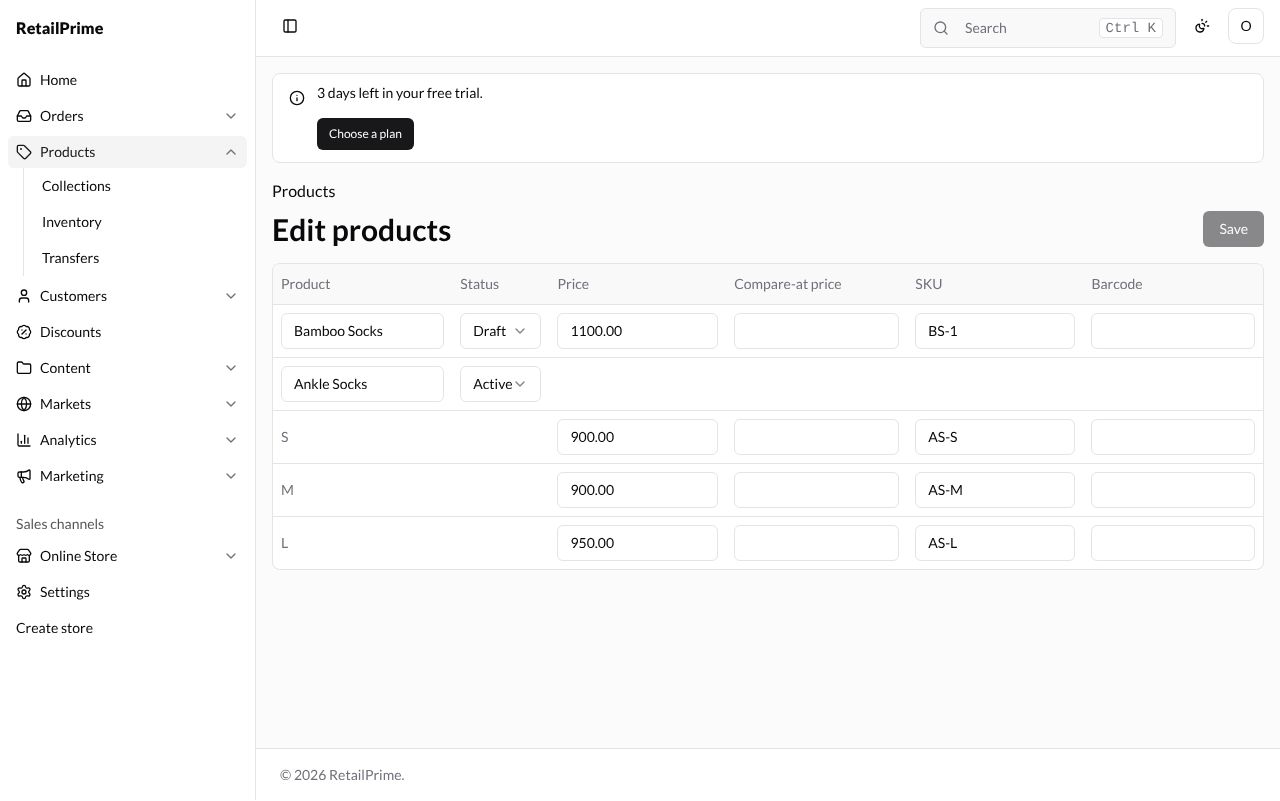 3. Click a box and type the new value. Here we rename **Bamboo Socks** to `Bamboo Comfort Socks` and change the price of **Ankle Socks – L** to `1000`. 4. Changed boxes are outlined, and the top says how many changes are unsaved (**2 unsaved changes; changed cells are outlined.**). 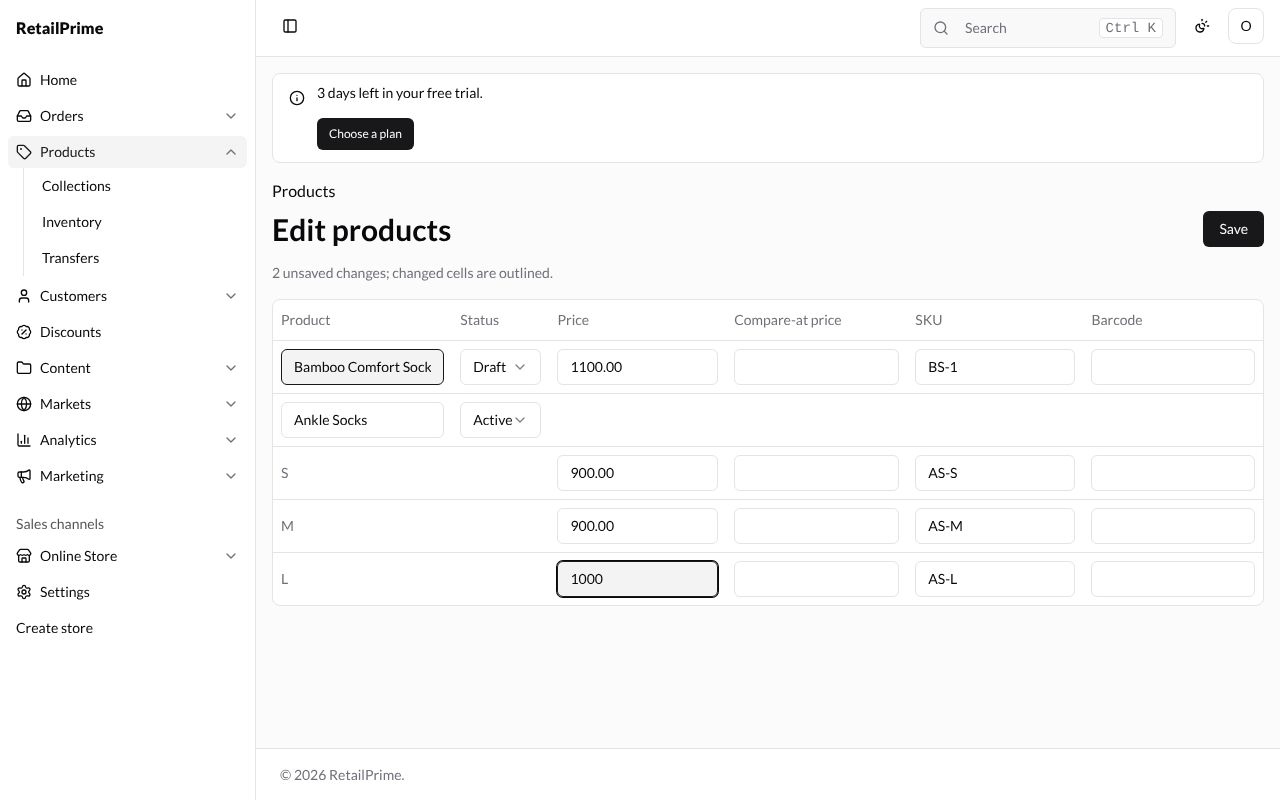 5. Press **Save**. The page says **2 products saved.** 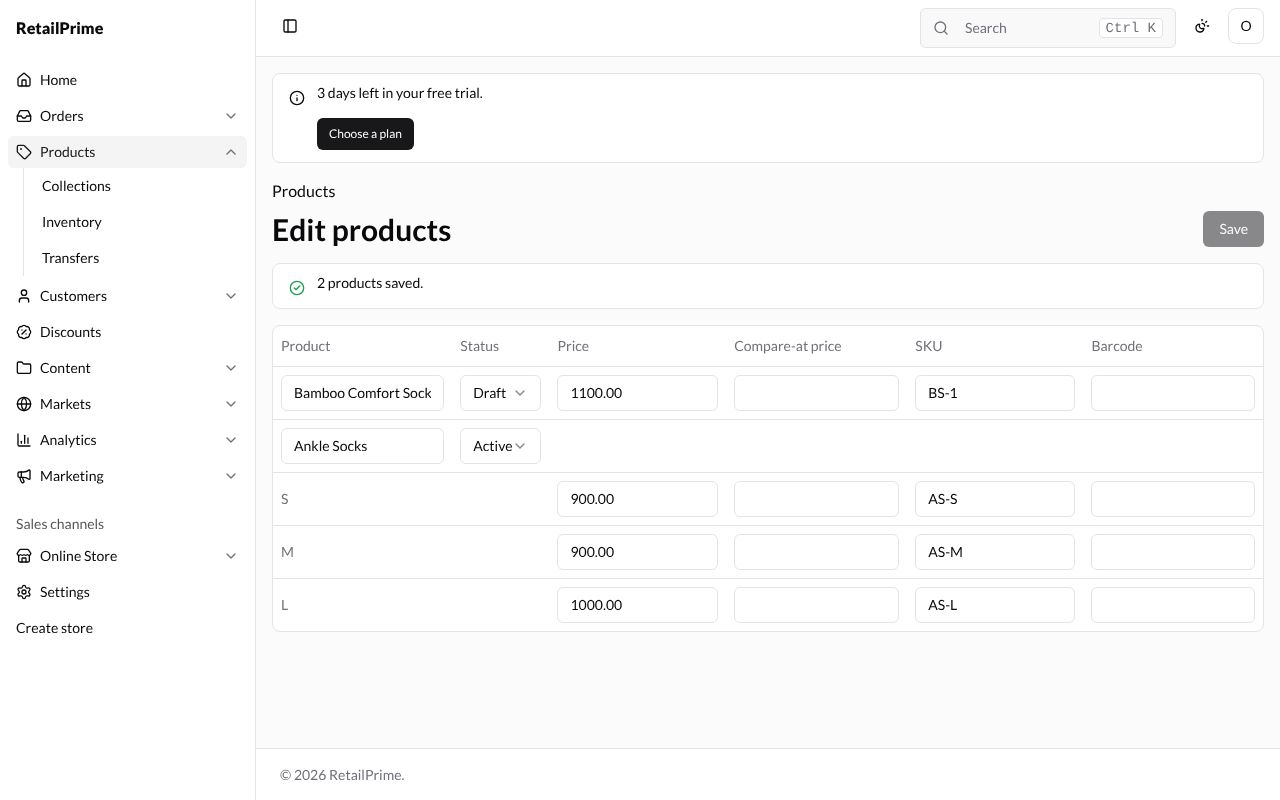 To go back, press **Products** above the page title. ## What's next You have finished products and inventory. Next, part 3: [Add and edit a customer](/orders-and-customers/add-and-edit-a-customer), the first page of orders and customers.